


If your club or district has a Stripe account it would like to use for online payment processing in ClubRunner, it can be added to your account by our Support team.
Please note that Stripe is not available for use in Event Planner and MyEventRunner. Stripe is fully supported for use in Cloud Events, Donations, Dues & Billing, and Nova Financials.
-
To begin, click the Contact Us button at the top of the ClubRunner Support & Knowledgebase above, then select "Payment Account Setup" in the Department field. Alternatively, click this direct link to pre-fill the form with the correct Department field.

-
Add a Subject and Message indicating your club or district information.
-
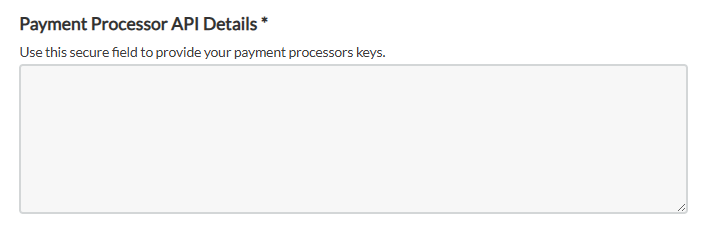
You will see a Payment Processor API Details field which you can use to enter the necessary information to set up the Stripe account. This is a secure field whose data will be deleted after the Stripe account has been added for use. In the secure Payment Processor API Details field, enter the following information:
-
The Stripe account name
-
The preferred currency
-
The live publishable key (begins with pk_live ...)
-
The live restricted key (begins with rk_live ...)
NoteThe Stripe keys are available upon logging in to the Stripe account. You can find more information about Stripe API keys on the following page: https://docs.stripe.com/keys
-
-
Click Submit and our team will get in touch when we have actioned the request, or if we have any questions.