


ClubRunner allows you to set service fees that apply to online payments, which helps your club offset credit card processing fees that are charged by your connected payment provider. Service fees can be set independently for member dues, event registration, and donation campaigns.
If you need assistance connecting a payment provider to your account so you can take online payments, please contact us and we can assist.
This is not the same as “surcharging”, which passes all processing fees on to the customer. This adds on a specific percentage and/or a set dollar amount to the order. You are charged the processing fees based on the total order amount that gets processed by the payment provider.
Skip to a specific section:
Member Dues & General Invoices
This will set a service fee for general or member dues invoices that you issue.
-
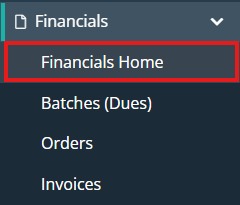
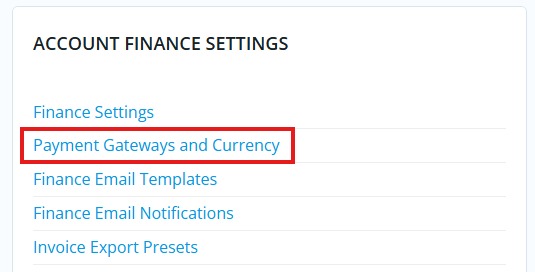
Navigate to Financials -> Financials Home, then under Account Finance Settings click Payment Gateways and Currency.
-
Click the Service Fees tab at the top of the page.

-
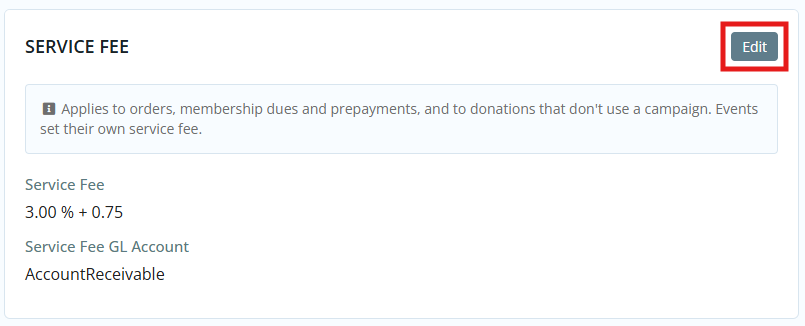
On the page that follows, click the Edit button in the Service Fee box.
-
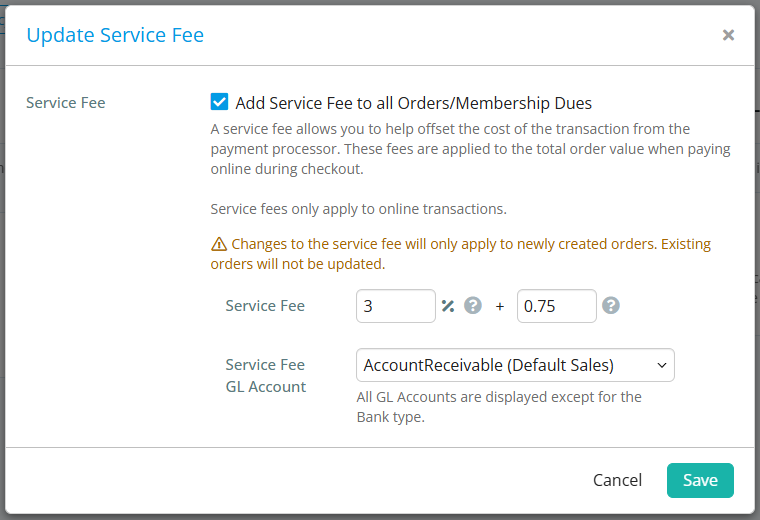
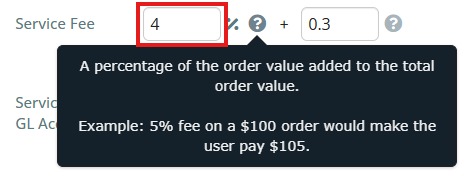
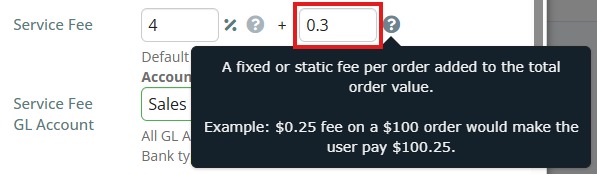
You will now be able to set the service fee which can be a percentage, a dollar amount, or a combination of the two. Click Save to apply your changes.
Percentage:
Dollar Amount:
Donation Campaigns
This will set a service fee for any donations processed through your donation campaigns.
-
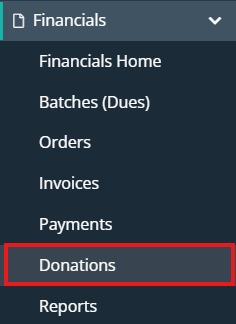
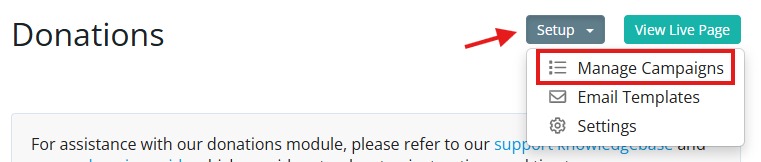
Navigate to Financials -> Donations, then on the main Donations page in the top right-hand corner click Setup -> Manage Campaigns.
-
Here you click Edit beside whichever campaign you want to set the service fee on.
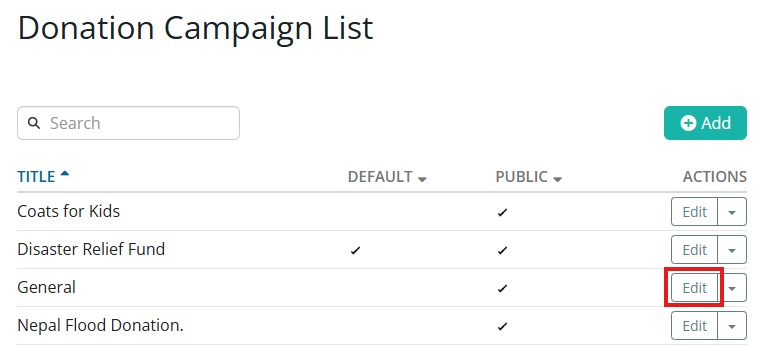
-
On the donation campaign editing screen there is an option to enable the service fee, which can be a percentage, a dollar amount, or a combination of the two. Click Save to apply your changes.
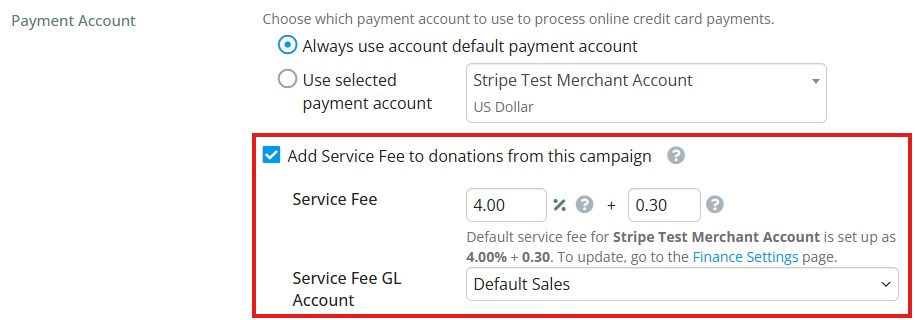
Percentage:
Dollar Amount:
Cloud Events
This will set a service fee for any registrations on Cloud Events.
-
Navigate to Events -> Cloud Events, then click Manage on the specific event you’d like to set the service fee on.
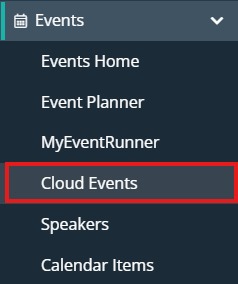
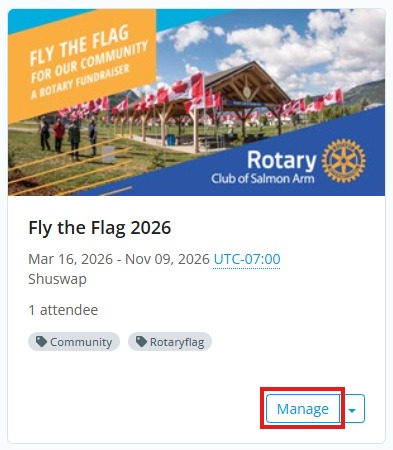
-
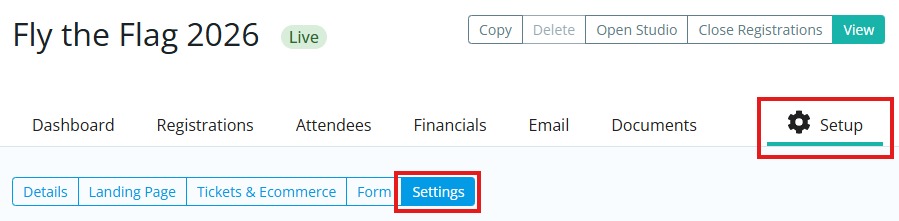
Now on the specific event page, click Setup and then go to the Settings tab.
-
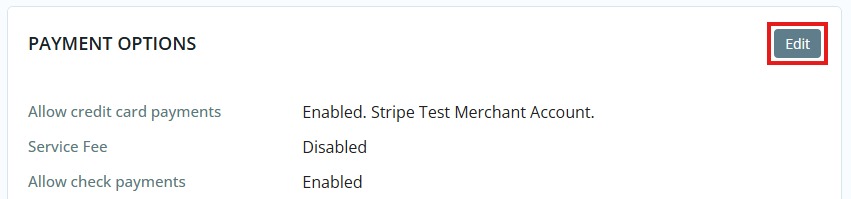
Now click Edit in the Payment Options section.
-
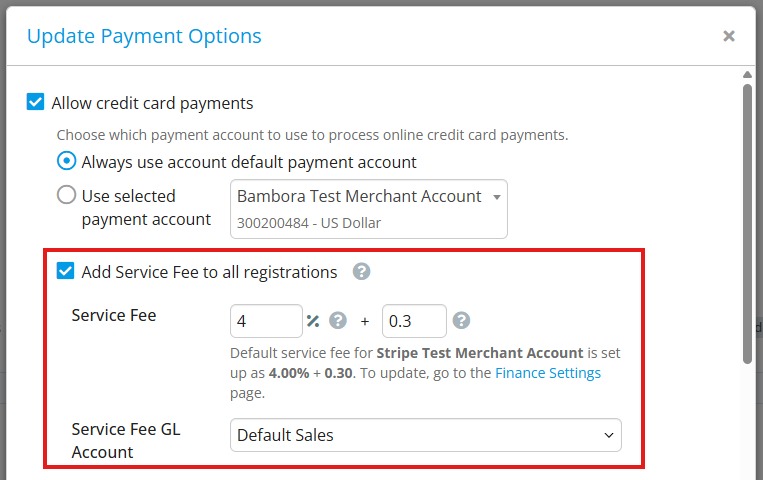
Here you’ll see an option to enable the service fee, which can be a percentage, a dollar amount, or a combination of the two. Click Save to apply your changes.
Percentage:
Dollar Amount: