


Committees produce documents such as meeting minutes, event photos, and information brochures. Your club committees can centralize these documents with ClubRunner.
Quick links:
Navigating to committee documents
Creating a subfolder
Uploading documents
Uploading multiple documents
Navigating to committee documents
-
To begin, log in to your account through your club homepage, then click on Member Area in the top right-hand corner. Alternatively, click here to go directly to the ClubRunner login page.
-
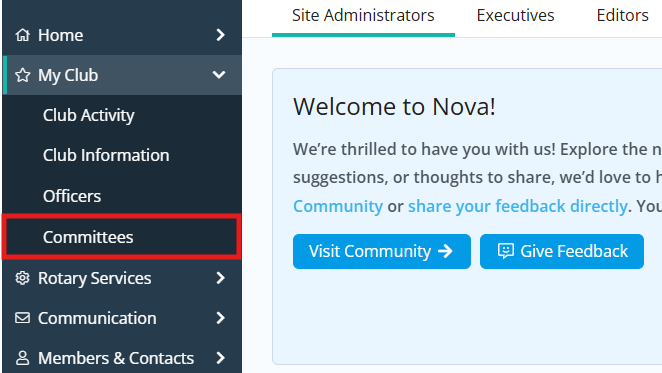
Click the arrow next to My Club in the left-hand navigation menu, then click Committees.
-
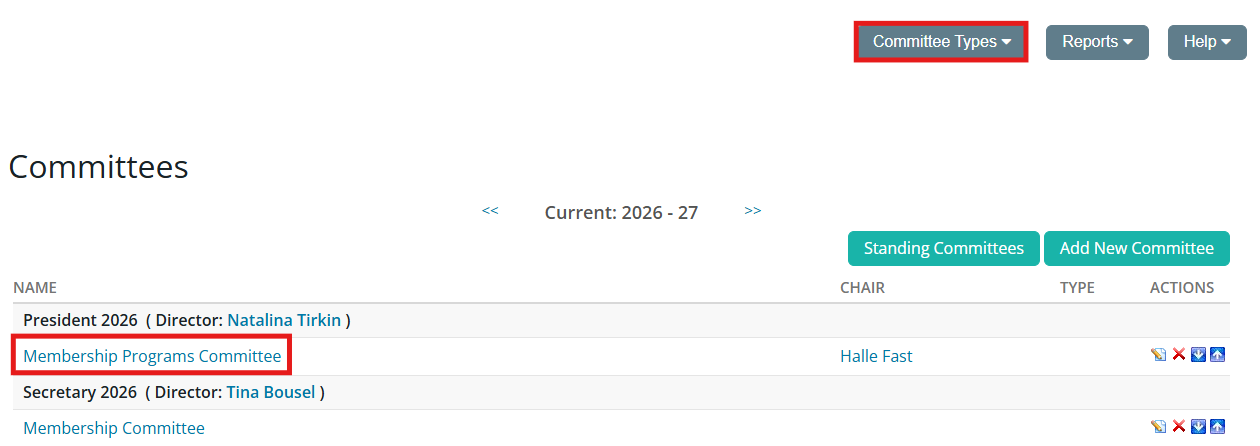
Find the committee you wish to email members of in the list and click on its name. You may need to switch the view between standing and yearly committees using the Committee Types drop-down menu in the top right-hand corner to find the committee you are looking for.
-
Next, click on the tab labeled Documents.

Creating a subfolder
-
Click the folder icon to the right-hand side of the Main folder or another folder to create a nested subfolder.

-
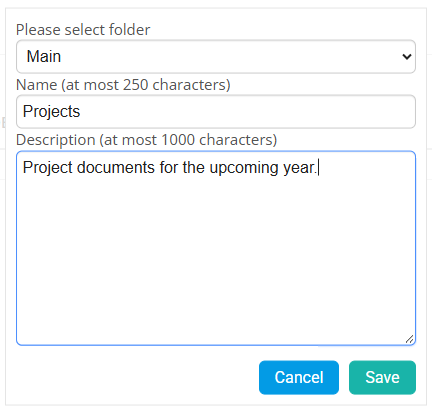
A popup window will display to create the folder. Click the Please select folder drop-down to select the folder to create the new folder in. Otherwise, leave as Main to create the new folder in the Main documents folder.
-
Enter a name and description for the folder, then click the Save button.
-
The folder will be saved to the committee’s documents list. You will see these options for your new subfolder:

-
Folder icon - Create a new subfolder within the folder.
-
File icon - Upload a document to the folder.
-
Multiple file icon - Upload multiple documents to the folder.
-
Pencil icon - Edit the folder’s details (parent folder, name, description).
-
X icon - Delete the folder and all documents within the folder.
-
Down arrow - Move the folder or document down the list.
-
Up arrow - Move the folder or document up the list.
-
Uploading documents
-
Click the file icon to upload a document to the folder.

-
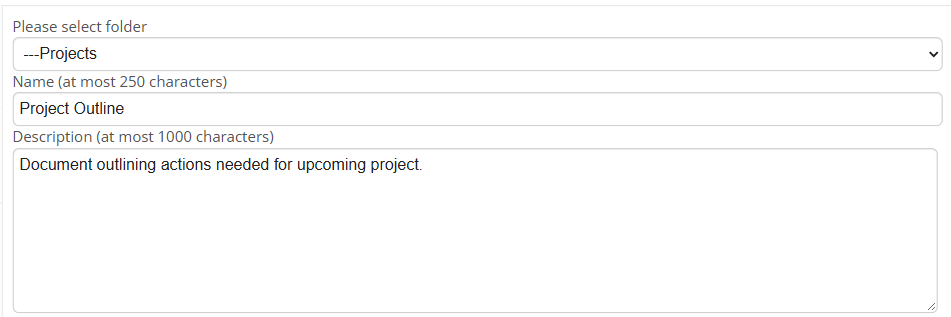
A popup window will display to upload the file. Click the Please select folder drop-down to select the folder to upload the document into.
-
Enter a name and description for the document.
-
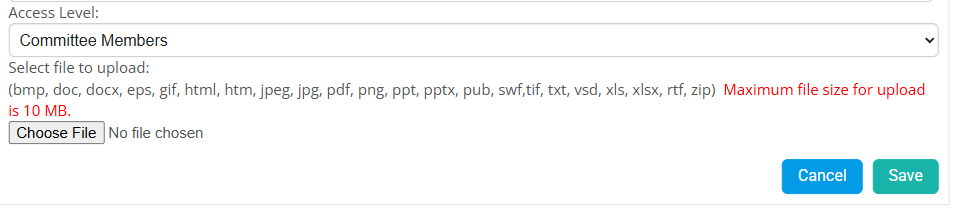
Click the Access Level drop-down to set who is able to access the document. You will have these options:
-
Committee Members - Only members within the committee will be able to download and open the document.
-
Members - Any member of your organization can download and open the document.
-
Public - Anyone with a link to the document can download and open the document.
-
-
Click the Choose File button to select the document to upload. In your device's file explorer, navigate to the document, then click the document and click Open to upload the document. You can also double-click the document to select it for upload.
 Note
The document can be no larger than 10 MB in size. The supported file types are bmp, doc, docx, eps, gif, html, htm, jpeg, jpg, pdf, png, ppt, pptx, pub, swf, tif, txt, vsd, xls, xlsx, rtf, and zip.
-
Click the Save button to save the document to the committee.
-
The document has been uploaded to the folder selected. You will have these options to manage the document:

-
Pencil icon - Edit the document’s details (parent folder, name, description, access level, and file).
-
X icon - Delete the document from the folder.
-
Down arrow - Move the document down one row.
-
Up arrow - Move the document up one row.
-
Clipboard icon - Copy the URL or website address to download the document.
-
Uploading multiple documents
-
Click on the multiple file icon to upload files to the folder.

-
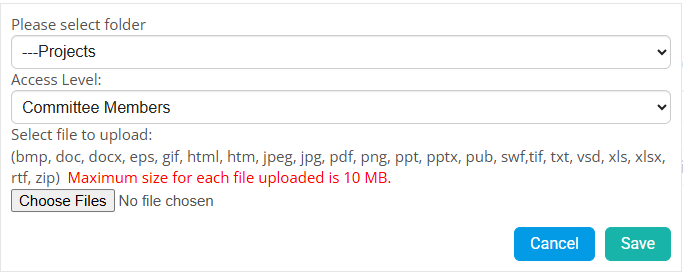
A popup window will display to upload the file. Click the Please select folder drop-down to select the folder to upload the document into.
-
Click the Access Level drop-down to set who is able to access the document. You will have these options:
-
Committee Members - Only members within the committee will be able to download and open the document.
-
Members - Any member of your organization can download and open the document.
-
Public - Anyone with a link to the document can download and open the document.
-
-
Click the Browse button to select the document to upload. In your device's file explorer, navigate to the documents stored on your device. Select any of the files you wish to upload and click on the Open button.
Note
Holding the CTRL key on your keyboard will allow you to select multiple files when you click on them.
-
Click the Save button to save the documents to the committee. You will see the uploaded documents in the list.
