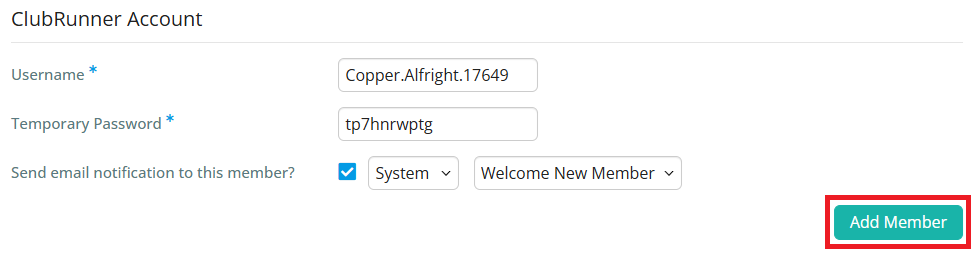
When you recruit a new member, or discover an active member is missing from your database, you can use ClubRunner to add a new member to your Member List. This article goes over the process to add new members or transfer members from other clubs from your district login.
-
To begin, log in to your account through your district homepage, then click on Member Area on the top right-hand corner. Alternatively, click here to go directly to the ClubRunner login page.
-
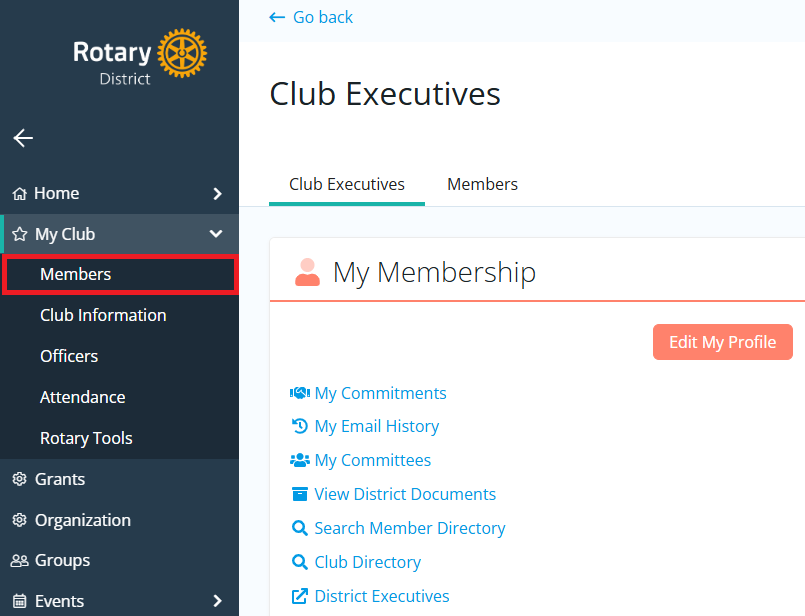
Once inside the members area, click My Club and then Members in the left-hand navigation menu.
-
Above your list of existing members, you will see two buttons: Transfer Member and Add Member. If the member you are adding to your club has any history with Rotary, click the Transfer Member option. If the member does not have any history with Rotary, click the Add Member button.

Transfer Existing Members
-
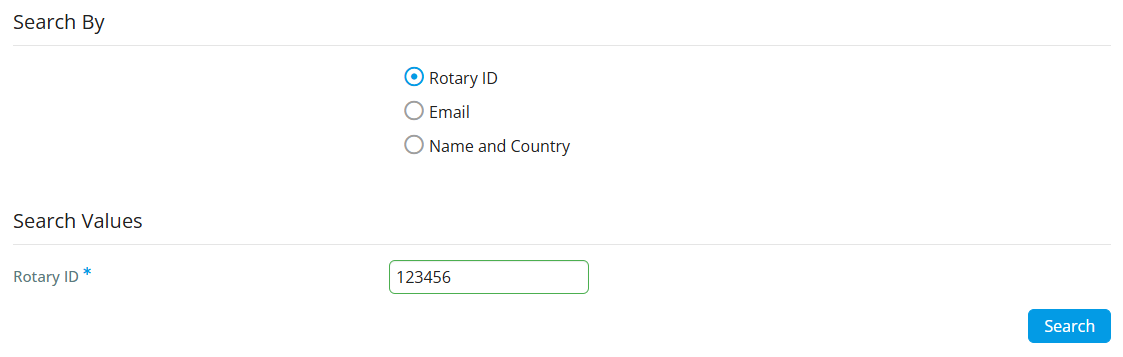
Clicking the Transfer Member button will take you to a page where you can search by the following:
-
Rotary ID - If the person you are adding has provided you with their Rotary ID, you can use the Rotary ID search to confirm they've provided you with the correct ID. Only an individual whose Rotary ID is an exact match will be returned.
-
Email - Search for an individual by their email address. Only an individual whose email is an exact match will be returned.
-
Name & Country - Search for an individual with their First Name, Last Name, and Country. Individuals will be returned to you based on the start of their name. This means that searching for a name like Zach Smith would return persons like Zachary Smithfield.
-
-
Select your search type and values, then click Search. Any results will be displayed below the search box.
 Note
NoteIf a member has an active relationship with another club, you will not be able to add them to your membership at Rotary International. You can still add the member in ClubRunner, but the integration will not be successful.
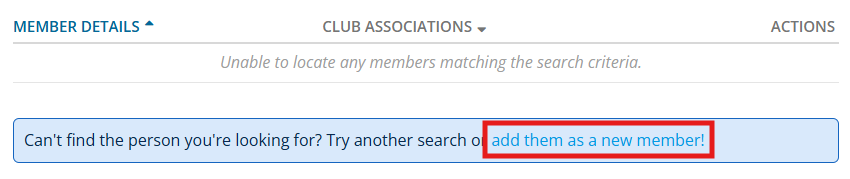
If you are unable to find a matching member, you may try another search type, or you can click add them as a new member in the info box below to go directly to the Add New Member form.
-
Once you have found a matching member, click Add Member in the search results.
-
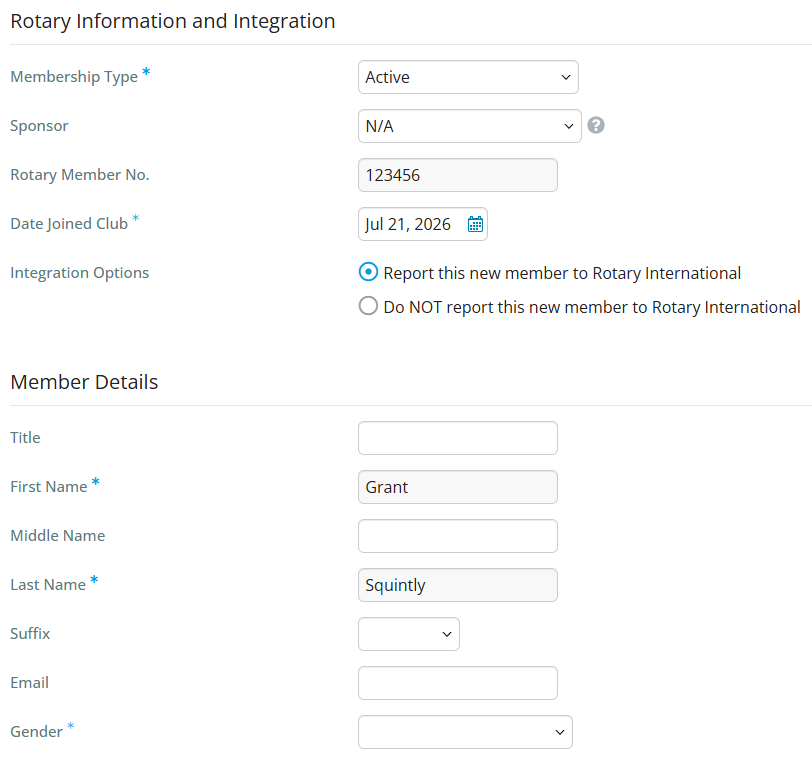
This brings you to a Transferring Member form which pre-loads the new member's information. You may add additional details or update the pre-filled information for the member as necessary.
 Note
NoteInformation that would cause problems during the transfer will be locked from editing. This includes the member's Full Name and Rotary ID.
-
Review the details on the form and fill in any details to complete the member transfer. Fields with an asterisk are required.
-
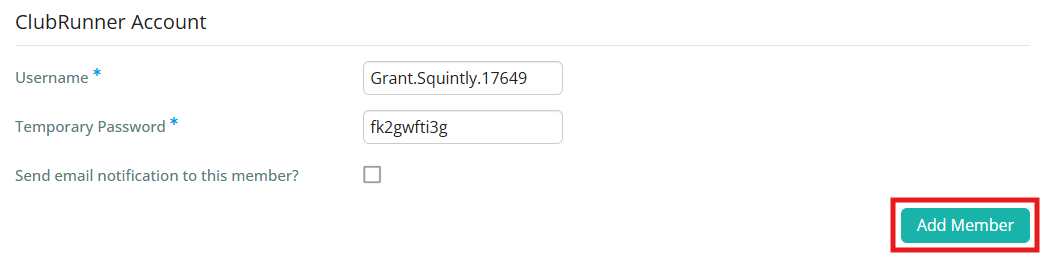
When you're done, click Add Member at the bottom of the page to save the new member to your club's active members list.
Add New Members
-
Clicking the Add Member button will take you through the steps to add a new record. The first step is to select the type of record to add: Member, Other User, or Past Member.

-
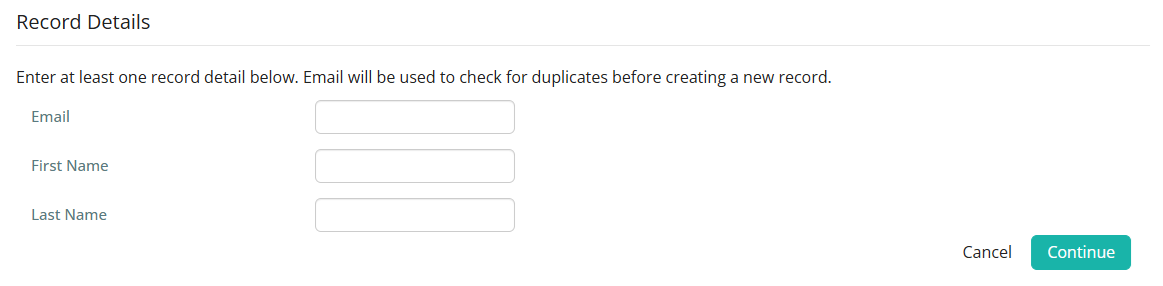
Next, enter in the basic details of the member you're adding, then click Continue.
-
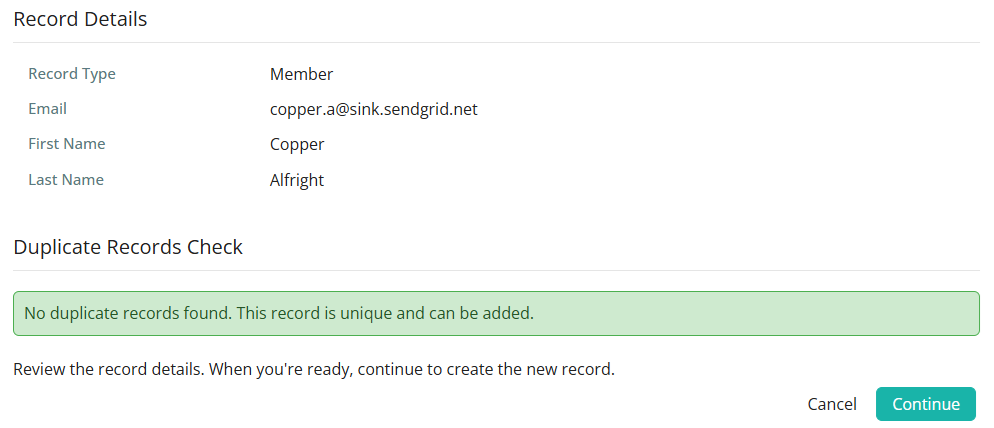
The system will search your members to make sure there aren't any existing records that match the data you provided. If duplicate records are found that share the same email address, you can choose to edit one of the existing profiles or change the member status by clicking the Actions drop-down beside each duplicate match.
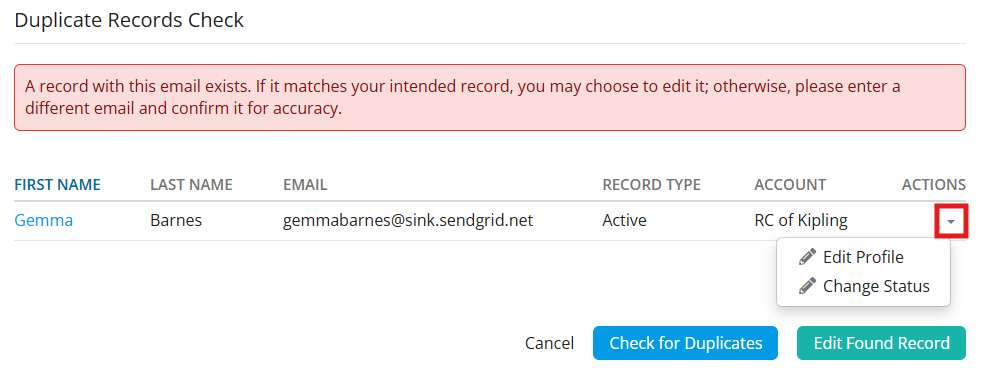
If there are no duplicates found or the results don't match the member you wish to enter, click Continue to proceed to add the new user record.
-
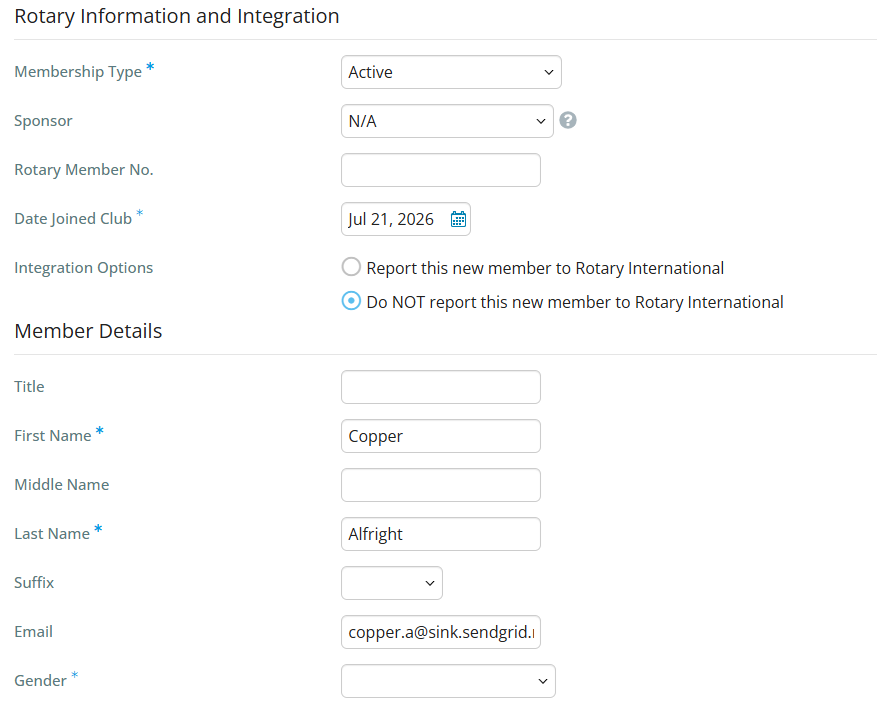
You'll now enter their membership type, sponsor, Rotary member number, club join date, and if you want to report them to Rotary International or not.
 Note
NoteRotary International requires that the Date Joined Club must be within the last 30 days. This date cannot be in the future, only the current date or earlier.
-
Review the details on the form and fill in any details to complete the member transfer. Fields with an asterisk are required.
-
When you're done, click Add Member at the bottom of the page to save the new member to your club's active members list.