


District roles (or member access rights) determine how much information members can see on the district website and how much edit access they have. Only users with the District Administrator role can manage other members' district roles.
-
To begin, log in to your account through your district homepage, then click on Member Area in the top right-hand corner. Alternatively, click here to go directly to the ClubRunner login page.
-
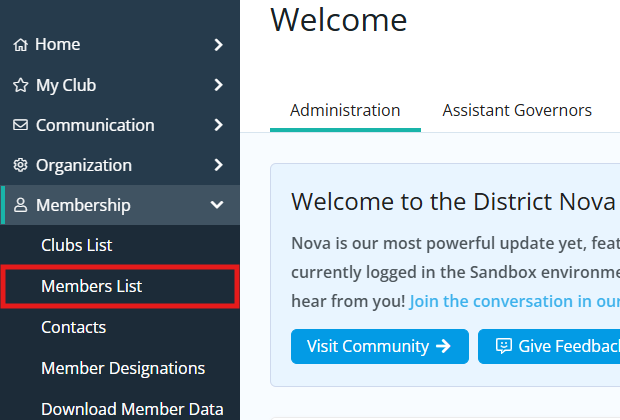
Navigate to the profile of the member you wish to edit district roles for. You may do so by clicking the arrow next to Membership in the left-hand menu, then clicking Members List and locating the member profile in the list.
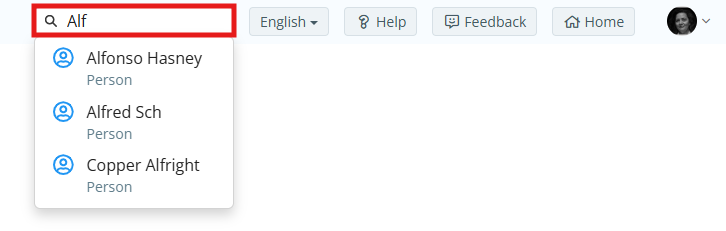
You may also quickly access any member's profile by using the search bar at the top of the page then clicking on the name result.
-
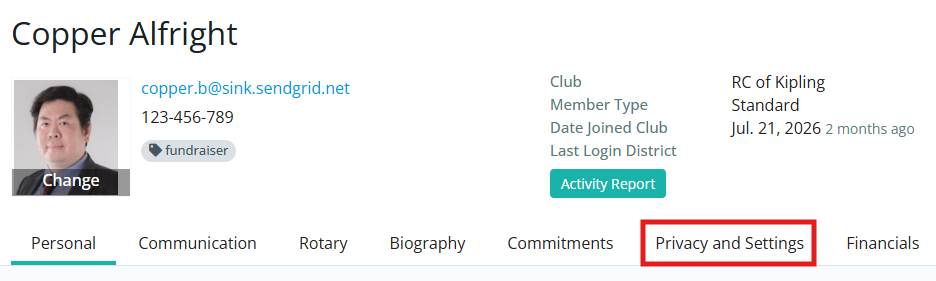
Click the Privacy and Settings tab of the member's profile.
-
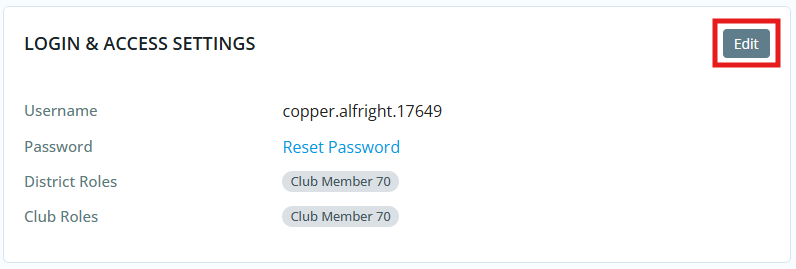
In the Login & Access Settings section, click the Edit button in the top right-hand corner.
-
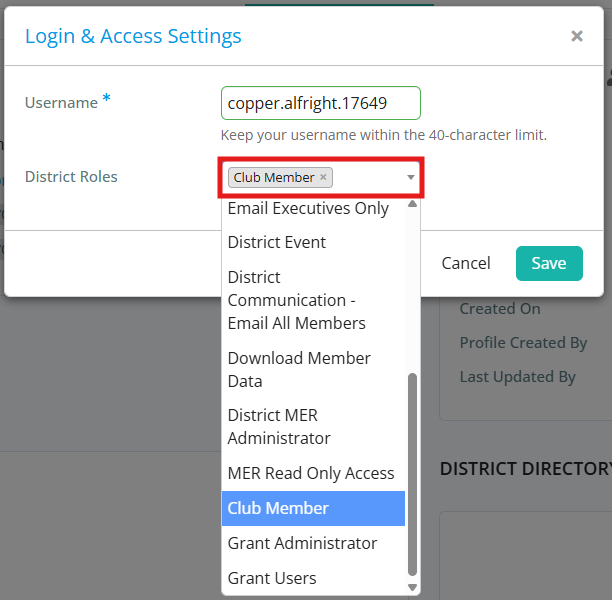
Click the District Roles drop-down and select a role from the list to be assigned to this member. You may select as many roles as needed, then click Save to apply the changes.
To review what each district role gives access to, please read: Introduction to district access rights