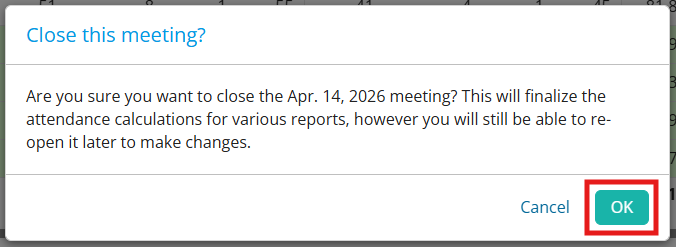
When you close a meeting, you submit it to your district and can no longer make changes to the attendance or rules. Closing a meeting is needed in order to finalize the attendance calculations for various reports. You always have the option to re-open the meeting at a later date if you need to make changes.
This support article will show you how you can close or re-open meetings in the Attendance module.
-
Log in to your account through your club homepage, then click on Member Area on the top right-hand corner under your club banner. Alternatively, click here to go directly to the ClubRunner login page.
-
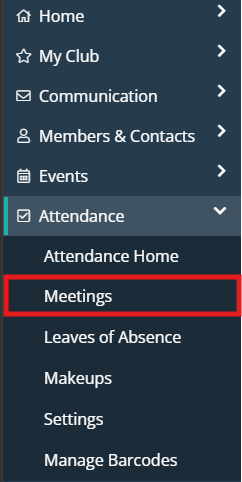
In the left-hand menu navigation, click the arrow beside Attendance and then click Meetings.
-
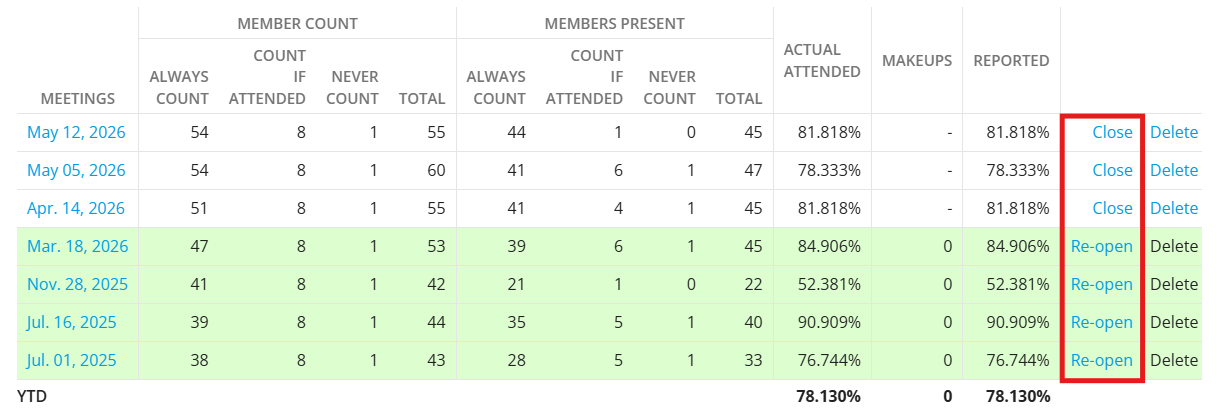
You will see a list of the existing meetings for the year. Closed meetings are highlighted in green, while open meetings are in white. Find the meeting you wish to close or re-open and click either Close or Re-open in the right-hand column.
-
A prompt will appear asking to confirm the chosen action, and outlining how it will impact attendance calculations and reports. Click OK to confirm your selected action.