


Creating custom pages is a great way to customize your website and display additional content on secondary pages. With the Website Live Designer, you can customize these pages in the same fashion as your website homepage!
The level 60 - Editor access level is required to create custom pages.
-
Log in to your account through your club homepage, then click on Member Area on the top right under your club banner. Alternatively, click here to go directly to the ClubRunner login page.
-
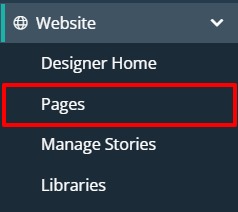
On the left-hand menu, click the arrow to the right-hand side of Website, then click on Pages.
-
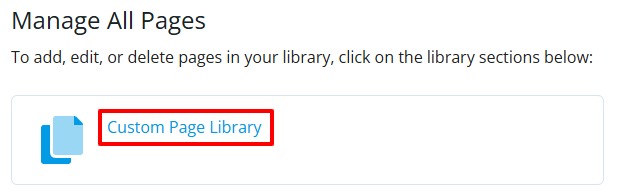
You are now on a screen where you can choose to create a custom or site page. To create a custom page click on Custom Page Library.
-
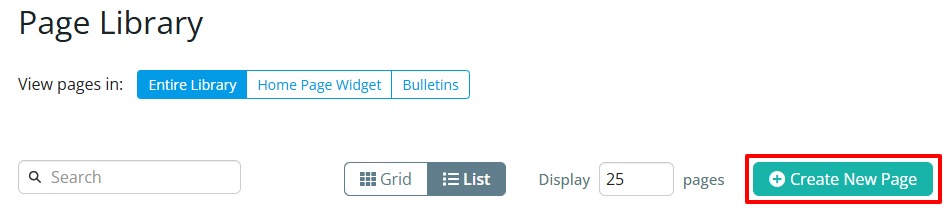
All of your current custom pages will be listed on this screen. To create a new one, click the Create New Page button on the right-hand side of the page above the list.
-
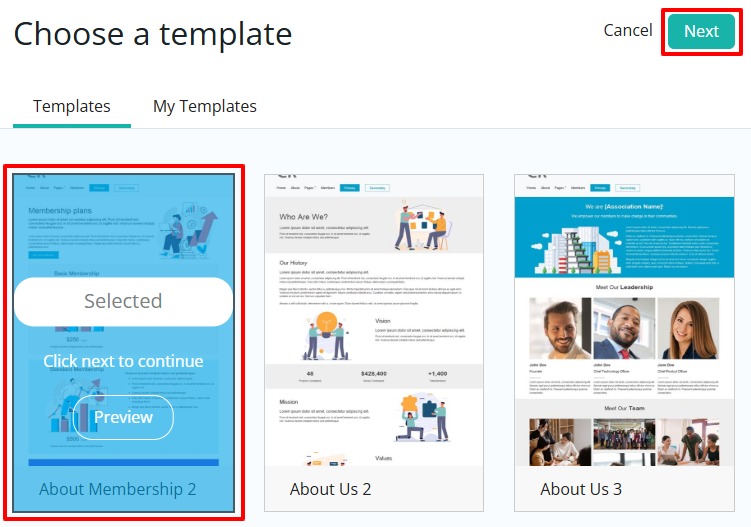
From here, you can select one of the available templates as a starting point for your new custom page (there is a blank template option for those who want a clean slate to work with). Click the template you would like to use to select it (you can click Preview to open a preview of what it will look like), then click on the Next button located on the right-hand side at the top or bottom of the page.
-
This will open up your new custom page within the website live designer using your selected template as a starting point.
-
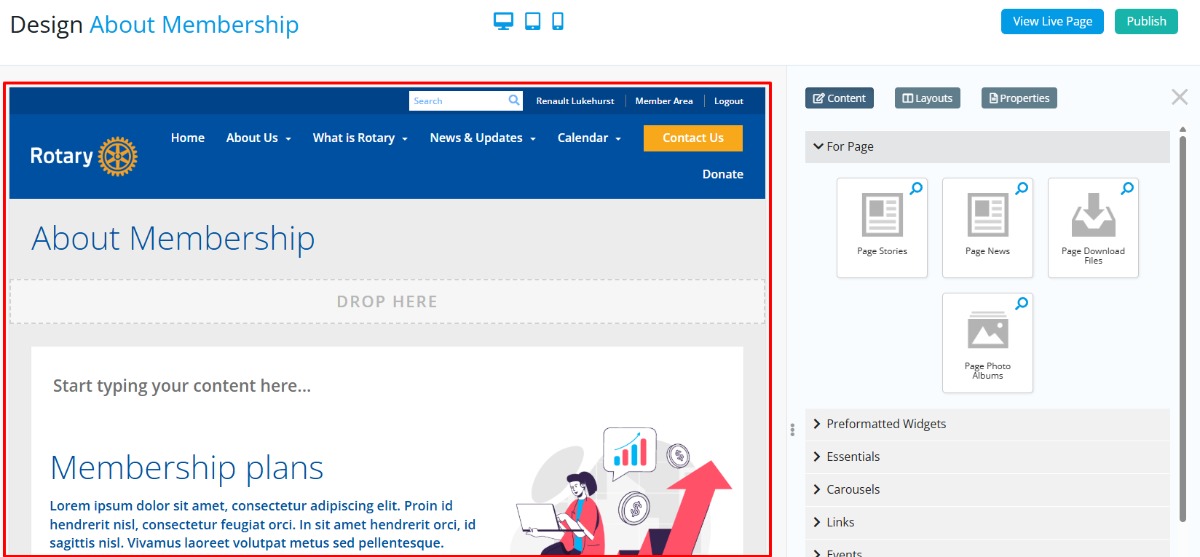
On the left-hand side, you will see the live preview of your custom page.
-
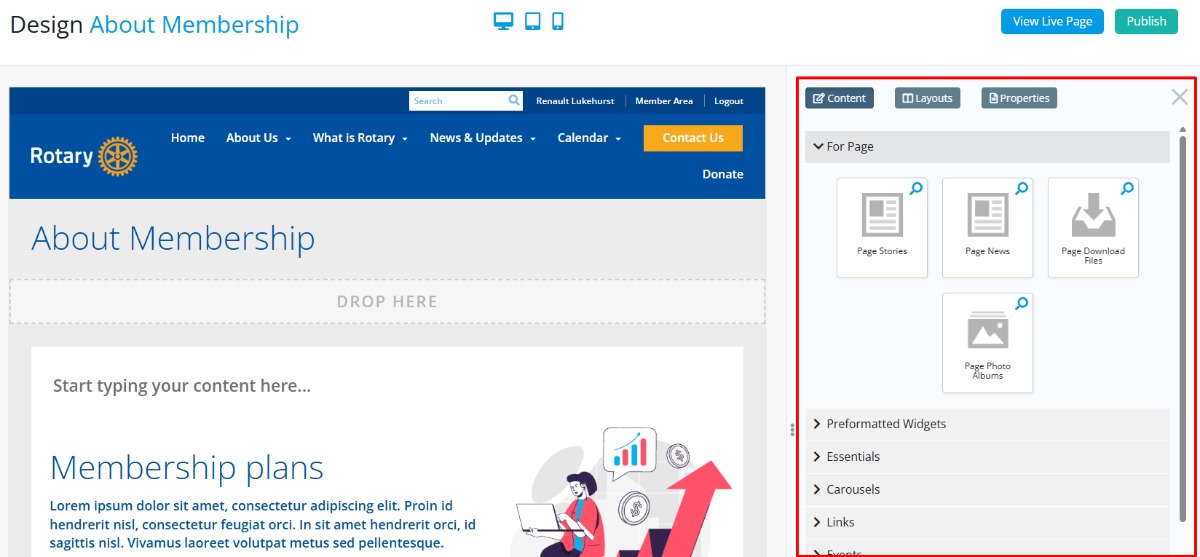
On the right-hand side, you will find your content options, including widgets, layouts and properties for your custom page.
-
For more information on how to use the website live designer, please see our Website Live Designer basics video tutorial.