


The Attendance module can be used to create meeting makeups for club members, to ensure they get full credit for their attendance.
This support article will show you how to create makeups for one or many members of your club.
-
To begin, log in to your account through your club homepage, then click on Member Area on the top right-hand corner under your club banner. Alternatively, click here to go directly to the ClubRunner login page.
-
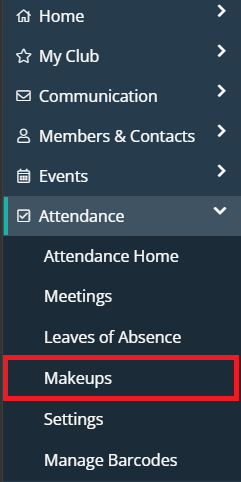
In the left-hand menu navigation, click the arrow beside Attendance and then click Makeups.
-
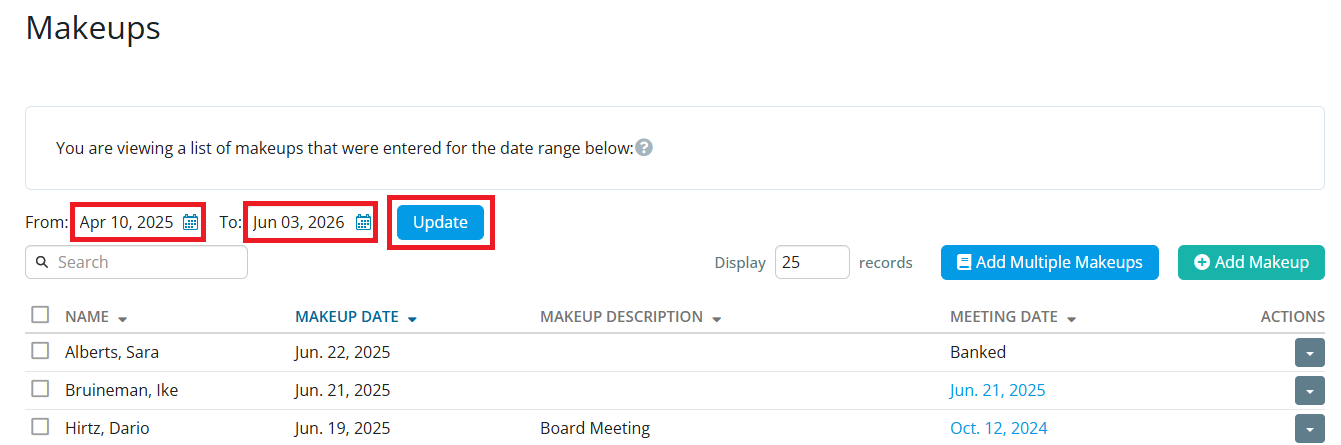
This brings you to the Makeups screen, where you will see any existing makeups. By default, the page will display the last two months of makeups. You can view older makeups by editing the date range and clicking Update.
Adding a Single Makeup
-
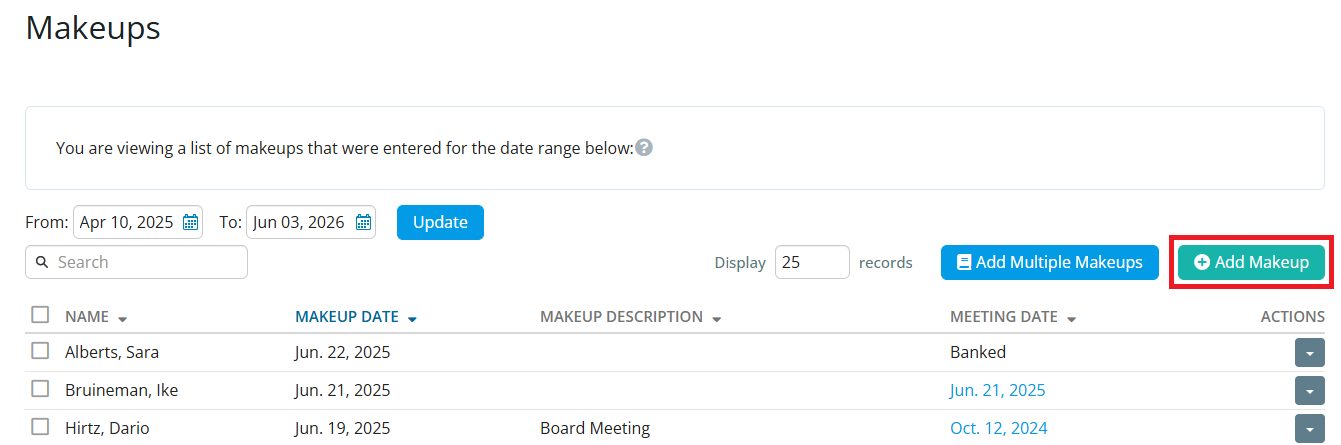
To add a single makeup for a single member, click the Add Makeup button.
-
Select an existing member from the dropdown field. You may click on the Show Inactive Members checkbox if you need to indicate that a terminated member has completed a makeup.

-
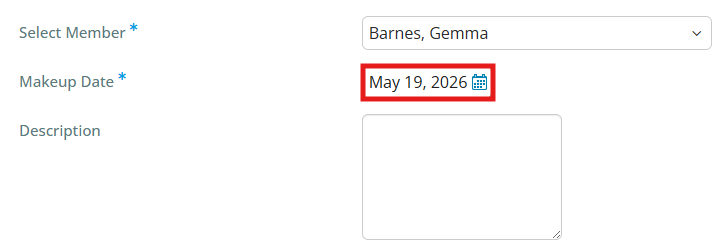
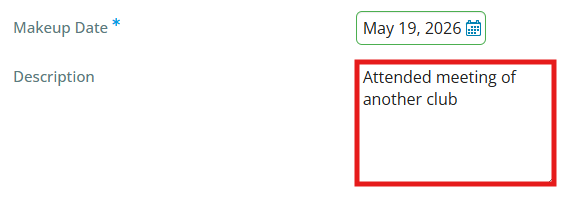
By default the Makeup Date will populate with current date. You can change this by clicking on the date field and selecting a new date. This date indicates which date the member performed the makeup.
-
If you wish, you may enter a Description of the makeup.
-
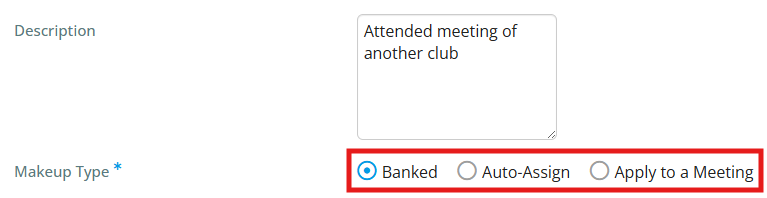
Next is the Makeup Type field. Here you have three options to choose from:
-
Banked - Banking a makeup will save the makeup so the member can apply it later to a future meeting.
-
Auto-Assign - Will automatically assign the makeup to the oldest meeting based on the Rotary International two week rule or the rule in the the attendance settings. If the makeup cannot be applied because the member attended the meetings within the attendance rule, it will be saved as a banked makeup instead.
-
Apply to a Meeting - Gives you the option to select the meeting that you want the makeup to apply to. You may apply makeups to open or closed meetings.
-
-
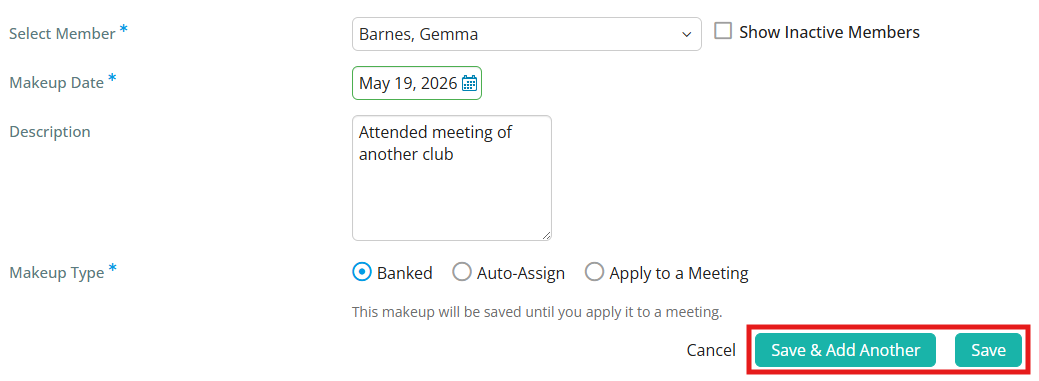
Once you have entered the makeup details, click Save to add the makeup and return to the previous screen. Click Save & Add Another if you wish to add another makeup for the member.
Adding Multiple Makeups
-
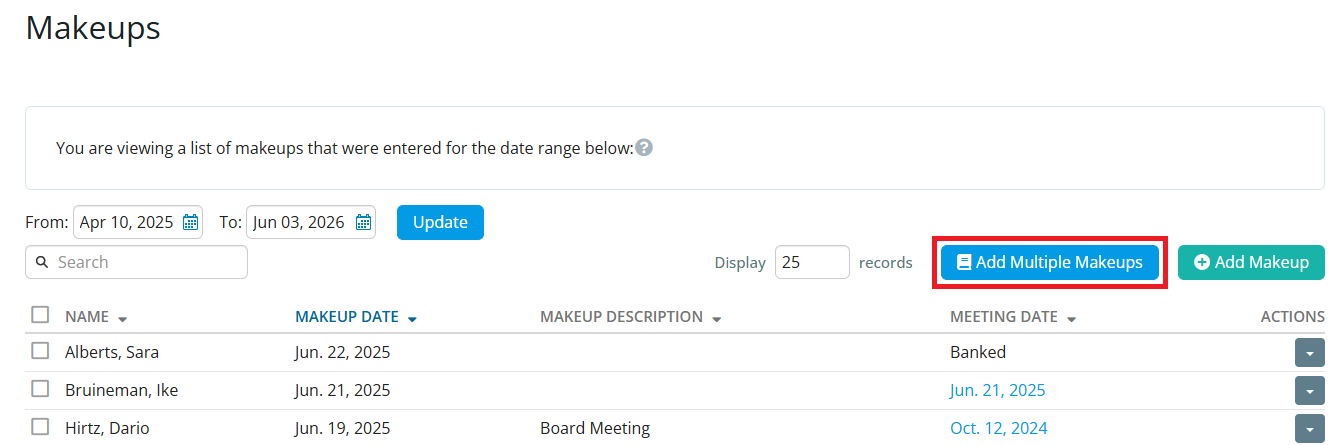
You may add makeups for several members at once by clicking Add Multiple Makeups.
-
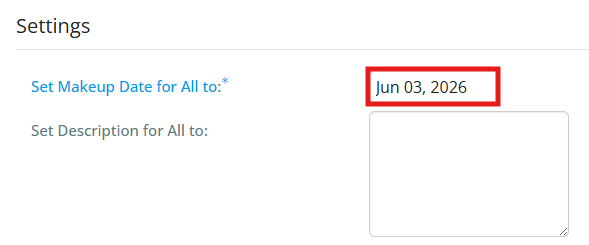
By default the Makeup Date will populate with current date. You can change this by clicking on the date field and selecting a new date. This date indicates which date the members performed the makeup. You must select a single date for all the member makeups.
-
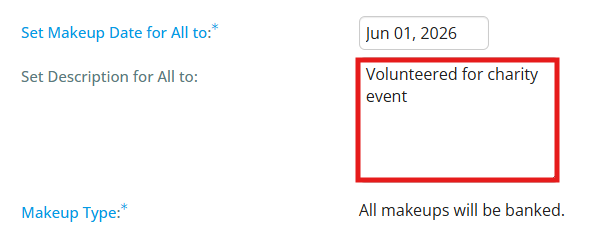
Next, you may enter a description to apply to all the new makeups. In the case of multiple makeups, all makeups will be banked.
-
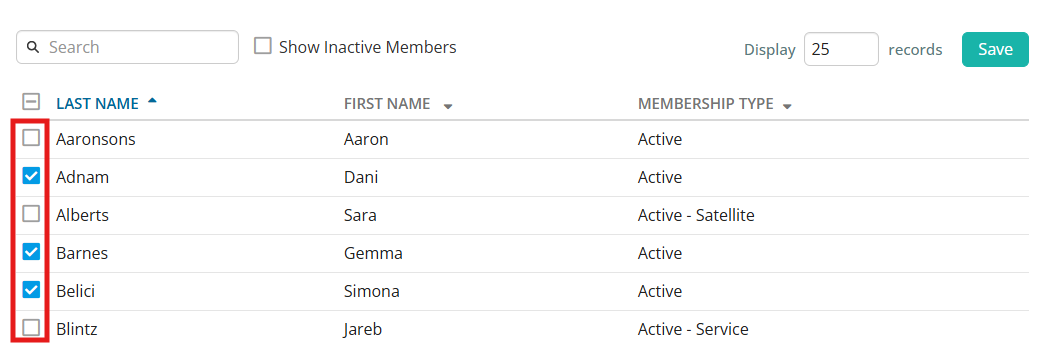
You will see a list of your active members, and may choose to include inactive members by clicking on the Show Inactive Members checkbox. Select the members to whom you wish to apply the makeups by clicking on the checkbox beside their names.
-
When you're finished, click Save.