


The Attendance module can be used to track all your attendance details for club meetings, and automatically forwards this information to your district if your district has ClubRunner.
This support article will show you how you can create meetings to log attendance for.
-
Log in to your account through your club homepage, then click on Member Area on the top right-hand corner under your club banner. Alternatively, click here to go directly to the ClubRunner login page.
-
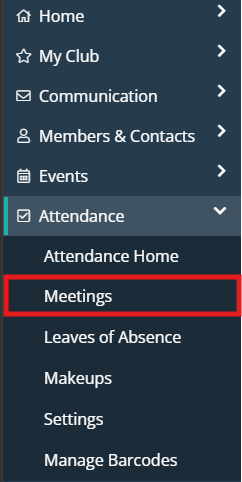
In the left-hand menu navigation, click the arrow beside Attendance and then click Meetings.
-
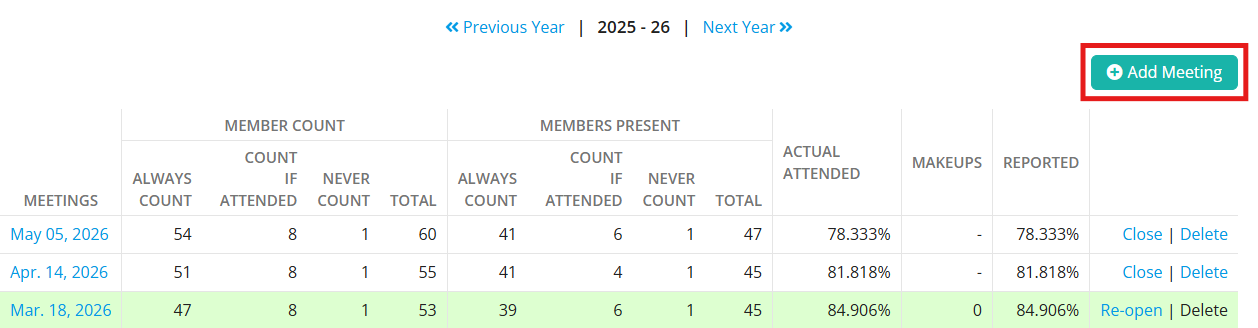
You will see a list of the existing meetings for the year. Click the Add Meeting button in the top right-hand corner.
-
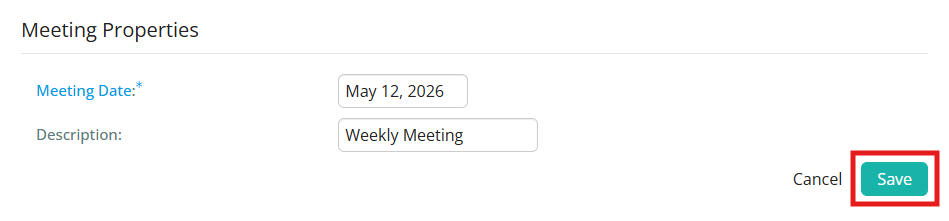
On the Add New Meeting screen, enter the Meeting Date and the optional Description in the fields provided, then click the Save button.
-
The meeting has now been successfully added to your list of current year attendance meetings.

When you have more than 5 meetings open, you will see a helpful message on your Meetings page to remind you that open meetings will not appear in any reports or calculations.