You may have to delete or unassign a makeup due to an attendance error, or to bank a makeup for future use.
This support article will show you how to delete or unassign a makeup from a meeting.
-
Log in to your account through your club homepage, then click on Member Area on the top right-hand corner under your club banner. Alternatively, click here to go directly to the ClubRunner login page.
-
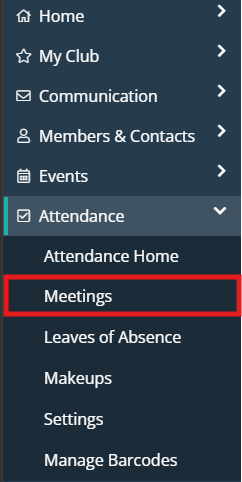
In the left-hand menu navigation, click the arrow beside Attendance and then click Meetings.
-
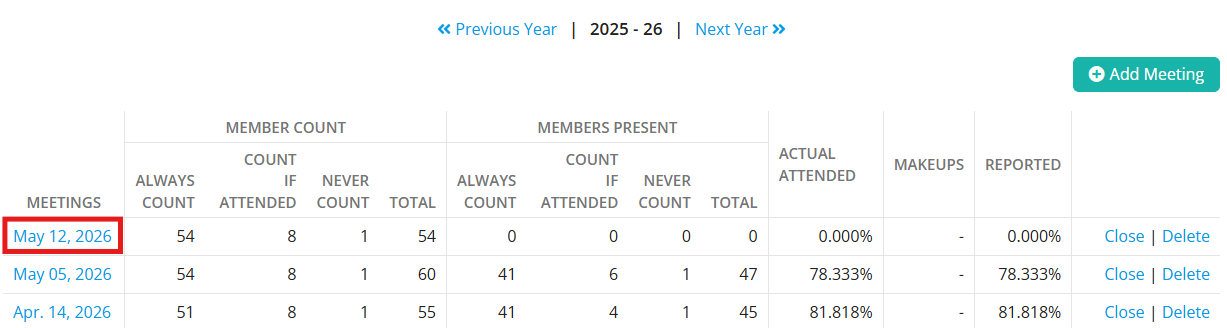
You will see a list of the existing meetings for the year. Click on the date of the relevant meeting.
-
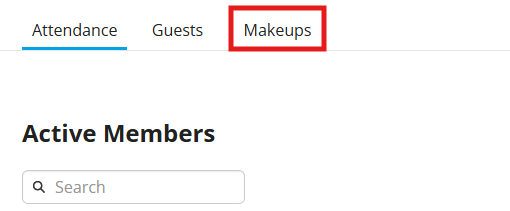
To indicate that a member has made up the meeting elsewhere, click on the Makeups tab.
-
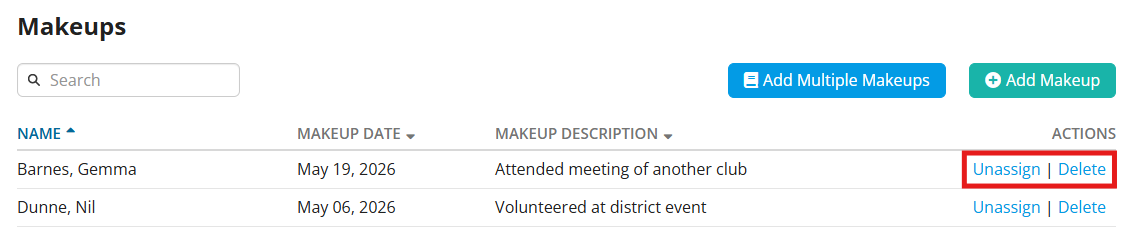
In the list of assigned makeups, click the Unassign or Delete options.
-
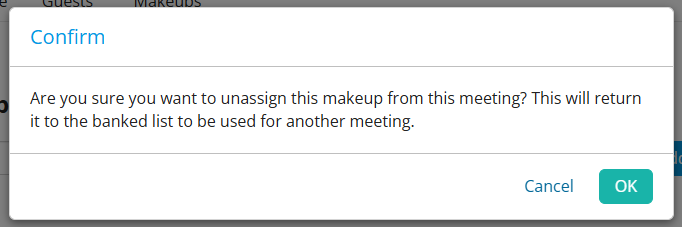
You will see a window asking to confirm your chosen action. If you are sure you wish to unassign or delete the makeup, click OK.