


Recipient profiles are standardized "to" email addresses that can be re-used for any emails generated within the system. The profile includes the reply-to name and email address to which the email recipient can reply back from their inbox. You can set up multiple recipient profiles and choose a default recipient for club communications.
To set up recipient profiles, follow these steps:
-
Log in to your account through your club homepage, then click on Member Area in the top right-hand corner. Alternatively, click here to go directly to the ClubRunner login page.
-
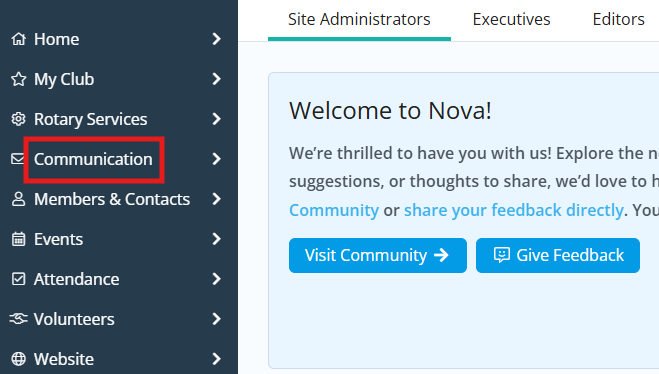
Click Communication in the left-hand menu.
-
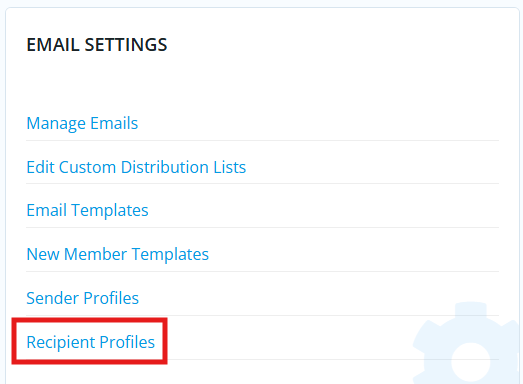
Click Recipient Profiles in the Email Settings section.
-
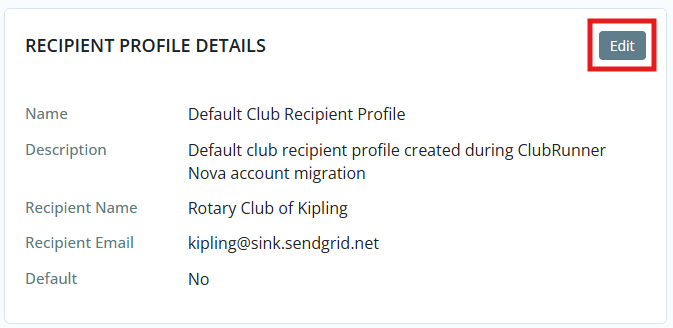
Click the drop-down arrow icon to the right-hand side of any recipient profile, then click View. Next, click the Edit button in the Recipient Profile Details section to edit this recipient profile.
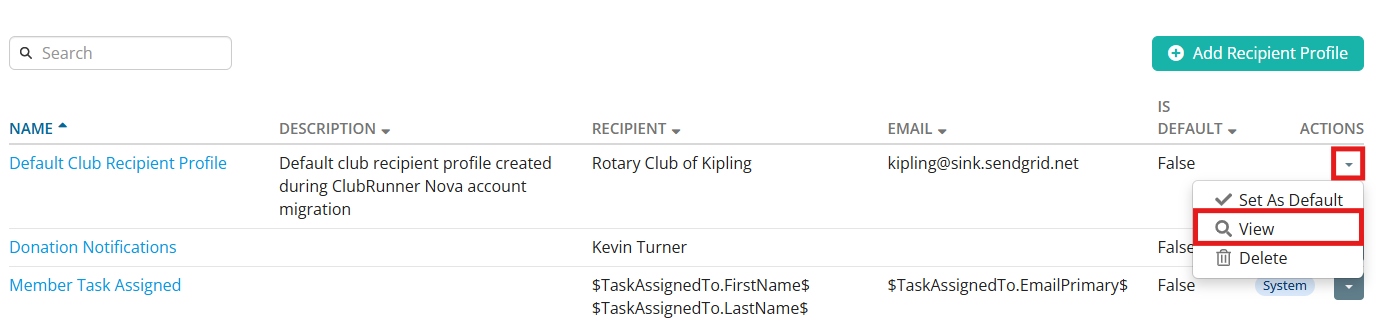
You may also click Add Recipient Profile to create a new profile to add to the existing list.
-
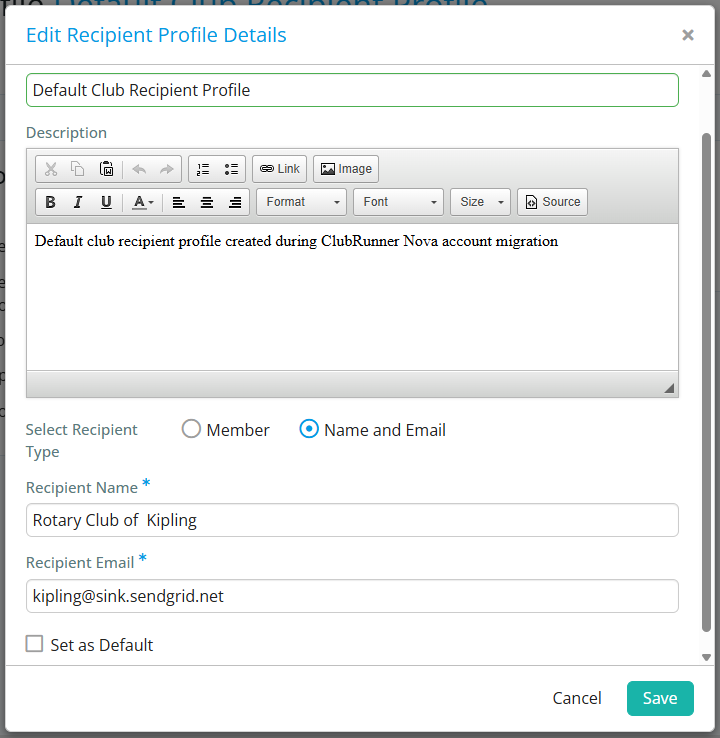
You can update the information here and may select a member or other name and email to set as the recipient. If you check “Set as Default” this recipient profile becomes the default recipient for all triggered emails that do not have a specific recipient profile set.
-
Click Save to save your changes.
-
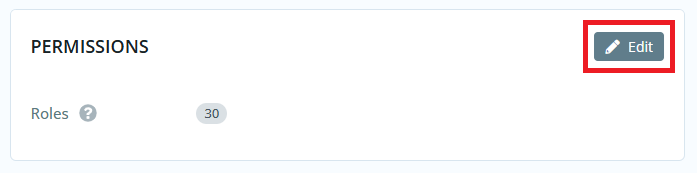
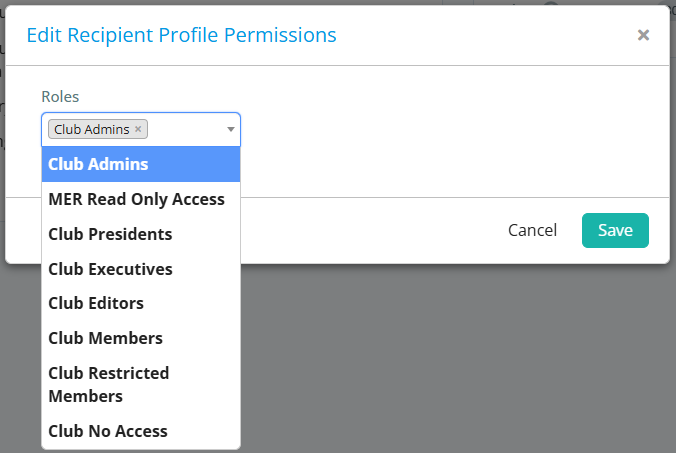
You may click Edit in the Permissions section to select which member roles will be able to use this recipient profile. Click Save when finished.
-
You’ll now be able to select these recipient profiles in various modules of the members area.