For Rotary customers who have integration service enabled, you can use the Transfer Member tool to add members to your club, or to confirm a member's Rotary details before adding them into ClubRunner.
This support article will show you how to use the Transfer Member tool for your club.
-
Log in to your account through your club homepage, then click on Member Area in the top right-hand corner. Alternatively, click here to go directly to the ClubRunner login page.
-
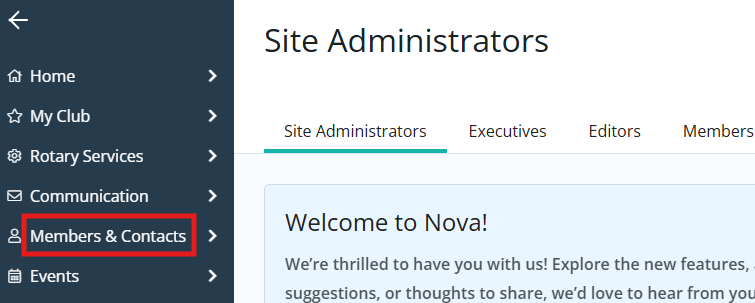
Click Members & Contacts in the left-hand navigation menu to navigate to the Members page.
-
Click the Transfer Member button above the list of members.

-
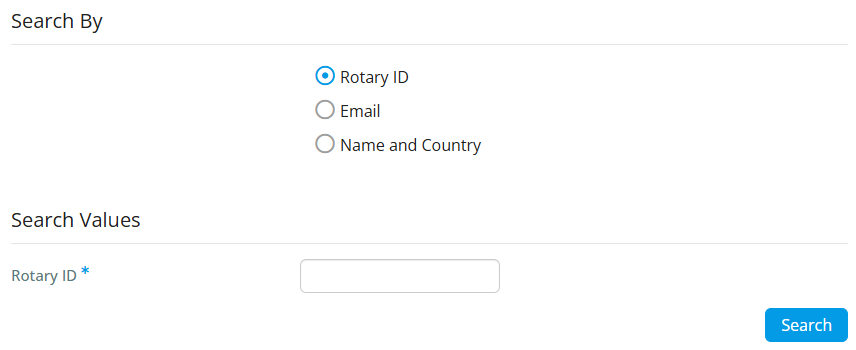
On the following page you can search by the following options:
-
Rotary ID - If the person you are adding has provided you with their Rotary ID you can use the search to confirm they've provided you with the correct ID. Only an individual whose Rotary ID is an exact match will be returned.
-
Email - Search for an individual with their email address. Only an individual whose email is an exact match will be returned.
-
Name & Country - Search for an individual with their First Name, Last Name, and Country. Individuals will be returned to you based on the start of their name. This means that searching for a name like Zach Smith would return persons like Zachary Smithfield.
-
-
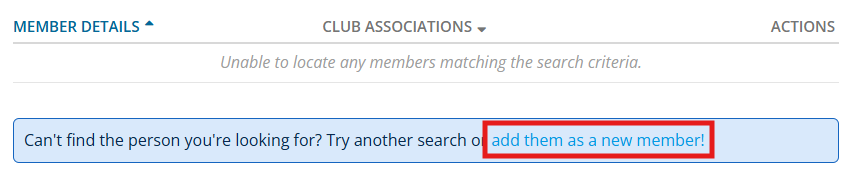
Now that your search type and values have been entered click Search. Your list of results if any will be displayed below the search values box. If you were unable to find a matching member, you may wish to return to search by another search type, or click the add them as a new member in the info box below to go directly to the Add New Member Form.
 Note
If a member has an active relationship with another club, you will not be able to add them to your membership at Rotary International. You can still add the member in ClubRunner, but the integration will not be successful.
-
Once you have found a matching member, click on the Add Member in the search results.

-
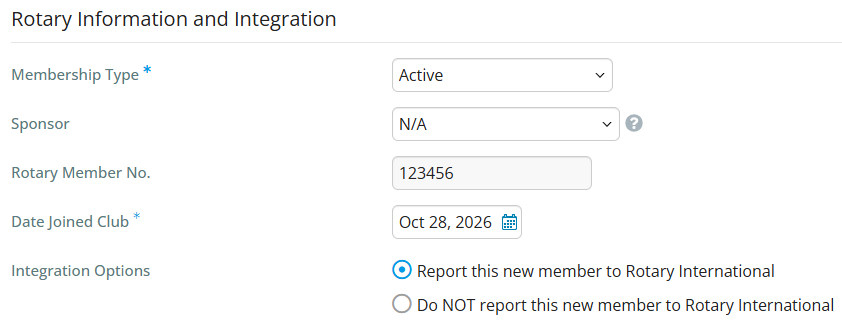
This brings you to a Transferring Member form which pre-loads the new member's information. You may add additional details or update the pre-filled information for the member as necessary.
 Note
Information that would cause problems during the transfer will be locked from editing. This includes the member's Full Name and Rotary ID.
-
Review the details on the form and fill in any details to complete the member transfer. Fields with an asterisk are required.
-
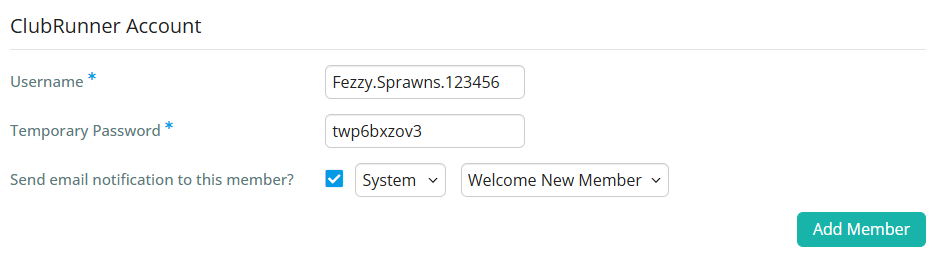
When you're done, click Add Member at the bottom of the page to save the new member to your club's active members list.