


You can create custom QR codes for any individual page or file within the system. This allows you to generate scannable codes for event registrations, sign-up forms, and portals, making it easier to share digital links on printed materials or flyers.
-
To begin, log in to your account through your club homepage, then click on Member Area on the top right-hand corner under your club banner. Alternatively, click here to go directly to the ClubRunner login page.
-
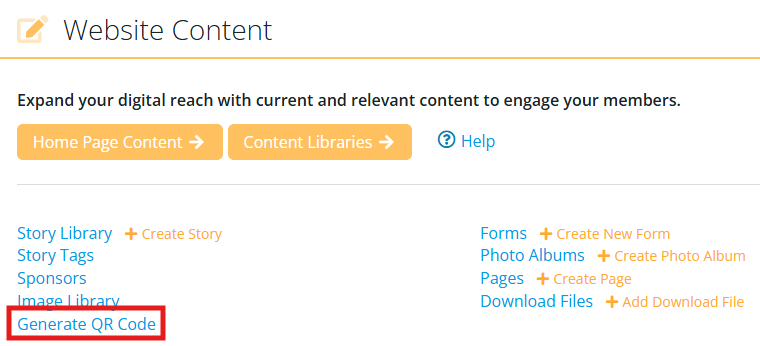
Scroll down to the Website Content dashboard and click Generate QR Code.
-
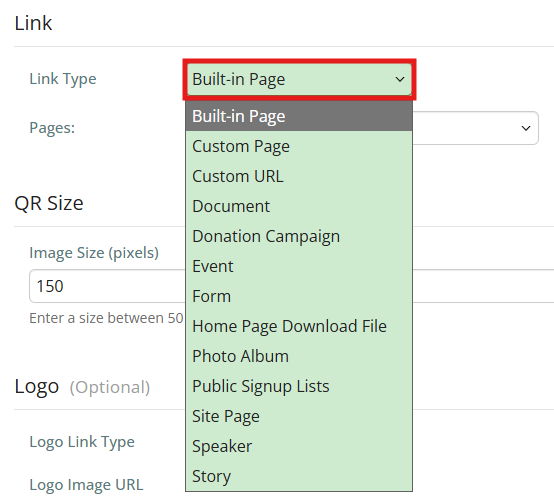
On the following page, click the Link Type drop-down menu to select the type of link you would like to generate a QR code for. You will have the option to select from any page in your club site, specific documents or download files, or can even generate a QR code for an external page with a custom URL.
-
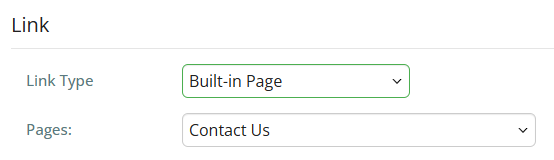
Once you've selected the Link Type, you can select the specific page or file from the next drop-down menu.
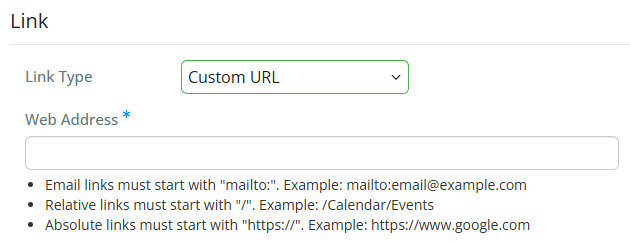
If you chose the Custom URL option, enter the web address of the page you wish to generate the QR code for.
-
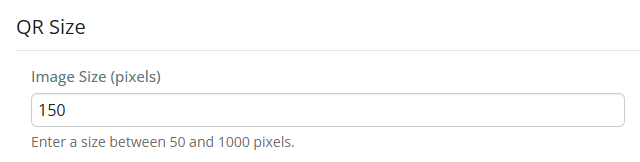
Choose a pixel size for the generated QR code by entering a number between 50 and 1000 into the QR Size field.
-
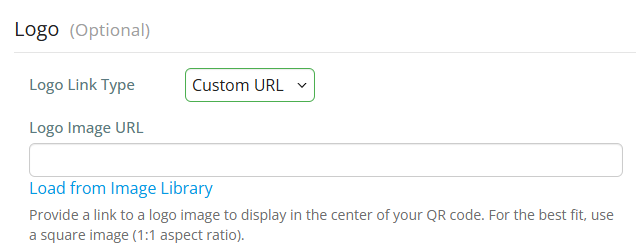
You have the option to add an image to appear in the middle of the QR code, to further customize or brand your code. Enter a direct URL if you would like to use an online image, or click Load from Image Library to select an image that is already in use by your club.
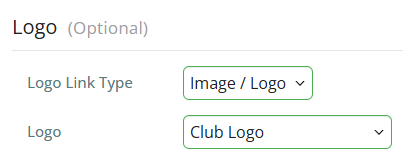
You may also click the Logo Link Type drop-down menu and select the Image / Logo option to choose from one of your available club logos.
-
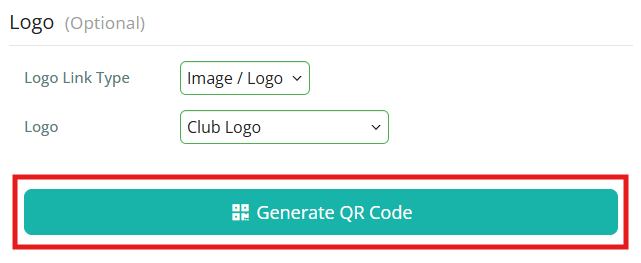
When you have finished choosing your settings, click Generate QR Code.
-
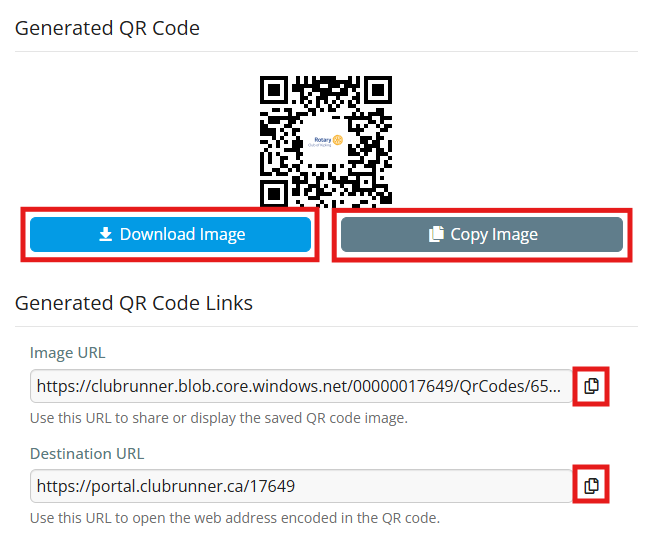
The generated QR code will appear on the right-hand side of the page. You may click Download Image to save the file to your device, click Copy Image to save it to your device's clipboard, or use the copy icons to save the Image URL or Destination URL to your clipboard.
-
You may now include the QR code on your club site, add it to email communications, and more!