


You are able to have stand-alone volunteer signup lists but may also link them to existing events created in Event Planner or Cloud Events. This support article will show you how to link a created signup list to an event.
-
To begin, log in to your account through your club homepage, then click on Member Area in the top right-hand corner. Alternatively, click here to go directly to the ClubRunner login page.
-
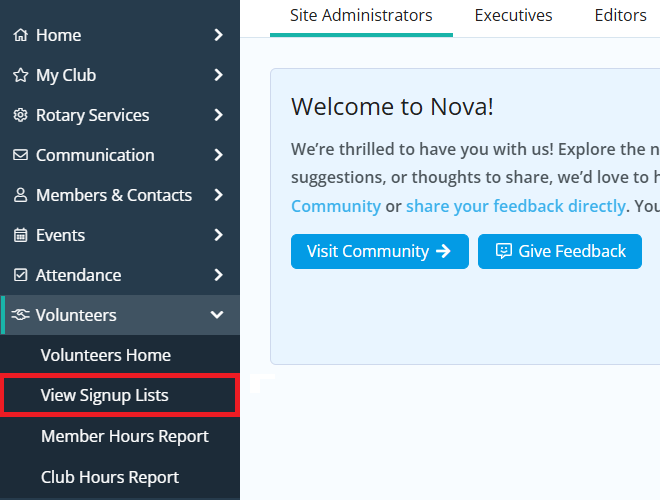
Click the arrow next to Volunteers in the left-hand menu, then click View Signup Lists.
-
Locate the signup list you wish to link to an event, then click the Settings link found under the right-hand Actions column.

-
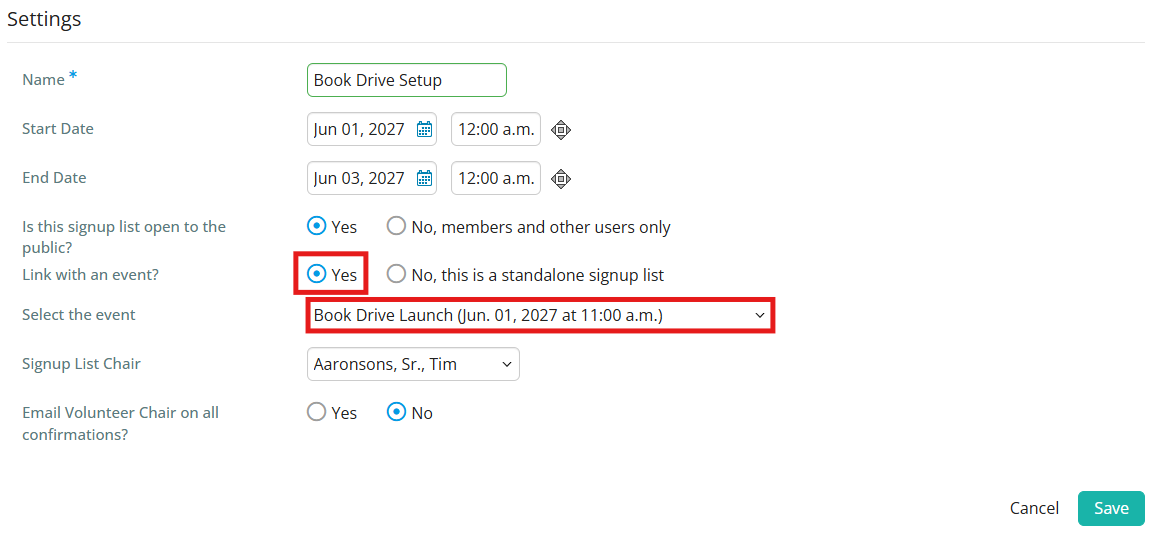
On the following page, toggle the "Link with an event?" setting to Yes. Now select the event from the drop-down box called Select the event. Events in draft status are not available for selection and must be published before they can be linked to signup lists.
-
Once the event has been selected, click the Save button to save the changes.