Members or visitors to your club site may sign up for volunteer tasks on their own, but you may also register volunteers on their behalf. This support article will show you how to add, remove, or edit the volunteer information for a signup list.
Only members with level 50 or better access may edit existing volunteer registrations.
-
To begin, log in to your account through your club homepage, then click on Member Area in the top right-hand corner. Alternatively, click here to go directly to the ClubRunner login page.
-
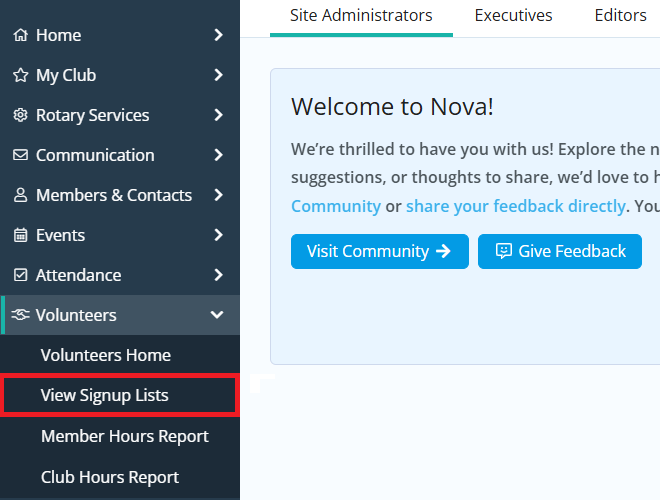
Click the arrow next to Volunteers in the left-hand menu, then click View Signup Lists.
-
Click either the name of the signup list you wish to manage volunteers for, or click the Open link in the right-hand actions column.

-
Click the Manage Volunteers tab at the top of the page.

-
To register a person for a task, click the Sign Up button to the right-hand side of the task details.

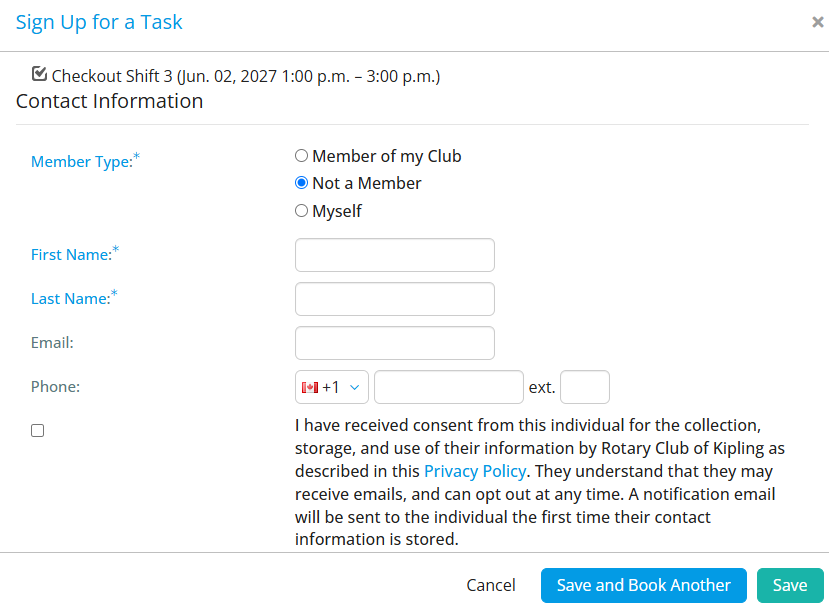
In the window that appears, you have the option of registering yourself, a member from the club, or a non-member. Fill in the necessary information and click Save or Save and Book Another if you wish to register multiple people for this task. Once the volunteer has been booked, a confirmation email will be sent to the volunteer detailing the event and task.
-
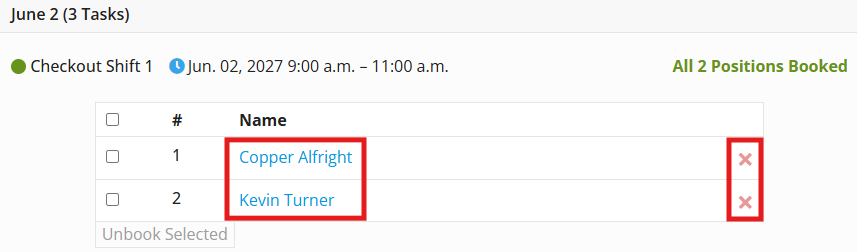
You may edit an existing volunteer registration by clicking the name of the registered person and making changes to their contact information as necessary. To unbook the volunteer from the task entirely, click the X icon.