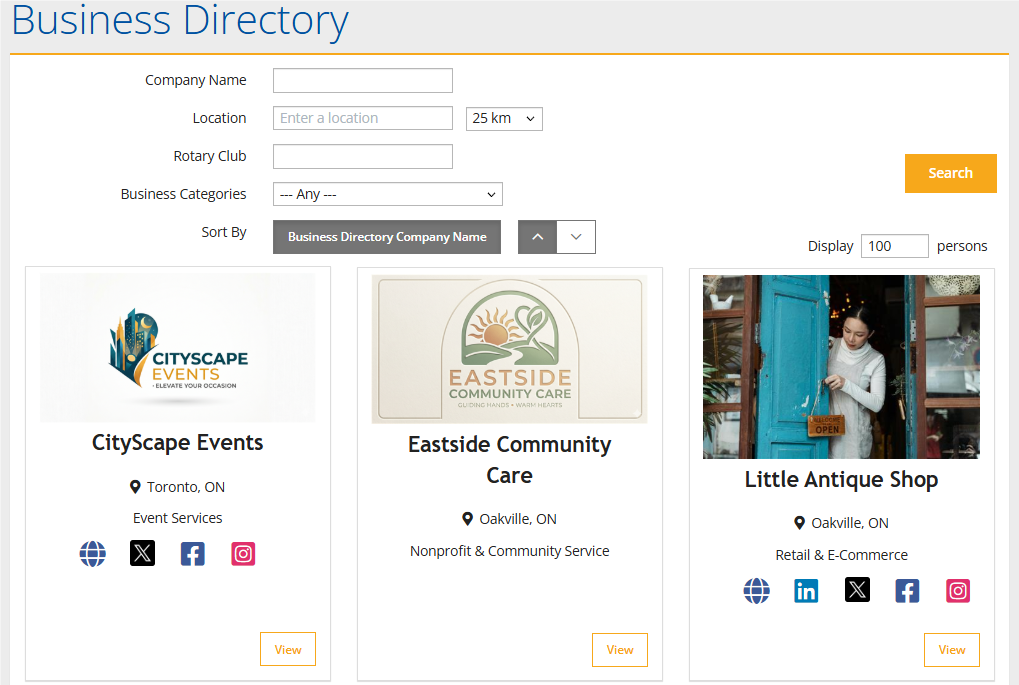
Nova for Districts includes a business directory where members can showcase and promote their personal businesses from their profiles. You can add your business name, address, logo, and social media links, letting fellow members discover and support your personal endeavours.
This support article will show you how to opt in to the business directory from your member profile.
-
Log in to your account through your district homepage, then click on Member Area in the top right-hand corner. Alternatively, click here to go directly to the ClubRunner login page.
-
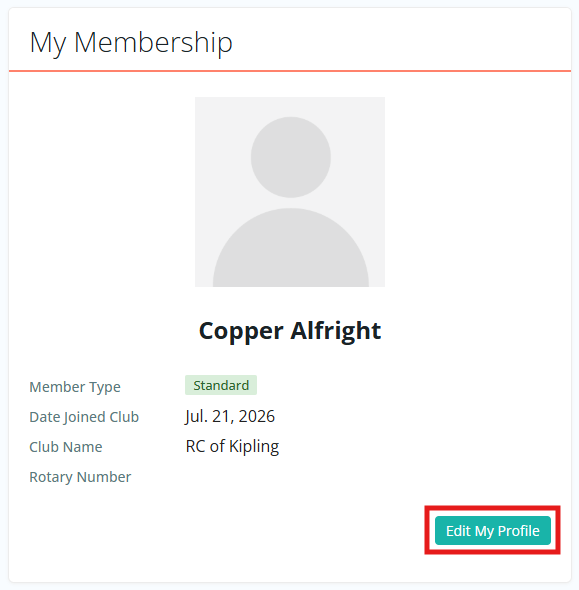
In the members area, click Edit My Profile.
-
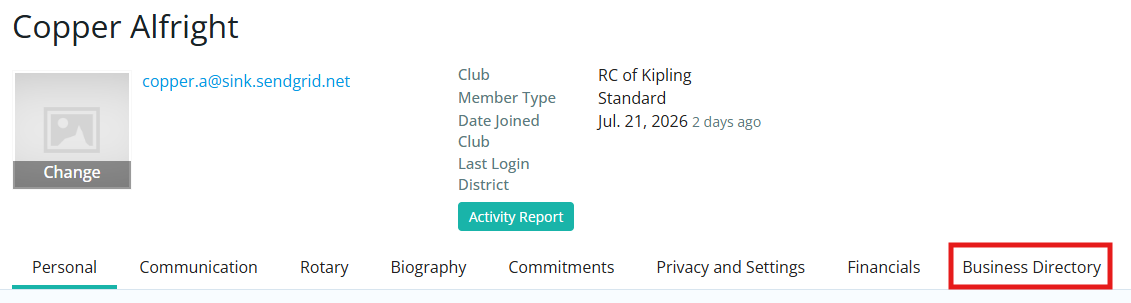
Click the Business Directory tab.
-
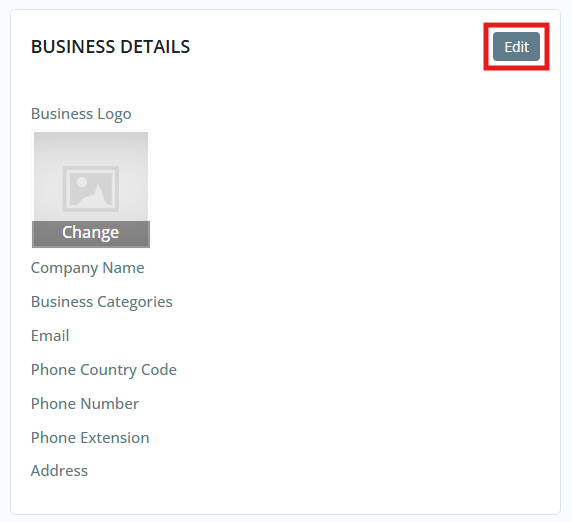
On the following page you'll see boxes where you can enter information related to your business. Click the Edit buttons in the Business Details, Media, Social Media, and Biography boxes to add information.
-
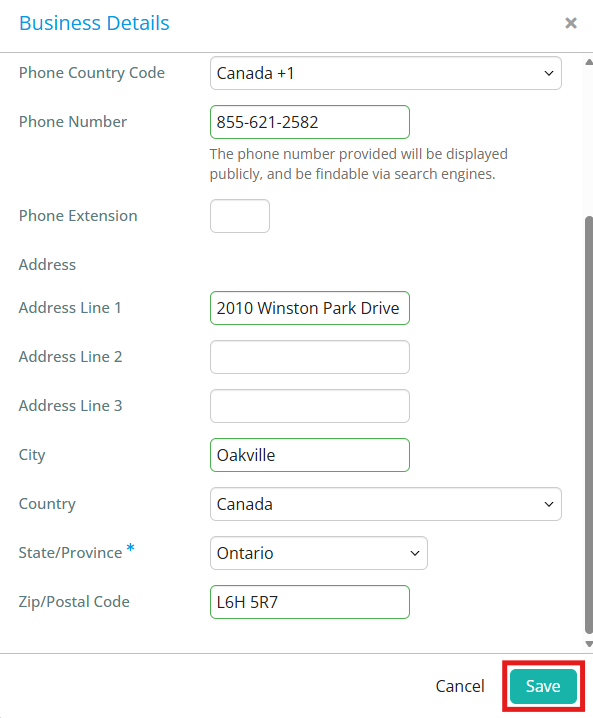
Enter the desired information in the fields, then click Save.
-
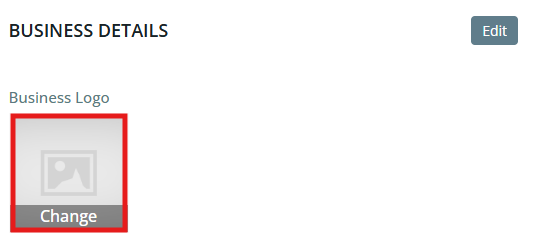
You may add or update your business logo by clicking on the logo area, then clicking Edit. This will allow you to select or upload a new image to the Image Library.
-
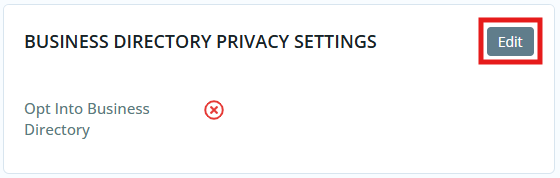
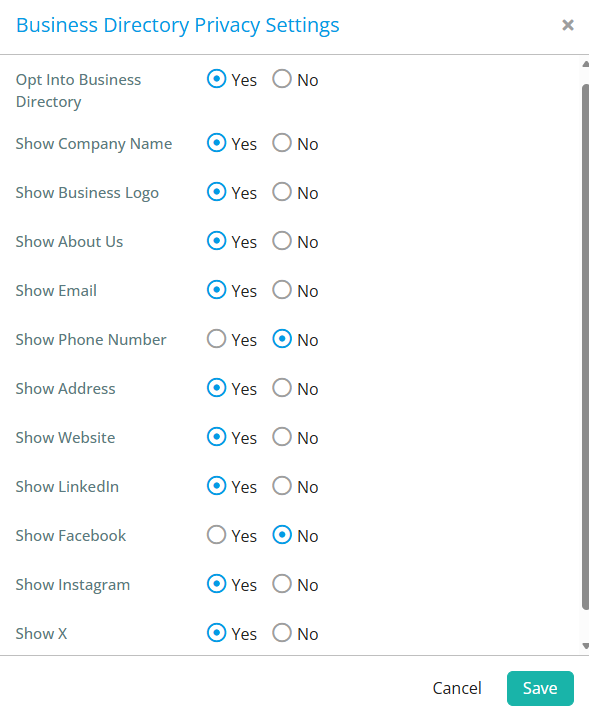
When you have entered the desired information about your business, click the Edit button in the Business Directory Privacy Settings.
-
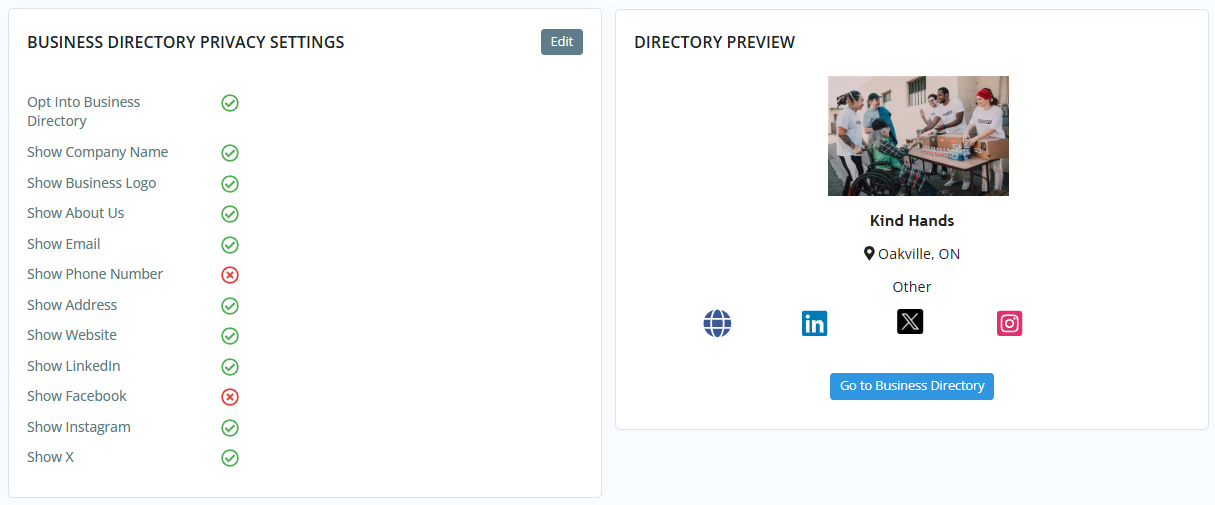
In the following window, click Yes next to "Opt Into Business Directory". Once you do, you'll see options to customize which fields of information are shared publicly in the business directory. Click Save when you've set your privacy settings.
 Note
NoteOpting in to the business directory is entirely optional, and no member is opted in by default. If you do not opt in, the information you entered into the business directory fields will only be accessible to club and district staff.
-
You will then see the saved settings and a preview of how the business details will appear from the business directory listing. You may click the Go to Business Directory button to navigate to the district's business directory listing and view details about other businesses shared by your district's members.