The Attendance module allows you to print member lists and attendance sheets to create a hard copy to use in meetings and retain for your club files.
-
To begin, log in to your account through your club homepage, then click on Member Area on the top right-hand corner under your club banner. Alternatively, click here to go directly to the ClubRunner login page.
-
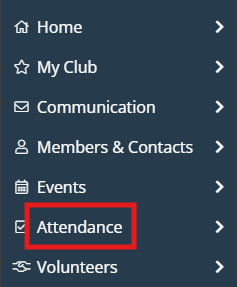
In the left-hand menu navigation, click Attendance to navigate to the Attendance Home page.
-
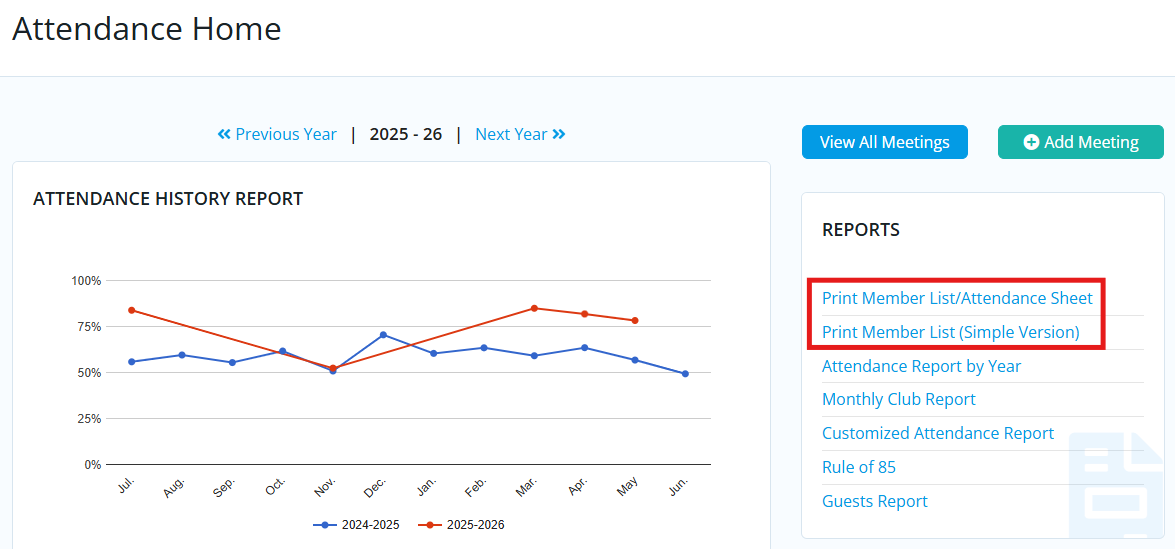
On the right-hand side under the Reports section, there are two different printable attendance sheets:
-
Print Member List/Attendance Sheet - This is a detailed sheet which has columns for Cash and Check. It also has extra fields on the right for meals, 50/50, happy bucks, fines, and more.
-
Print Member List (Simple Version) - This is a basic attendance list with only the member names and attendance status.
-
-
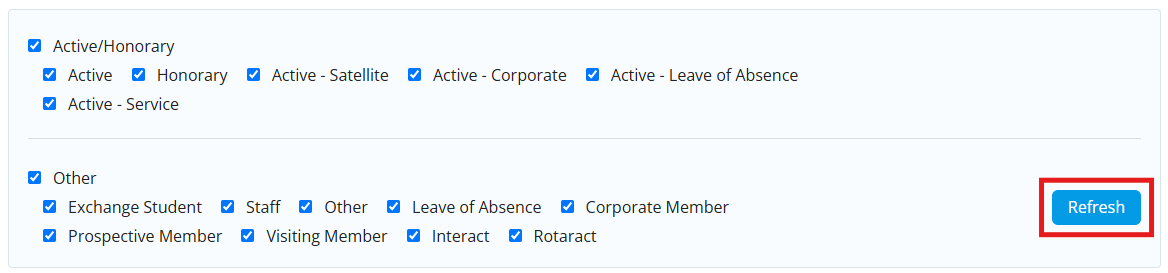
Regardless of which option you choose, you will see checkboxes at the top to toggle which member types are included in the list. Click Refresh to update the member list with your selections.
-
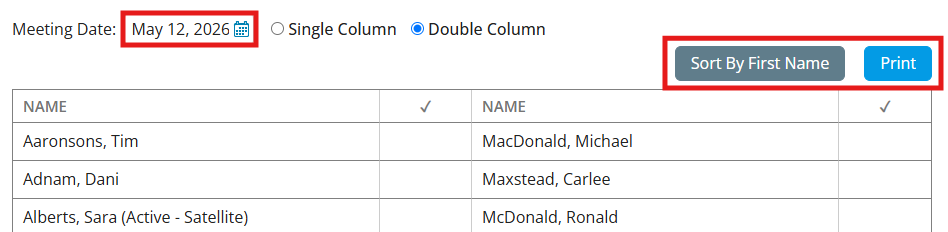
Use the date field to select the Meeting Date. On the Simple Version you will see an option to view the content in a single or double column layout. Click Sort by First Name or Sort by Last Name to update the order of the members, and click Print to export the list.