


From time to time, a club member may choose to take a leave of absence if they will be unable to attend meetings for a given period. They may be travelling, have family commitments, or be dealing with health issues. A leave of absence excuses active members from attending meetings while retaining them on the membership roster.
-
Log in to your account through your club homepage, then click on Member Area on the top right-hand corner under your club banner. Alternatively, click here to go directly to the ClubRunner login page.
-
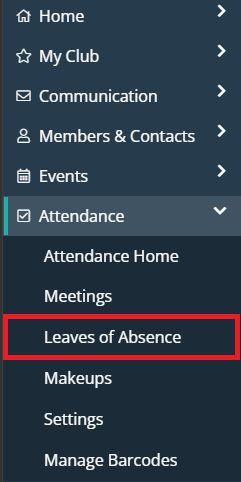
In the left-hand menu navigation, click the arrow beside Attendance and then click Leaves of Absence.
-
You will see a list of all past and current Leaves of Absence. To add a new one, click on the Add Leave of Absence button.

-
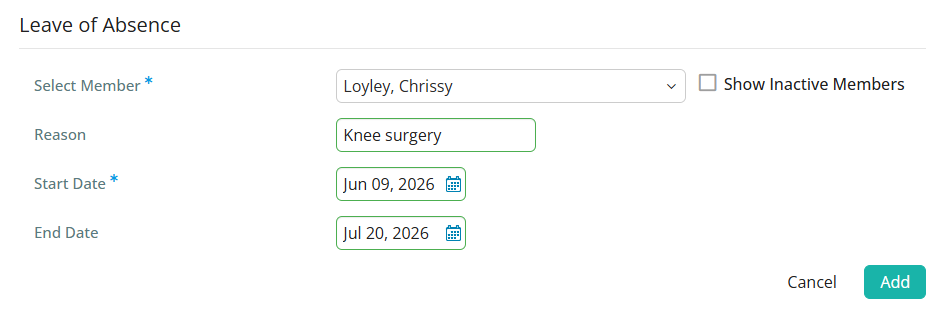
Use the dropdown field to select the member who is going on leave. You may click on the Show Inactive Members checkbox if you need to record a past leave of absence for a terminated member.

-
You have the option to enter a reason for the leave of absence, but this field is not required.
-
Click on the date fields to select the date range of this member's leave of absence. While the Start Date is a required field, the End Date can be left blank in cases where a member is going on a leave of indeterminate length.
-
Finally, click Add to create the leave of absence, or click Cancel to discard the information you have entered.