The Attendance module for ClubRunner can track meeting attendance information for active and honorary members as well as guests.
This support article will show you how to track attendance for a meeting.
-
Log in to your account through your club homepage, then click on Member Area on the top right-hand corner under your club banner. Alternatively, click here to go directly to the ClubRunner login page.
-
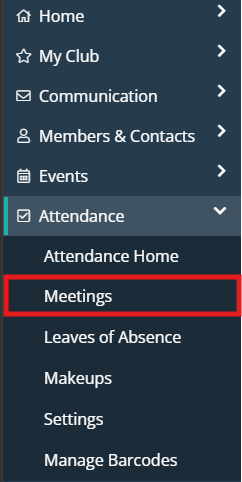
In the left-hand menu navigation, click the arrow beside Attendance and then click Meetings.
-
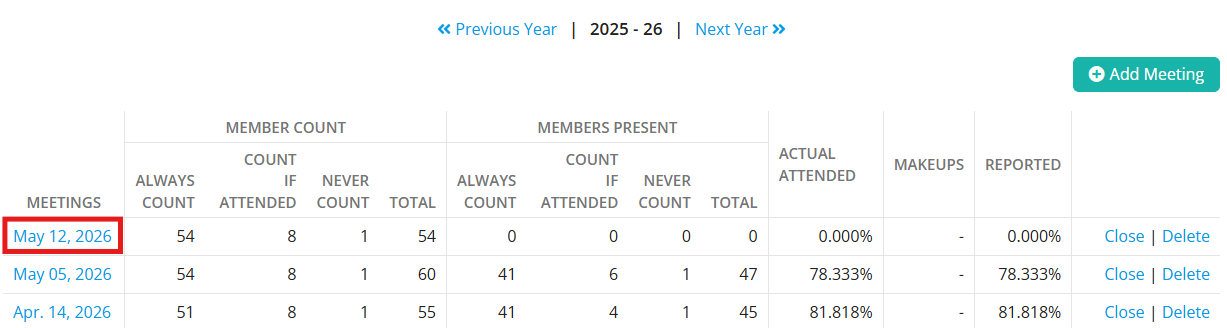
You will see a list of the existing meetings for the year. Click on the date of the meeting you would like to populate with attendance information.
-
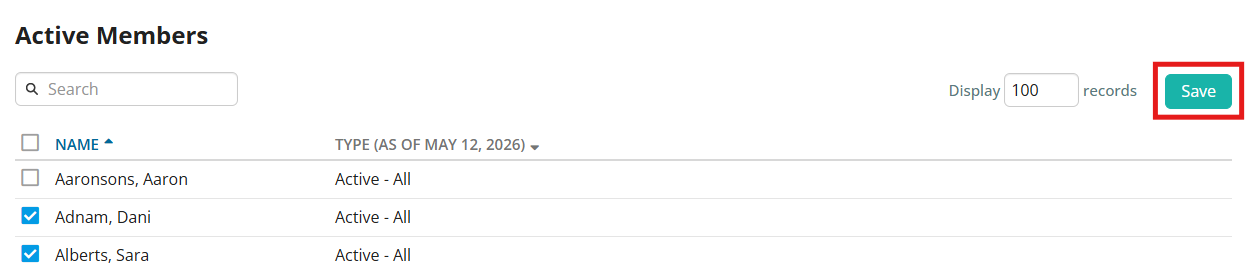
The meeting details page should now open. To indicate that active members participated in the meeting, scroll down and under the Active Members section select the checkboxes of all the members that attended.
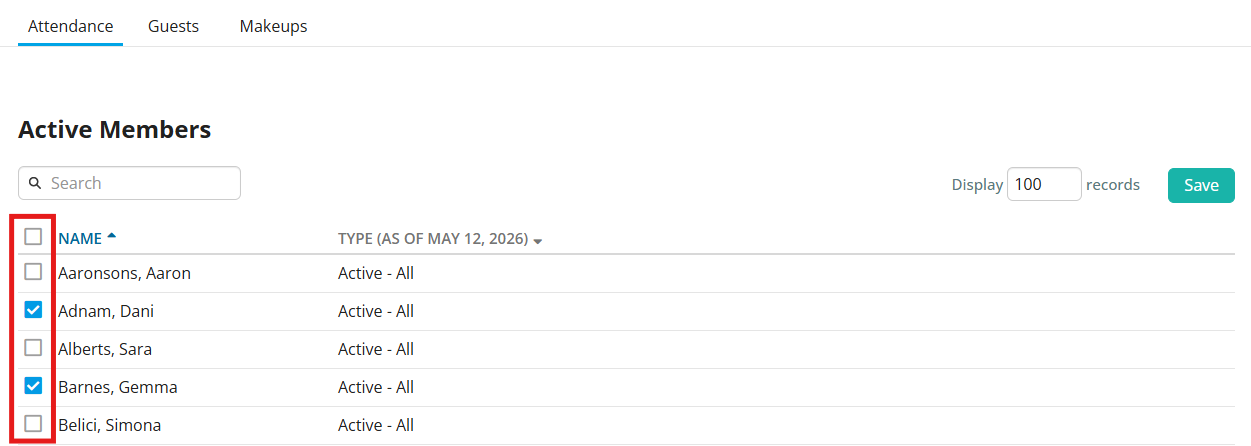
You may also indicate that honorary members participated in the meeting by scrolling down the page to the Honorary Members section and selecting the checkboxes of all honorary members that attended.
-
Click Save in the top or bottom right-hand corner of the page to save your current changes.
-
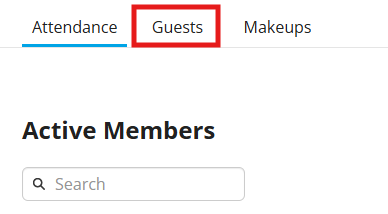
In addition to tracking active and honorary member attendance, you can also keep track of club guests by clicking the Guests tab above the list of Active Members.
-
On the next screen, click the Add Guest button.

-
Use the pop-up window that appears to fill in details of the guest. The Type field allows you to set whether the guest is a member of another cub, the guest of a member, or a speaker from outside the club. There is a final confirmation check you need to sign off on regarding the Privacy Policy. Note that if an email address has been entered, the guest will be notified they have been added as a contact to the club’s database.
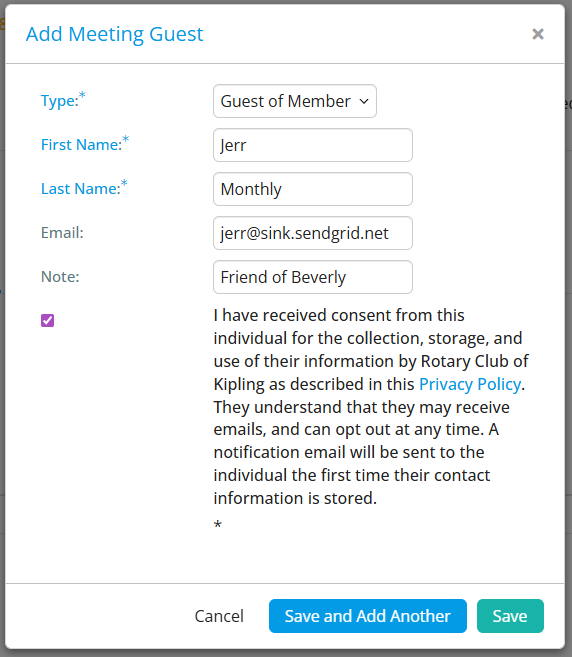
Once you have entered the guest information, you may click Save to close the window, or click Save and Add Another to log additional guests.
-
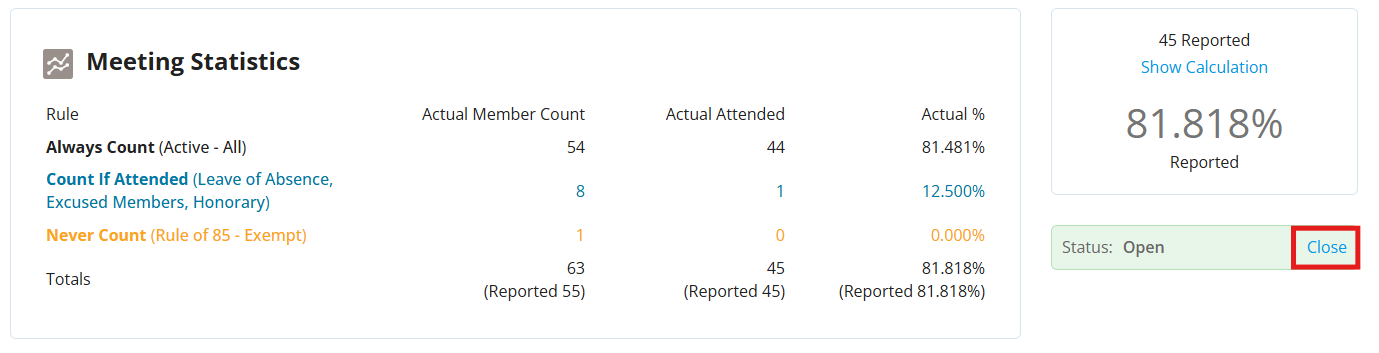
Continue tracking attendance as needed. When you have finished logging attendance for the meeting, you may click the Close button at the top of the page to close this meeting and add its information to various attendance reports. You may always re-open the meeting to edit the attendance information in the future.