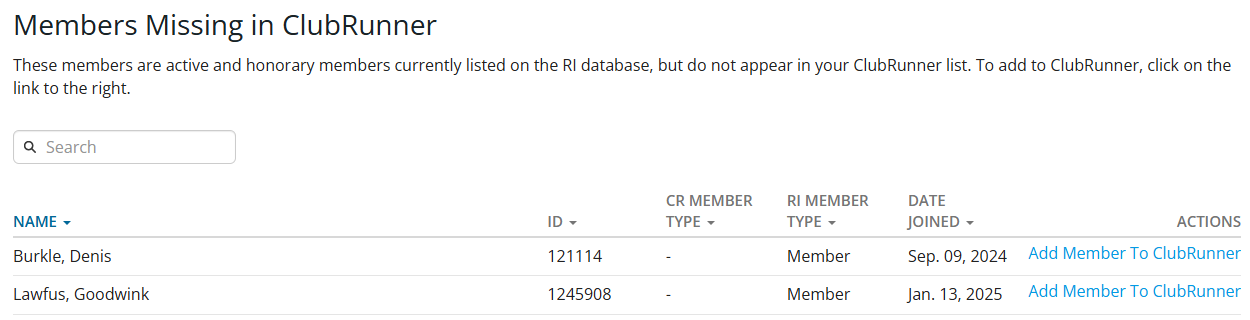
You may use the Compare and Synchronize Members tool to view the current synchronization status of each member of your club. This support article goes over how to fix and match member records appearing in the Member Type Mismatches, Members Missing in RI and Members Missing in ClubRunner sections.
-
To begin, log in to your account through your club homepage, then click on Member Area in the top right-hand corner. Alternatively, click here to go directly to the ClubRunner login page.
-
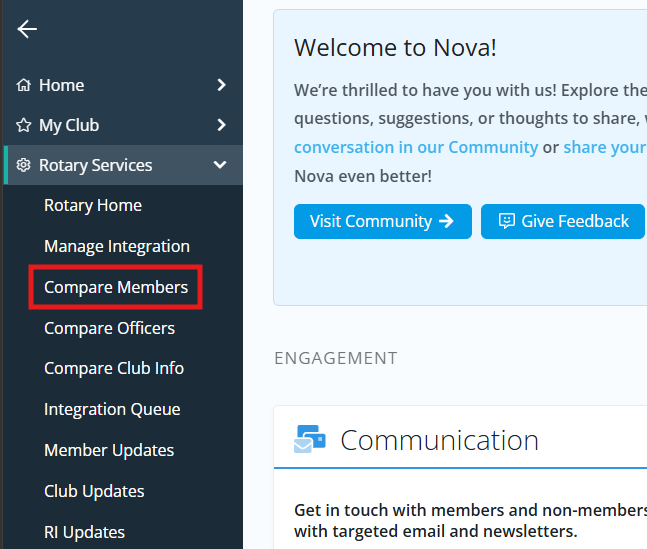
Click the arrow next to Rotary Services in the left-hand navigation menu, then click Compare Members.
-
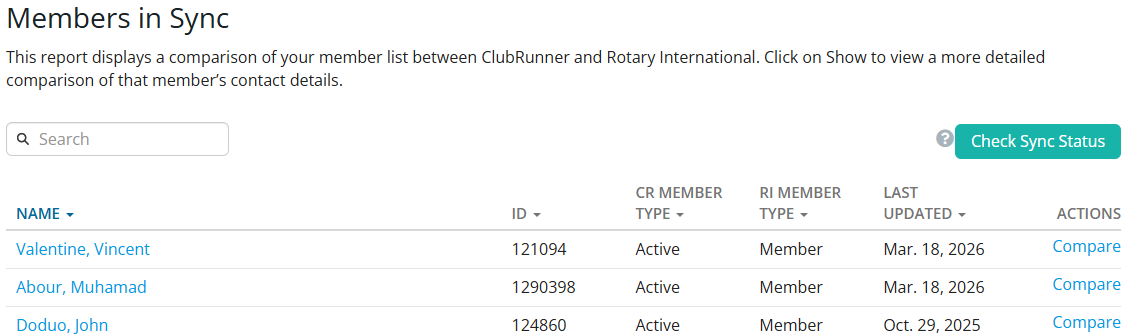
On the following page, members who are currently connected to Rotary International will appear within the Members in Sync section at the top of the page. Any membership conflicts will be listed in one of the sections detailed below.
Member Type Mismatches
This list includes members that are associated with the club in both ClubRunner and Rotary International, but their membership types do not match between the two systems. These discrepancies can typically occur if there are sync errors during a membership change, or if club staff used the "Do not report this change to Rotary International" option when initiating the membership change in ClubRunner.
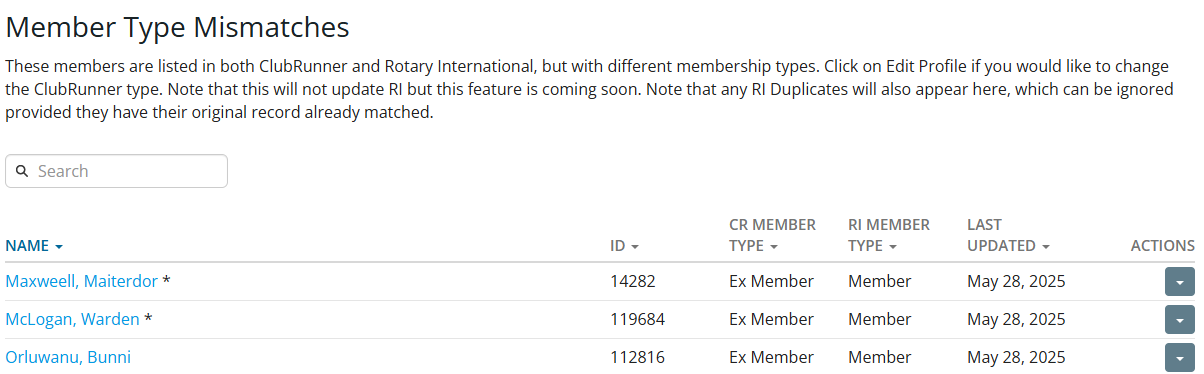
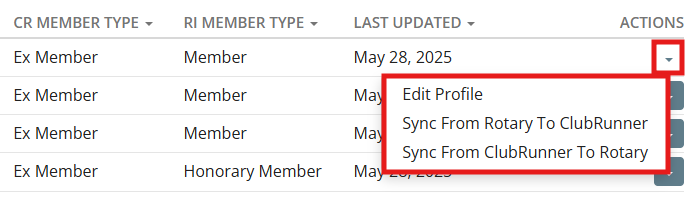
To resolve the listed issue, click the drop-down arrow in the right-hand actions column, then select from one of the three options. Edit Profile takes you to the member's profile in ClubRunner, from which you can change the member's type by clicking the drop-down arrow in the top right-hand corner next to Send Email, then clicking Change Status. You will also see the options Sync From Rotary To ClubRunner and Sync From ClubRunner To Rotary to select as needed.
Members missing in ClubRunner or Rotary International
This situation occurs when a club member is correctly listed as an active member of the club in either ClubRunner or Rotary International; however, the ClubRunner system is unable to connect the records for the member within both systems, typically due to a missing or invalid Rotary membership ID within their ClubRunner member profile.
The Rotary ID, member full name, and membership type are used to connect the two records and ensures changes made to the member's ClubRunner profile are integrated to their Rotary International profile successfully. Without a matching Rotary ID for the member, the information is unable to flow between ClubRunner and Rotary International.
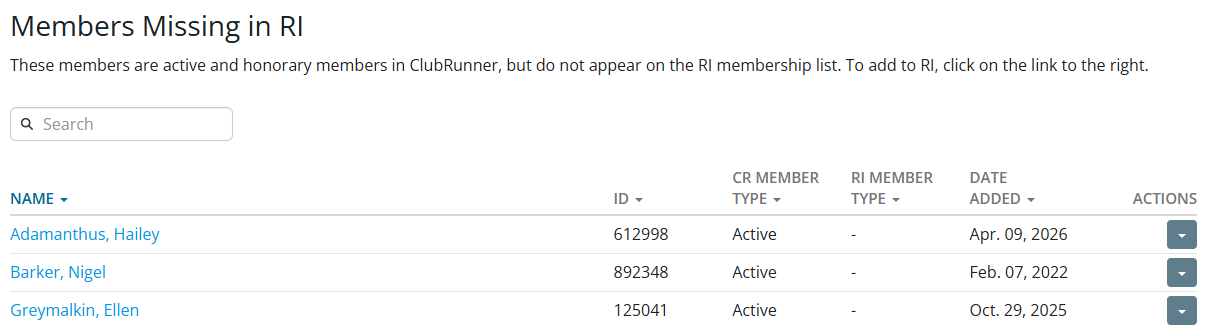
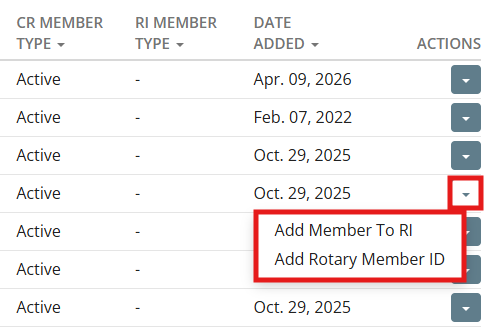
If a member is new to Rotary and has not been assigned a Rotary ID, they will appear in the “Members Missing in RI” section and can be synced by clicking the actions drop-down and selecting the Add Member To RI option. This will add the member to the RI synchronization queue, and within 24 hours they should be assigned a Rotary ID and synced to RI.
If the member has an established history with RI, they are likely missing the Rotary ID in their member profile. You may add this by clicking the actions drop-down and selecting the Add Rotary Member ID option to confirm the Rotary ID and sync the account to RI.
If a member is listed in the “Members Missing in ClubRunner” section, you may click Add Member to ClubRunner to create a member record for your club.