


In addition to creating and organizing committees, ClubRunner allows you to centralize your committee communication. This article will show you how to send emails to committee members.
-
To begin, log in to your account through your club homepage, then click on Member Area in the top right-hand corner. Alternatively, click here to go directly to the ClubRunner login page.
-
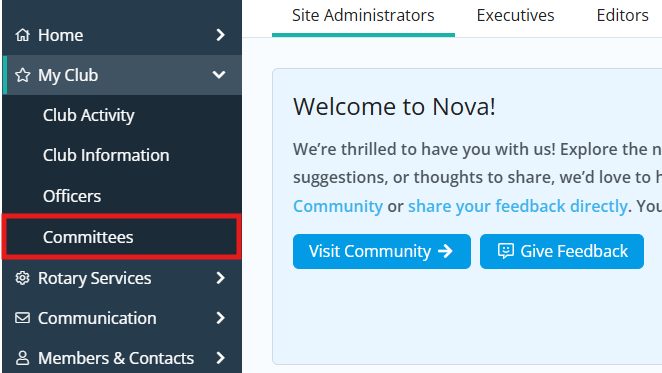
Click the arrow next to My Club in the left-hand navigation menu, then click Committees.
-
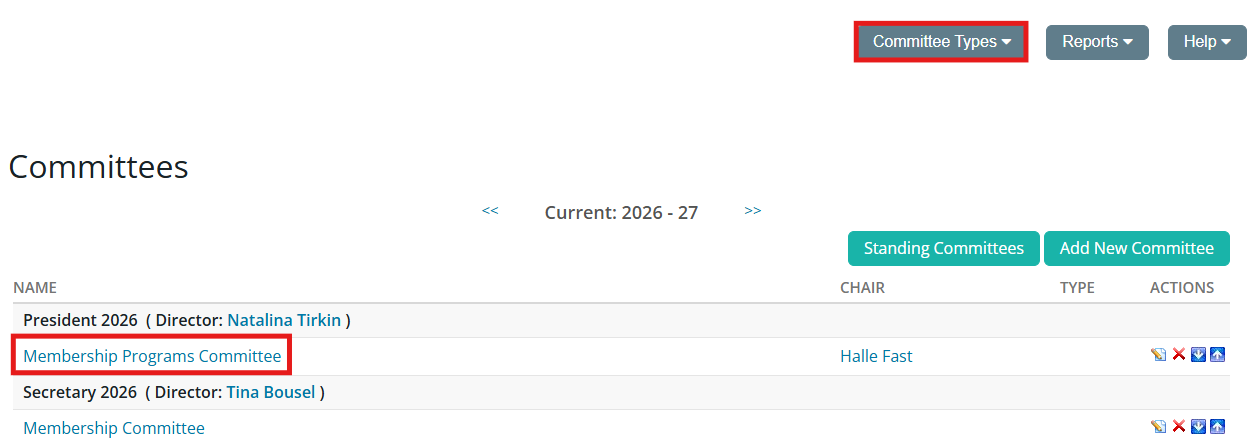
Find the committee you wish to email members of in the list and click on its name. You may need to switch the view between standing and yearly committees using the Committee Types drop-down menu in the top right-hand corner to find the committee you are looking for.
-
Next, click on the tab labeled Email.

-
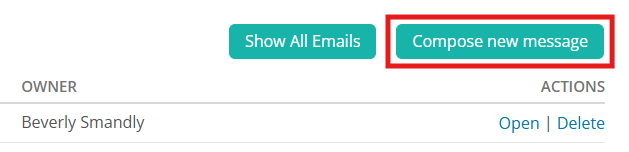
On the following page, you can view all committee email sent within the last three months, if any. To compose a new email, click the Compose New Message button.
-
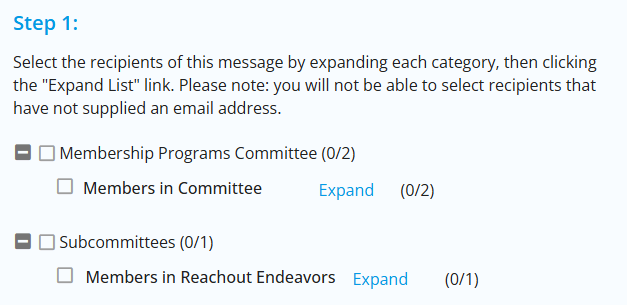
You can now determine the recipients of the email and define its content. On the left-hand side, select which committee members will receive the message by clicking the checkboxes provided. If you click the checkbox next to the name of the committee, it will select all committee members for the email.
-
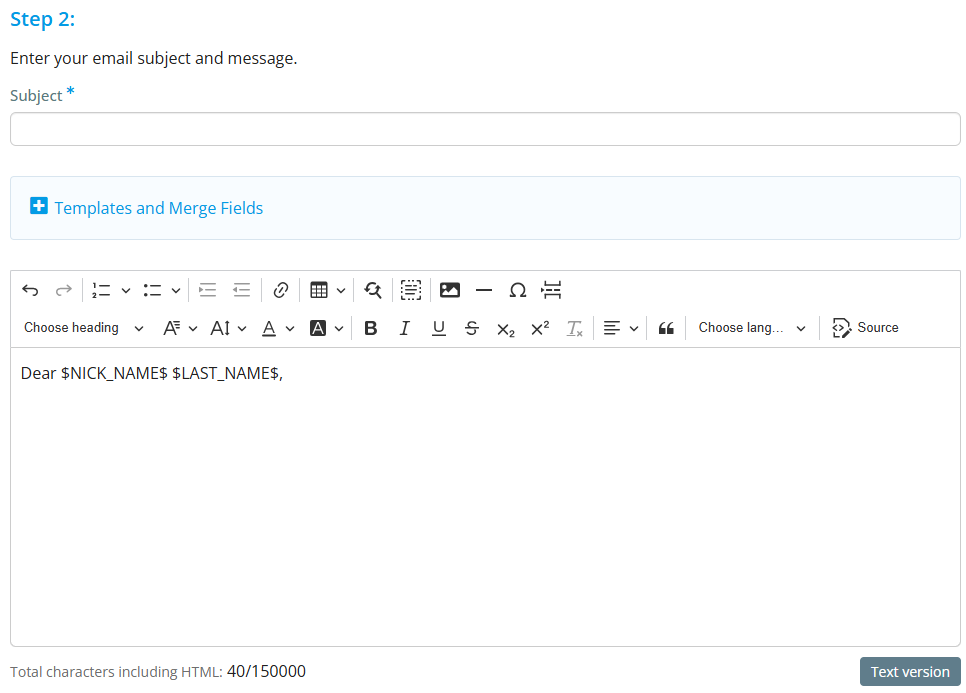
Next, enter the subject of your email in the text field provided, then enter the body of the email using the editing tools provided.
-
You have the option to attach a file to the email. Click on the Select Files For Upload button to select the attachment file from your device. Select the file from your device, then click Open to include the attachment in the email.
 Note
NoteNote: All Committee emails have a total attachment size limit of 15 MB.
-
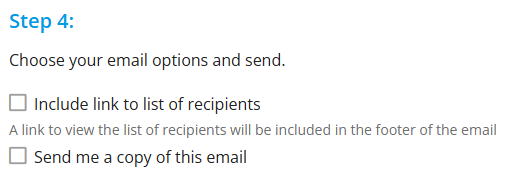
You have the following options available and may check the checkboxes to enable them:
-
Send a list of recipients as an attachment
-
Copy me on this email
-
-
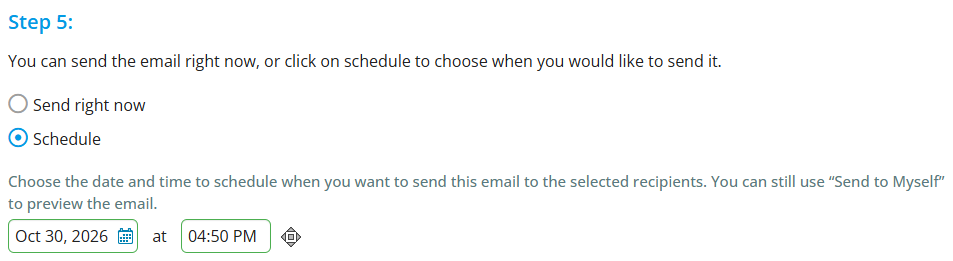
To schedule the email to be delivered at a certain date and time, click the Schedule option and enter a date using the calendar and time fields.
-
Finally, you have the following delivery options:
-
Send: Click this option to send the email immediately, or at the scheduled date and time, if entered.
-
Save as Draft: Save the email for later editing.
-
Send to Myself: This option sends the email to your profile’s email address and keeps the email as a draft.

-