


You can manage your club's membership through your district login and terminate or remove members who left your club.
-
To begin, log in to your account through your district homepage, then click on Member Area on the top right-hand corner. Alternatively, click here to go directly to the ClubRunner login page.
-
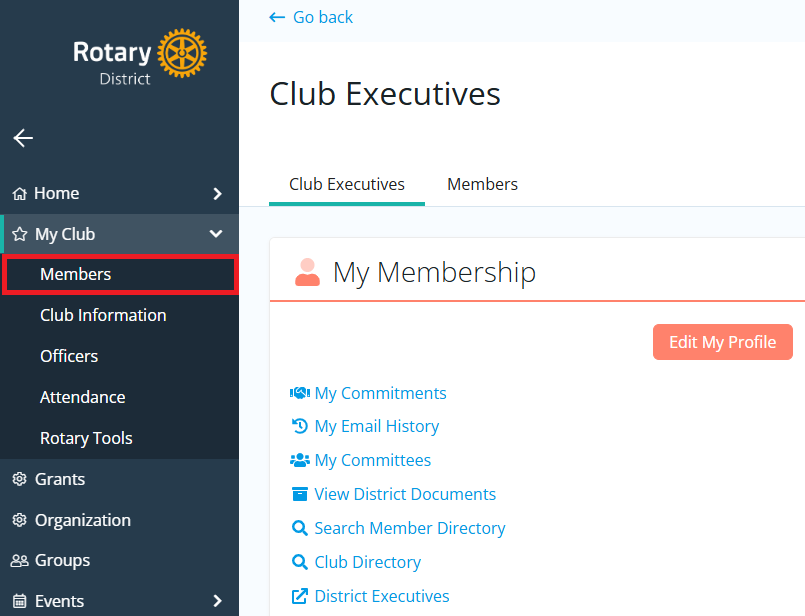
Once inside the members area, click My Club and then Members in the left-hand navigation menu.
-
This brings you to the Members page where you will see a list of all your active members. Click the drop-down menu next to the View button on the right-hand side of a member's record and select Change Status.

-
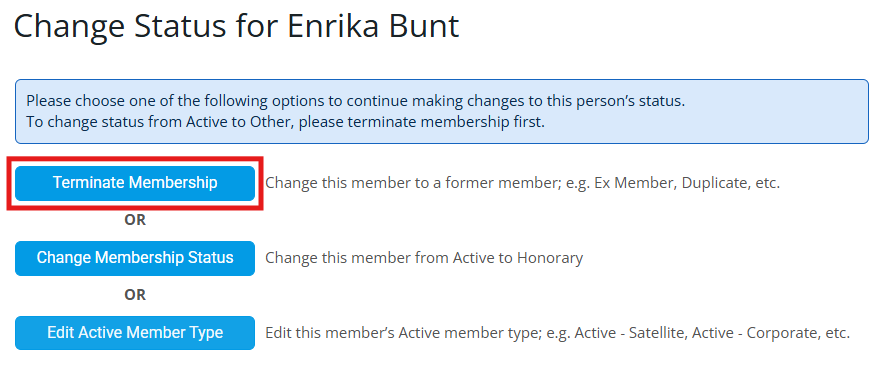
Next, click the Terminate Membership option.
-
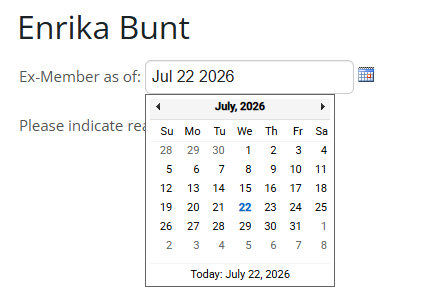
Enter the date of termination using the date selector.
 Note
NoteRotary Clubs cannot set the date of termination more than 30 days into the past or any future date due to Rotary International rules.
-
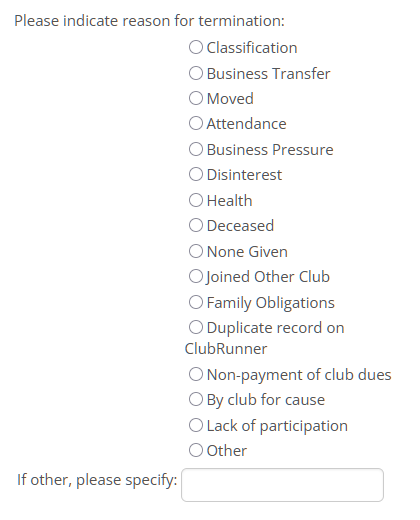
Select the termination reason from the available list. If none of the available options are valid, you can enter a custom reason using the Other field.
-
Rotary clubs can then determine whether or not to report the termination to Rotary International. If you do not report the termination, you will have to log in and terminate the member on MyRotary.org as well. Not reporting the termination allows you to enter any date into the member's termination date, as long as it is after their join date, but this termination will not flow to RI.

-
Once you are ready, click Terminate Member to complete the status change for the selected member.
