It is important to maintain up-to-date club information so other clubs in the district can contact you. This support article will show you how to enter and edit details about your club from your district login.
-
To begin, log in to your account through your district homepage, then click on Member Area on the top right-hand corner. Alternatively, click here to go directly to the ClubRunner login page.
-
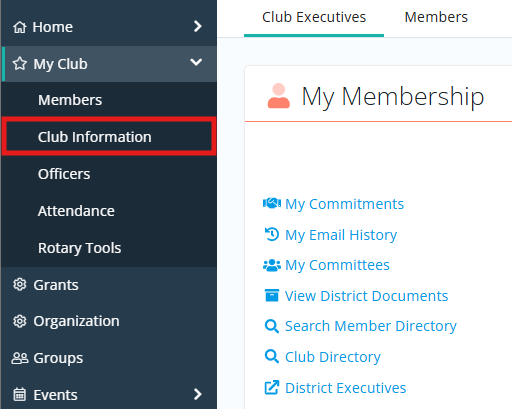
Once inside the members area, click My Club and then Club Information in the left-hand navigation menu.
-
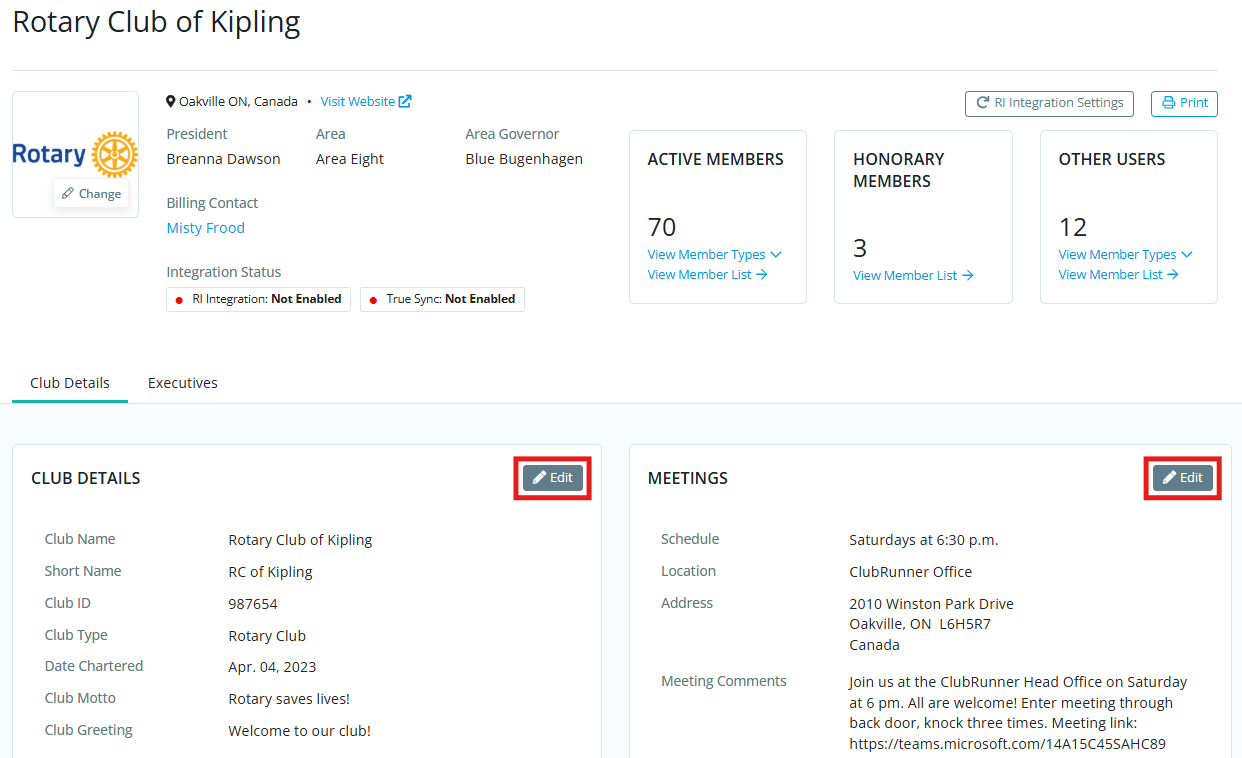
At the top of the following page, you will see information about the club's current leadership, membership counts, and the status of the club's Rotary integration. Click Edit in the boxes below to make changes to club information.
How to change the Club logo
-
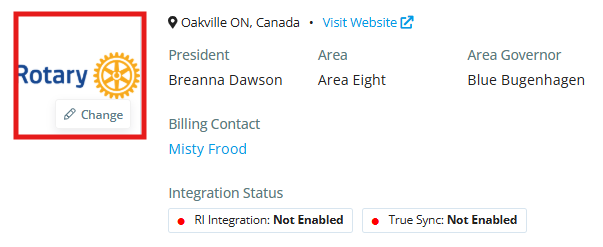
Click on your club’s logo, then click the Edit option that appears.
-
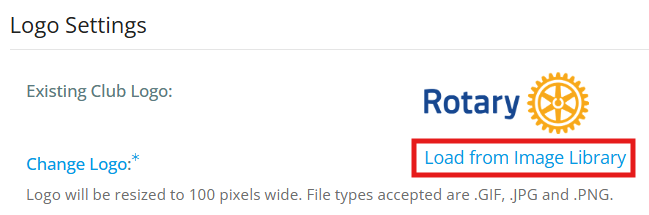
Click Load from Image Library.
-
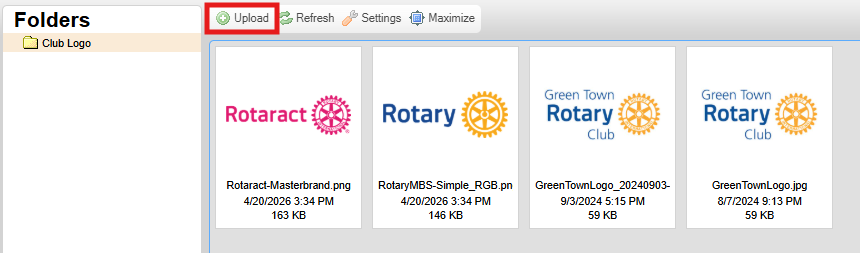
You could choose an existing image from your Library by double-clicking on it or you can add a new image by clicking the Upload button.
How to change the Club Details
-
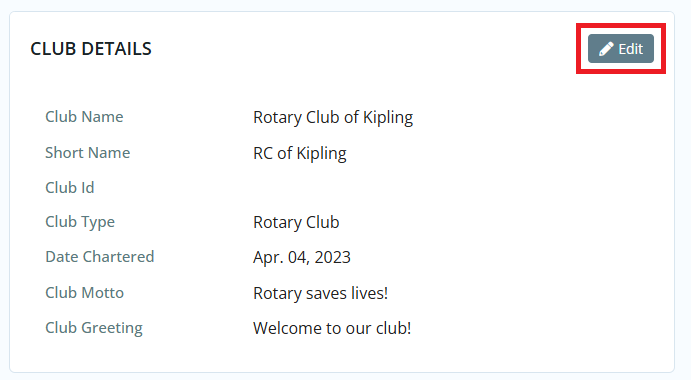
Click on the Edit button in the Club Details section.
-
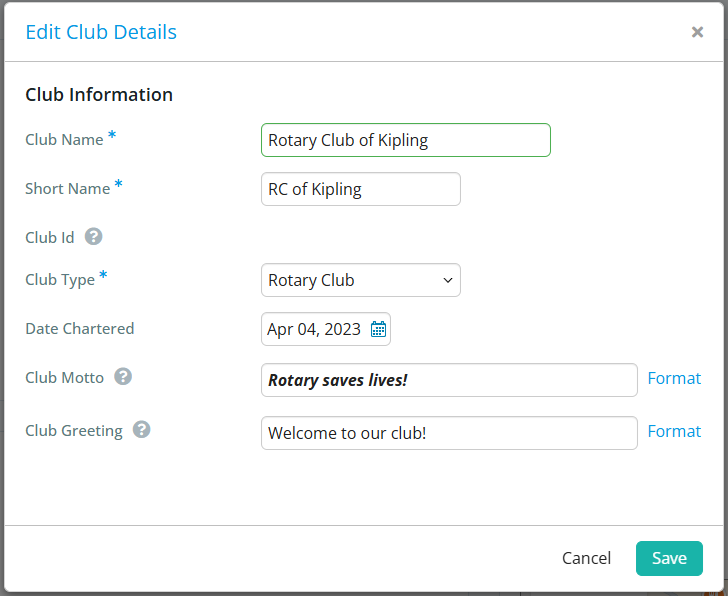
Edit the fields as necessary. Once done, click Save.
How to change the Contact Info
-
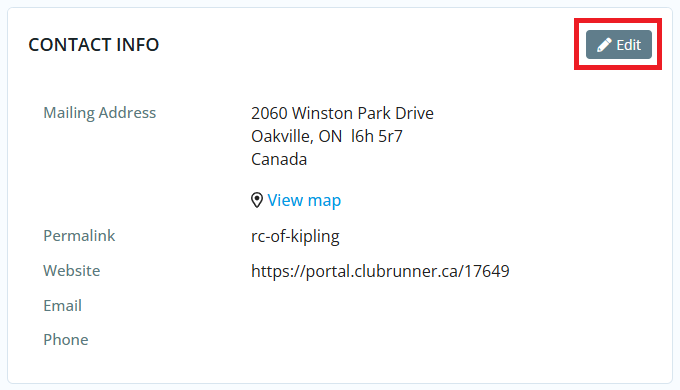
Click on the Edit button in the Contact Info section.
-
Edit the fields. Once done, click Save. The symbol
 shows which fields integrate with RI if you have RI Integration turned on.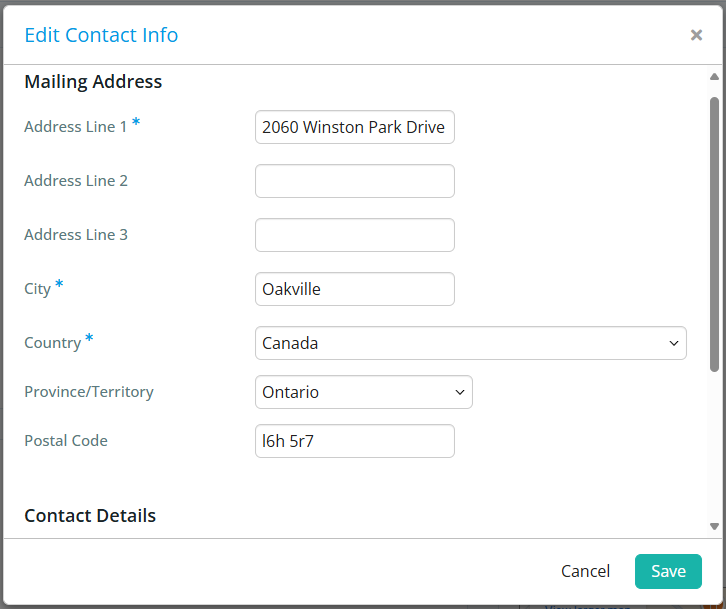
How to change the Meeting Information
-
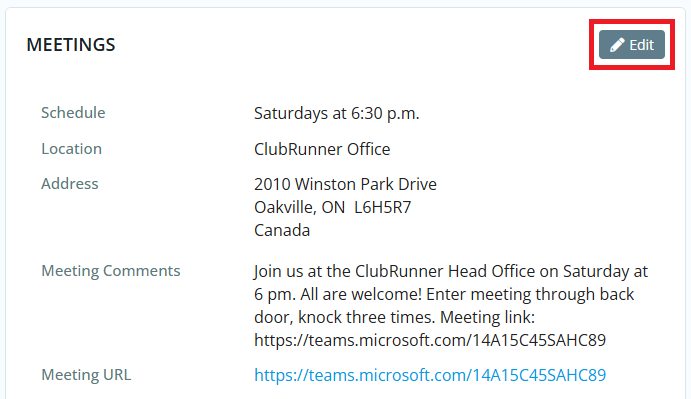
Click the Edit button in the Meetings section.
-
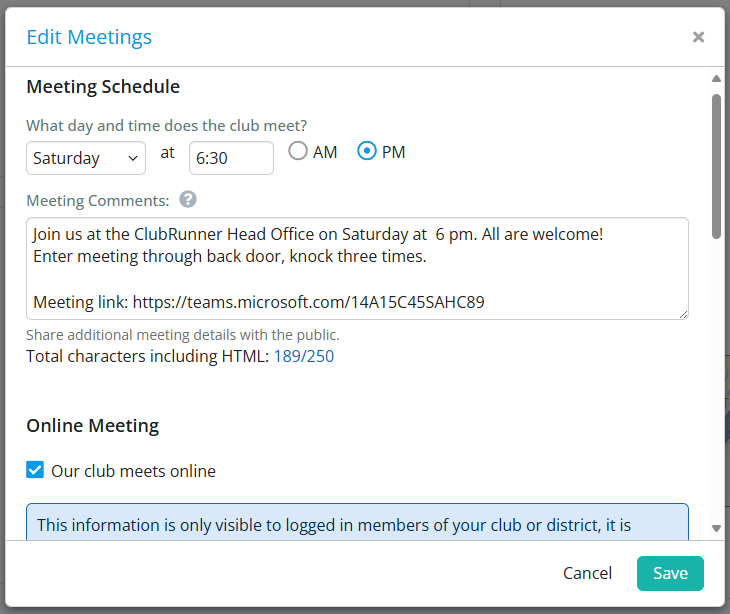
From here you can edit the meeting information within the following sections:
-
Meeting Schedule - This section will allow you to set a day and time that the club meets, along with any additional meeting comments. The meeting comments can be used to add additional details such as instructions for guests. This information will be public.
-
Online Meeting - If the club meets online, the "Our club meets online" option can be checked. This will reveal the Meeting URL and the Private Details fields. The direct link/URL to the online meeting can be entered into the Meeting URL field and any additional information about accessing the meeting or other private details can be entered into the Private Details field. This information will be restricted to members only.
-
Meeting Location - You can enter the meeting location, meeting address and meeting coordinates. You also have the option to automatically update the latitude and longitude fields based on the entered address by checking the "Update latitude/longitude based on meeting address" option.
-
-
Once complete, select the Save button to save the changes.
How to change Settings
-
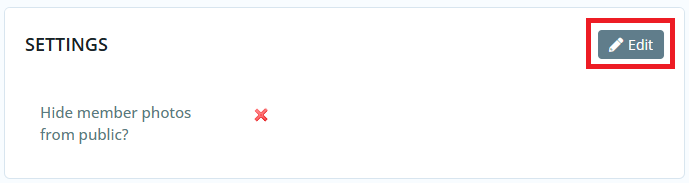
Click on the Edit button in the Settings section.
-
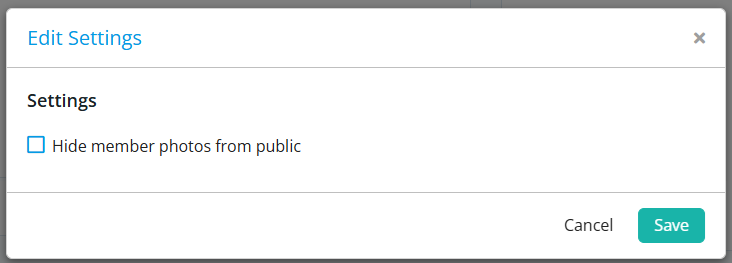
This options lets you hide member photos from users who are not logged in to ClubRunner on the Executives page and on the district's website. Click the check box to change this setting, then click Save.