It is important to keep your club officers up-to-date so that other clubs can keep in contact with your club, whether through the district's club directory or through email communication. As well, any member who is assigned to a current year position that is defined as an Executive in the district will receive access to modify the club membership information from their district logins. The executive positions that can perform club changes vary for every district but are often: President, President Elect, Past President, Secretary, Treasurer, and Executive Secretary.
This support article will show you how to modify your club's officers from your district login.
-
To begin, log in to your account through your district homepage, then click on Member Area on the top right-hand corner. Alternatively, click here to go directly to the ClubRunner login page.
-
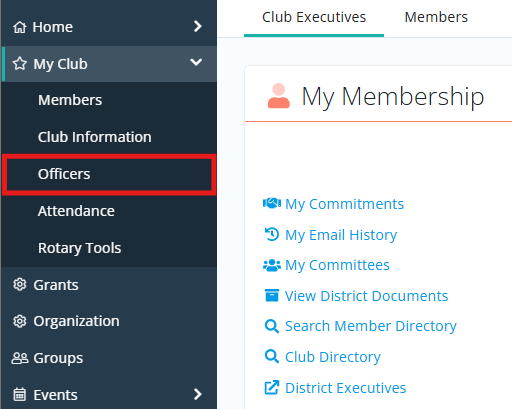
Once inside the members area, click My Club and then Officers in the left-hand navigation menu.
-
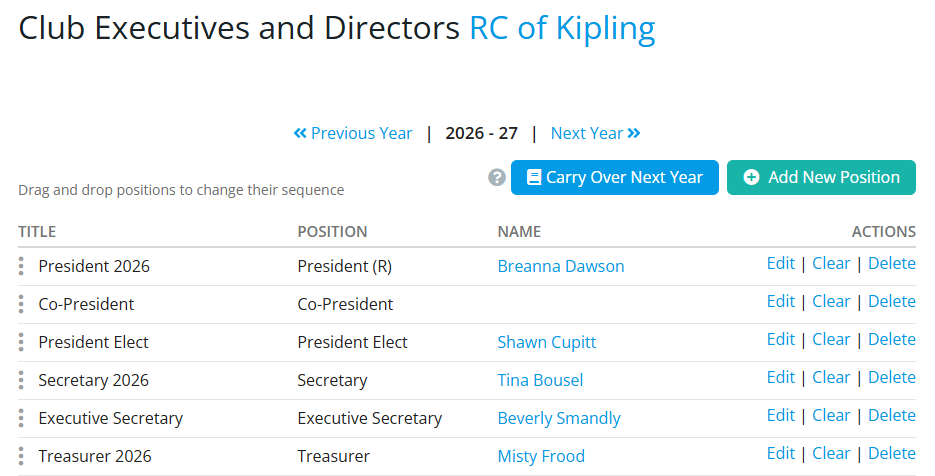
On the following page, you will see the list of the current year's officers and can make changes as noted below. You may use the Previous Year and Next Year links to change the viewed Rotary year.
How to add an executive or director position
-
To add a new officer position, click the Add New Position button.

-
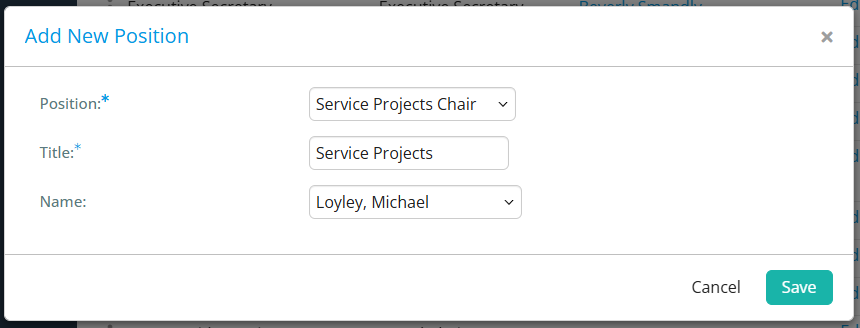
In the following window, select the position the officer has in the club. The title refers to how the position will appear on the website, and can be modified as needed to fit the position. Select the member who will fill this position using the drop-down menu, then click Save to add the new position to the list of officers.
How to edit your club's officers
-
On the Club Executives and Directors page it displays three options below the Actions heading on the right-hand side:

-
Edit - Allows to you edit the position, title, and member assigned. If the position has been defined as an Executive role on the district, the assigned member will be able to edit club and membership information through their district login.
-
Clear - Erases the name in the position without deleting the position or title. This is used in situations when a position has fallen vacant, though the position still remains.
-
Delete - Removes the name and the position from the list of officers.
-
-
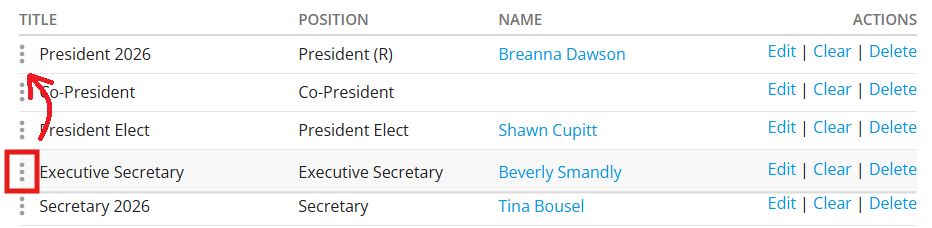
To change the order of the officers, click the three-dot icon on the left-hand side of a position and drag and drop it into the desired sequence.
How to carry current officer positions over to next year
-
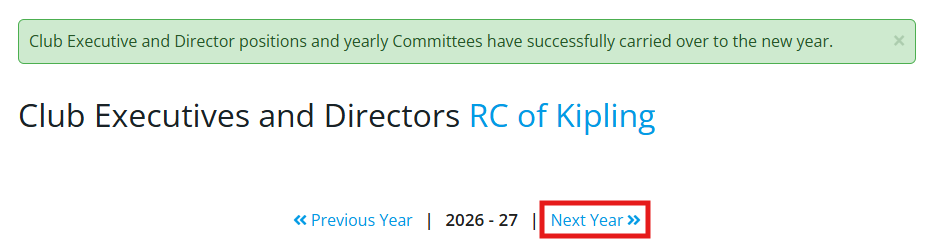
To carry over the existing positions to the next year, click Carry Over Next Year. This will copy the current year's titles and positions to the next year, as well as the club's yearly committees. The names of the members are not carried over and will need to be updated manually.

-
To view what was carried over, click Next Year at the top right. You can then assign next year's members into the carried over positions.