


With the Attendance module, you can create a monthly list of attendance totals for closed meetings and can print a hard copy of this data.
Open meetings are not considered when calculating reports. Closing a meeting will update all reports.
-
To begin, log in to your account through your club homepage, then click on Member Area on the top right-hand corner under your club banner. Alternatively, click here to go directly to the ClubRunner login page.
-
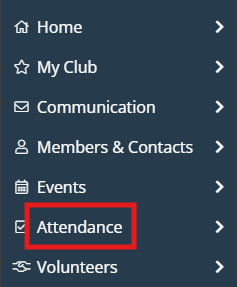
In the left-hand menu navigation, click Attendance to navigate to the Attendance Home page.
-
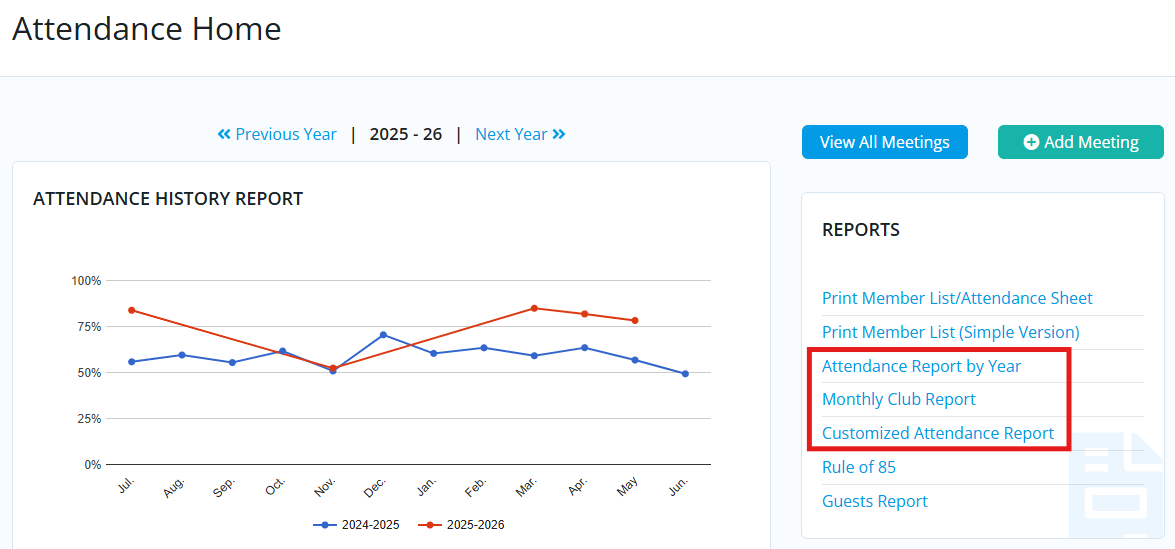
On the right-hand side under the Reports section, there are three club attendance reports available:
-
Attendance Report by Year - This report shows your members’ attendance data based on closed meetings.
- Monthly Club Report - This report shows your club’s monthly attendance data, based on the closed meetings each month.
-
Customized Attendance Report - This report shows
-
-
Click on any of the reporting options to view their data. In the annual and monthly reports you can change the year of displayed data, and can Print or Export the data to a CSV.

-
The Customized Attendance Report displays every meeting with the date and a list of every member. A checkmark under the meeting date means the member attended the meeting. An M means the member used a make-up for the meeting. If the space is blank, it means the member missed the meeting. Any leaves of absence, exempted or excused members, or inactive members are noted in the Notes column.
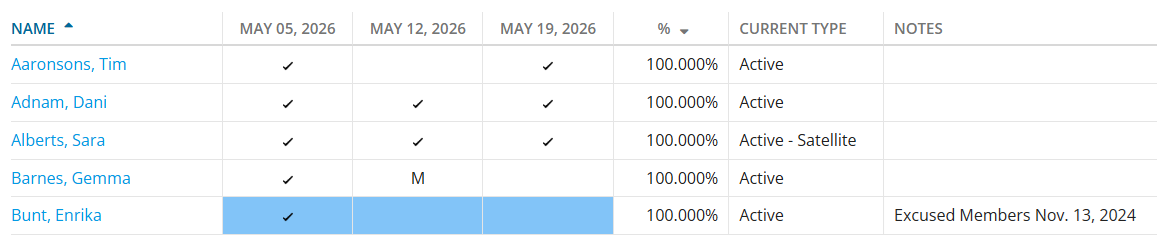
The Customized Attendance Report displays information for the last two months of meetings. This can be changed by clicking into the date fields at the top of the page and clicking Go to update the displayed results. As with the other report options, you may Print or Export this data to a CSV.
