


With the volunteer hour tracking module, you can record and track your club's volunteer commitments and hours. This allows you to get detailed metrics of your individual members' volunteer contributions as well as those made by your club as a whole. There are two reports included with this module, a detailed individual report for specific members, and a broader overall club report.
-
To access these reports, begin by logging in to your account through your club homepage, then click on Member Area in the top right-hand corner. Alternatively, click here to go directly to the ClubRunner login page.
-
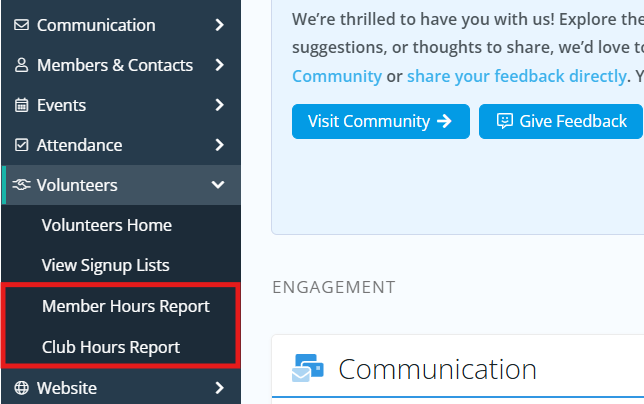
Click the arrow next to Volunteers in the left-hand navigation menu, then click either Member Hours Report or Club Hours Report.
Member Hours Report
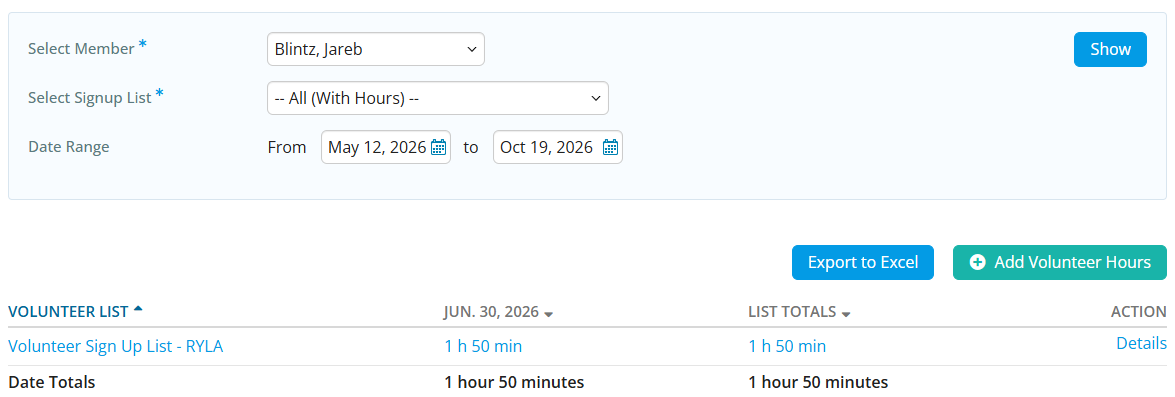
The Member Hours report targets specific members of the club and displays all contributions made towards various volunteer opportunities organized by your club within a specified date range. This report allows you to retrieve specific details about when the contribution was made, as well as any notes/comments regarding the related event. This data is automatically generated and updated whenever a member signs up for a volunteer opportunity. Individual records can also be created and edited to more accurately represent the member's commitment. You can use the filter option on the report to include all signup lists, only signup lists that have records, or an individual signup list.
Club Hours Report
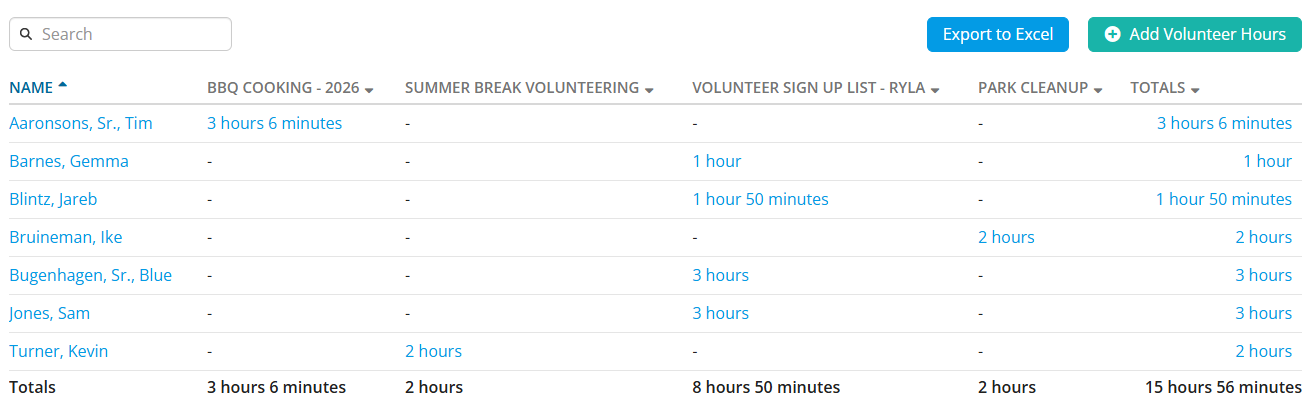
The Club Hours report functions similarly to the individual report but offers an overall view of the total contributions made by all members of the club. A total of contributions for each task is displayed for each member within a specified date range. You can view or edit specific details about each member's contributions as well as create new records manually.
Volunteer hour records created by member signup through volunteer tasks cannot be directly deleted or modified. To make changes to such records, you must either edit the related volunteer task, or amend the record with a manual entry.
Tasks created through the volunteer module must have a valid start and end date/time to be included in the report.
When editing manual records, you may modify the total hours of the contribution, related list, date, and comments. You may also delete the record entirely.
If you see any reports with incorrect or negative hours showing, please contact the support team so we can investigate.
A Misc signup list is included by default. This signup list can be used to record hours that are not associated with any specific signup list.
Manually adding volunteer hours
You may manually enter volunteer hours that were reported by members or not entered into the Volunteers module.
-
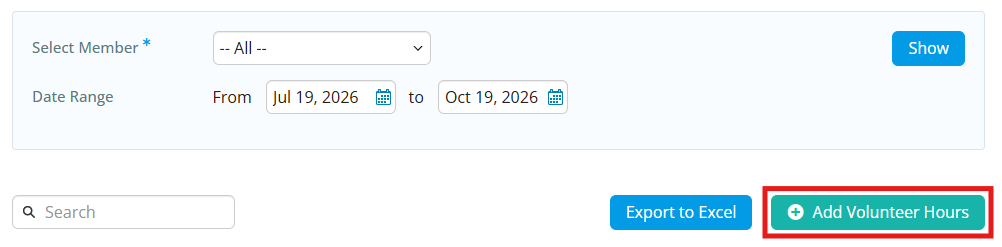
Click the Add Volunteer Hours button underneath the report display settings on either the Member Hours Report or Club Hours Report.
-
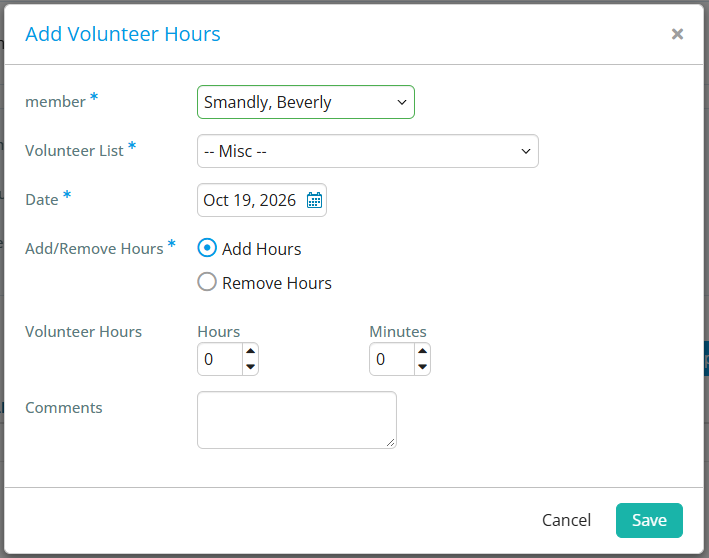
Select the member you wish to log hours for from the drop-down menu, then select the related volunteer list. Enter the appropriate information for the date and amount of volunteer hours to be added or removed, and leave a comment if you wish.
-
Click Save when you've entered the necessary information.
Exporting volunteer hours to Excel
Both Member Hours and Club Hours reports have the Export to Excel option. This feature allows you to download a CSV file with information on volunteer names, hours volunteered per event, and total hours.
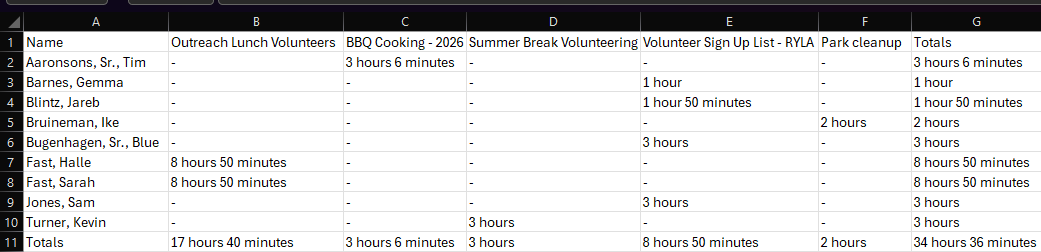
To download the spreadsheet, simply do the following steps:
-
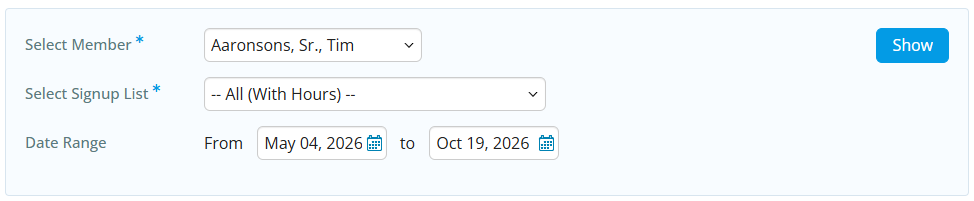
Click Select Member and choose a person, or choose --All-- for a list of all volunteers in the Club Hours Report. In Member Hours Report, you will have an option ‘Select Signup List’
-
Select the date range of results to display in the report. The date range cannot exceed one year in length.
-
Click the Show button on the right-hand side to update the results.
-
Finally, click the Export to Excel button to download the file to your device.
