


Calendar items are a great tool to use when your club has a recurring event at a regular interval (eg, once a week), but what if there is an exception to the schedule? In this case, you are able to select the date of the exception and remove it.
-
To remove a single occurrence of a recurring calendar item, you must go to your club homepage and log in. Then, click on Member Area in the top right-hand corner of the website.
-
Along the left-hand side of the screen you will see several tabs in the navigation bar. Click on the Events tab.
-
Next, click on the Calendar Items link under Events.
-
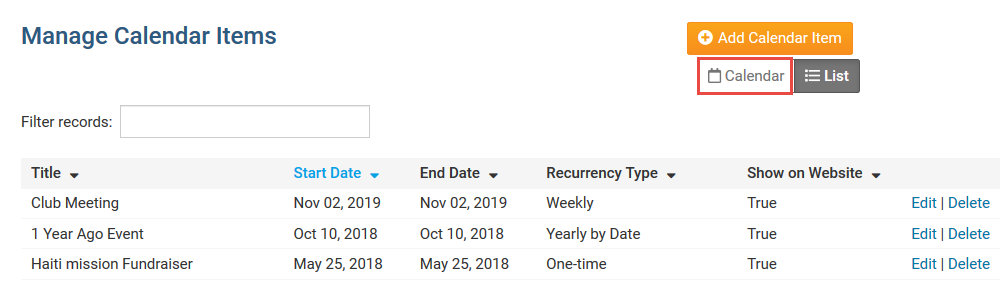
You are now on the list of Recurring Calendar items for your Club. Please select the Calendar view in the top right corner.
-
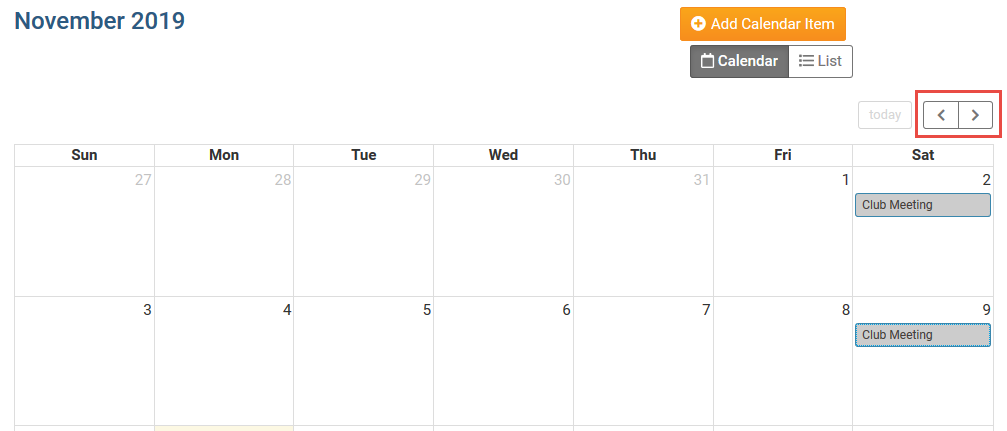
Navigate to the date of the occurrence you wish to remove using the arrow buttons to switch to a different month.
-
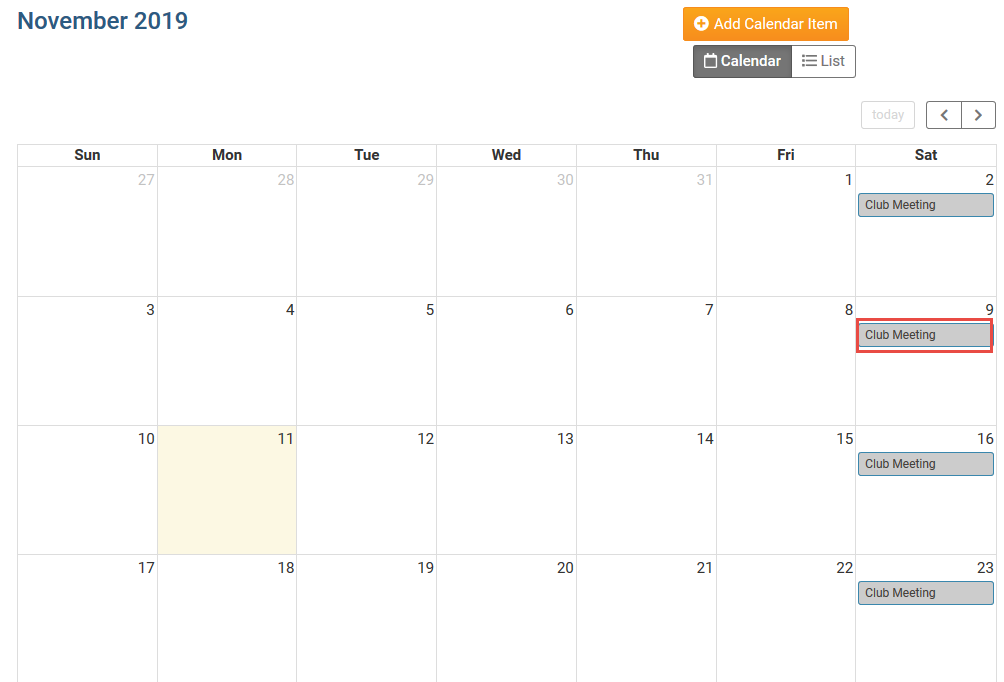
Click on the occurrence you wish to remove.
-
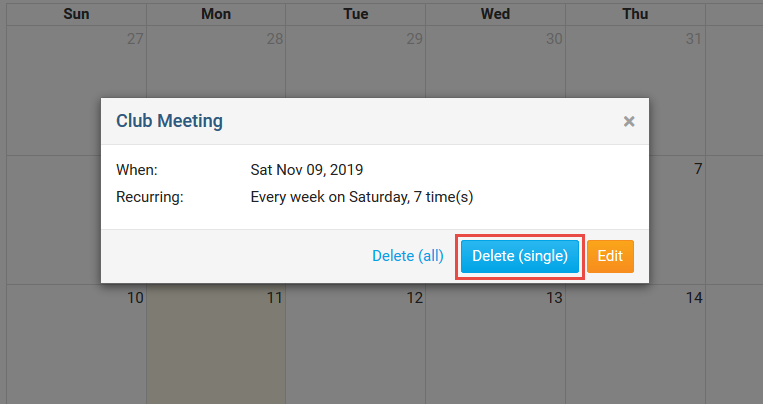
A window will appear with the details for the specific date of the recurring event. To delete the single occurrence, click the Delete (single) button.
-
A confirmation box will appear asking to confirm that you would like to delete the single occurrence. Click Ok to confirm.
-
Once the deletion of the single occurrence has been confirmed, it will be deleted and removed from the club's calendar and will no longer be displayed.