


If your club or district has a PayPal account it would like to use for online payment processing in ClubRunner, it can be added to your account by our Support team for use in events, billing, and donations. This article will show you how to complete a few additional steps that need to be performed to connect the PayPal account to ClubRunner.
If you do not see your club's PayPal account in the payment settings described below, please reach out to our Support team.
For ClubRunner Nova users, click here to go directly to that section of this article.
You must have a PayPal Business account in order to enable online payment integration. Personal PayPal accounts are not supported.
Navigating to Payment Accounts and Currency
For the legacy version of ClubRunner:
-
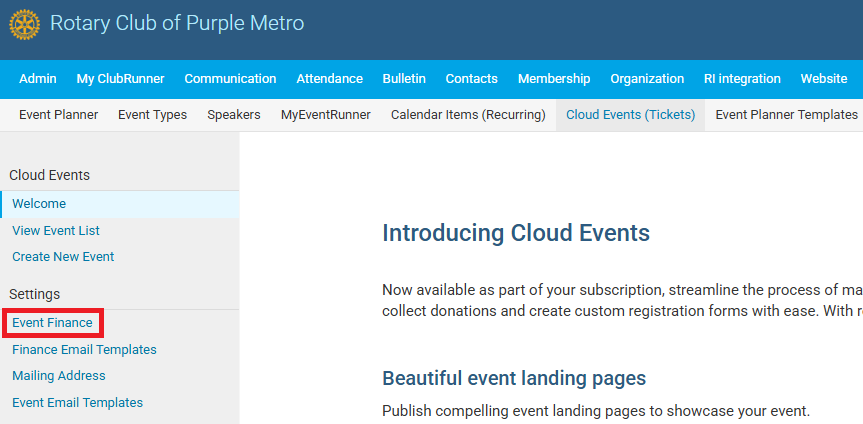
Click Events in the top menu navigation, then click Cloud Events (Tickets).

-
In the Settings section on the left-hand side, click Event Finance.
-
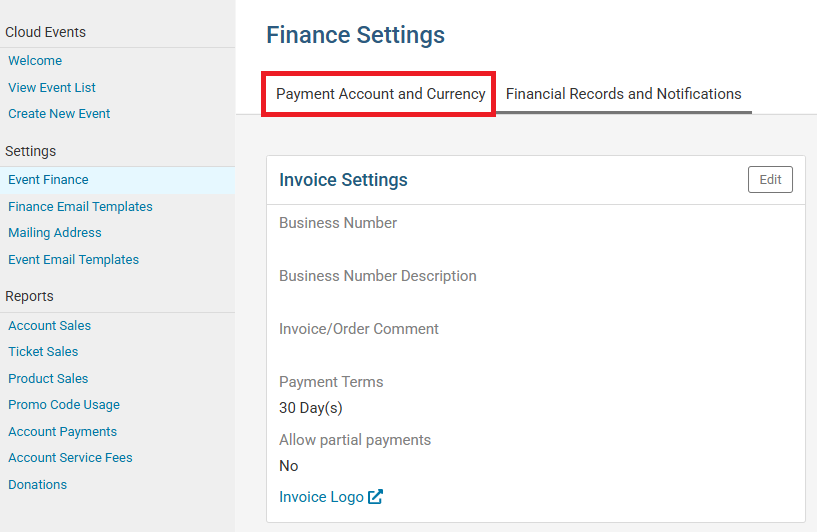
Click the Payment Account and Currency tab.
For ClubRunner Nova:
-
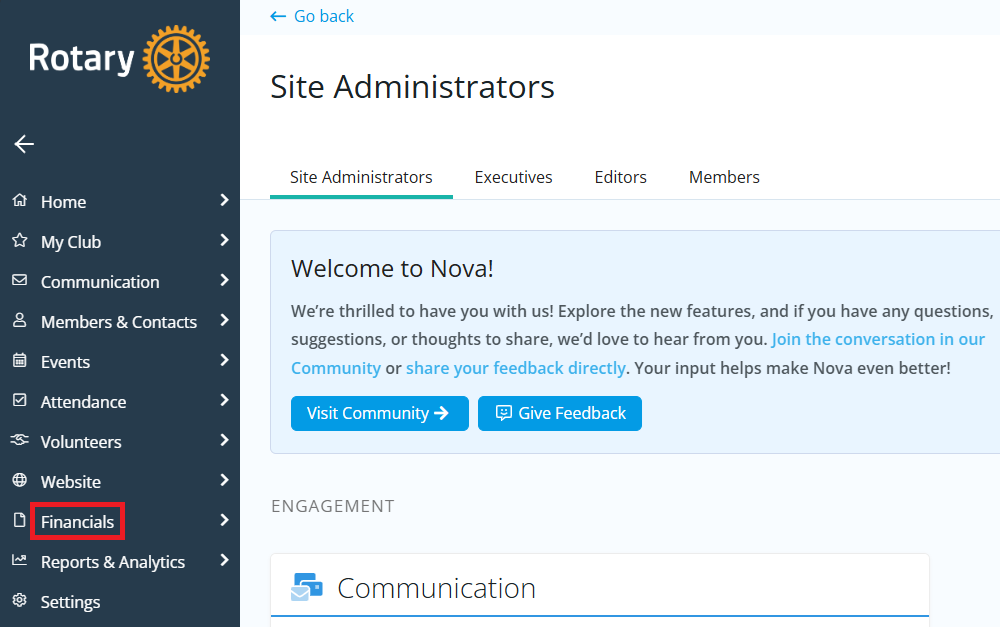
Click Financials in the left-hand menu navigation and go to Financials Home.
-
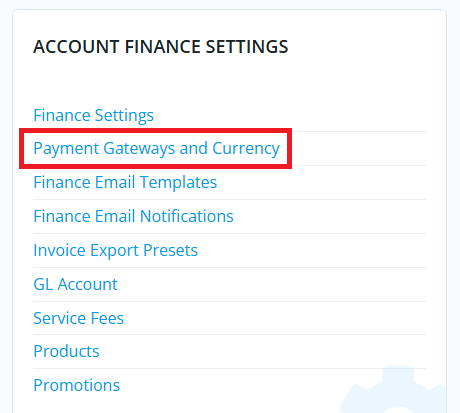
In the "Account Finance Settings" section, click Payment Gateways and Currency.
Enabling PayPal Integration
-
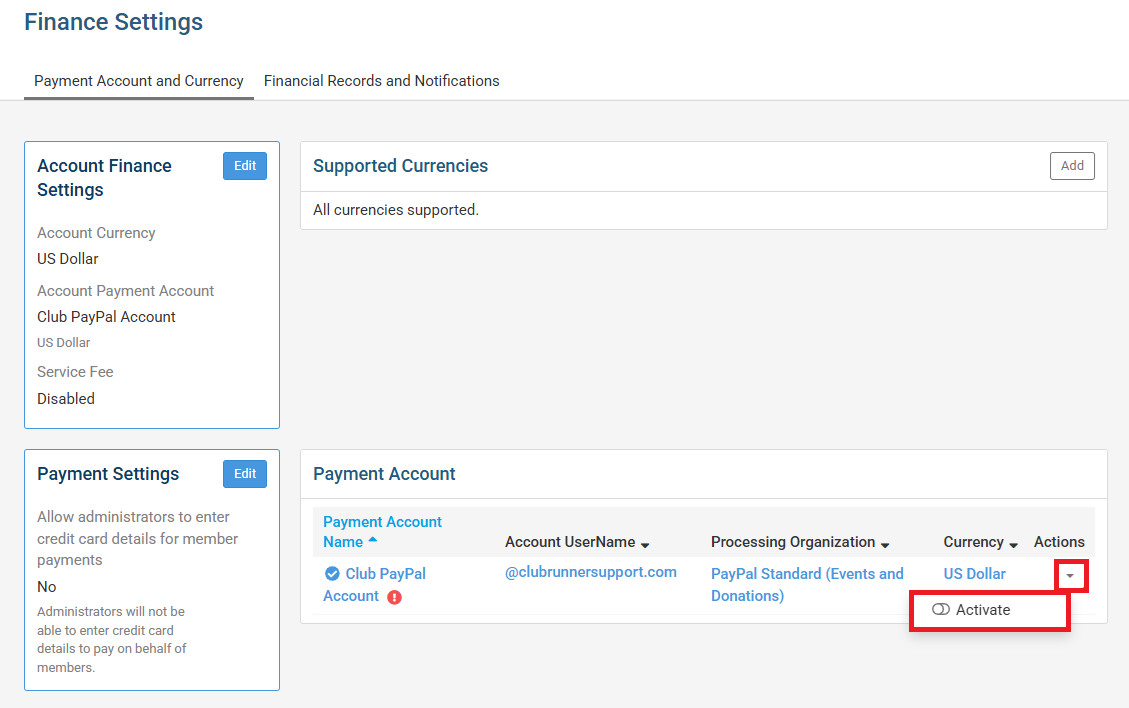
In the Payment Account section, click the drop-down Actions arrow on the right-hand side, then click Activate.
-
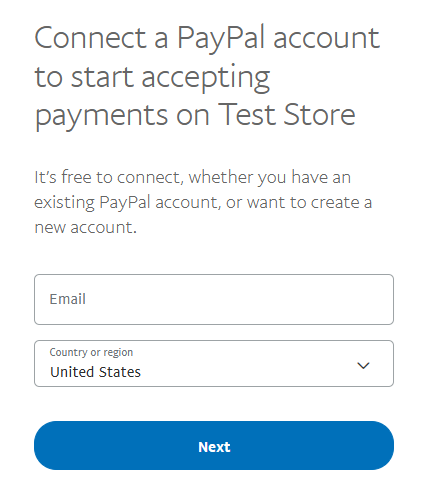
On the following page, enter the email associated with your club's PayPal account, select the appropriate country or region from the drop-down menu, then click Next.
-
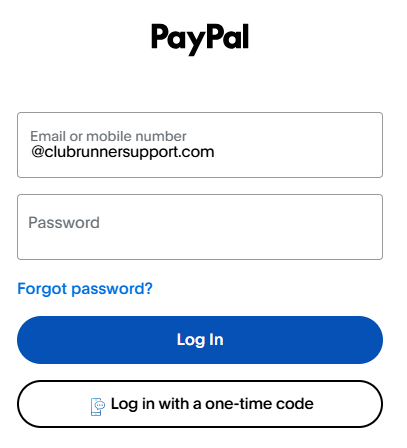
Log in to your club's PayPal account by using the associated email/mobile number and password, or by requesting a one-time code be sent to the email address on the account.
-
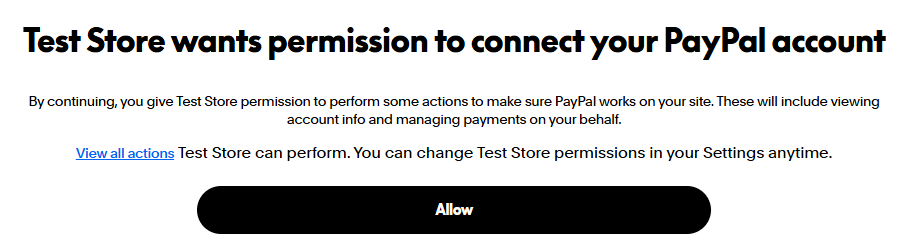
You'll see a notice requesting permission to connect your PayPal account to your ClubRunner site. You may click View all actions to see what specific actions you will be granting permission for. Click Allow to proceed.
-
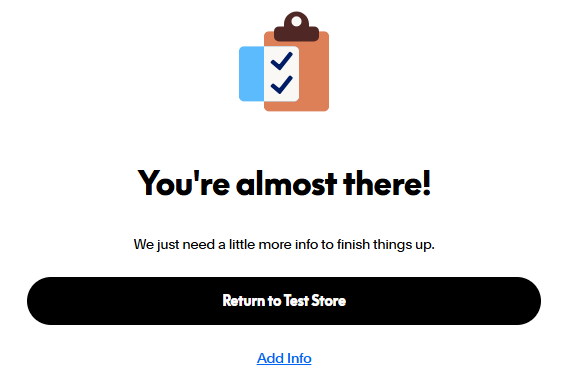
From here you may need to provide additional information to PayPal to verify your account. Click Add Info and follow the on-screen prompts in PayPal to provide the requested information.
-
If you have successfully completed the onboarding process, you will see the ID populated in the "Account UserName" field in the Payment Account section in ClubRunner, as shown below.
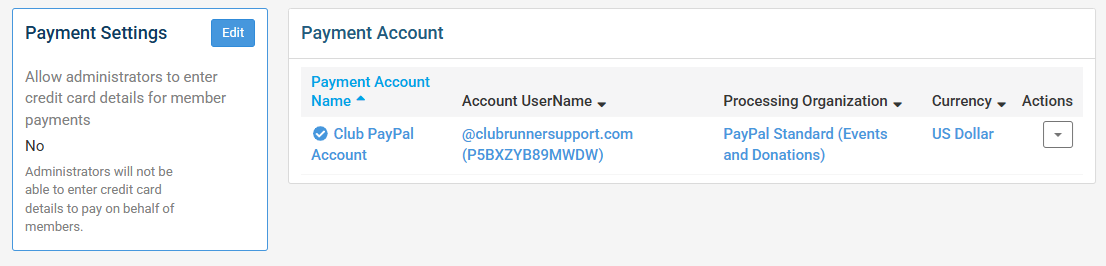
Once the ID has populated in the field above, you have successfully authenticated your PayPal account and your club or district is ready to use PayPal as an online payment processor in ClubRunner!
If the PayPal account is your club’s first payment account in ClubRunner, please follow these steps to set it as the default payment account:
-
On the Payment Account and Currency page in Finance Settings, click the Edit button in the Account Finance Settings box.
-
Use the drop-down menu next to Account Payment Account to select the PayPal account, then click Save.