


The ClubRunner mobile app includes several different preferences and settings that you can change to adjust the app to fit your specific use-cases.
-
Open the ClubRunner mobile app through your device’s list of applications.
-
If you are not already logged in, you may do so by following the steps in the How do I log in to the ClubRunner Mobile App article.
-
Once you are logged in the mobile app, you may follow the steps below to edit your preferences or settings, respectively.
How to edit the app’s device settings
-
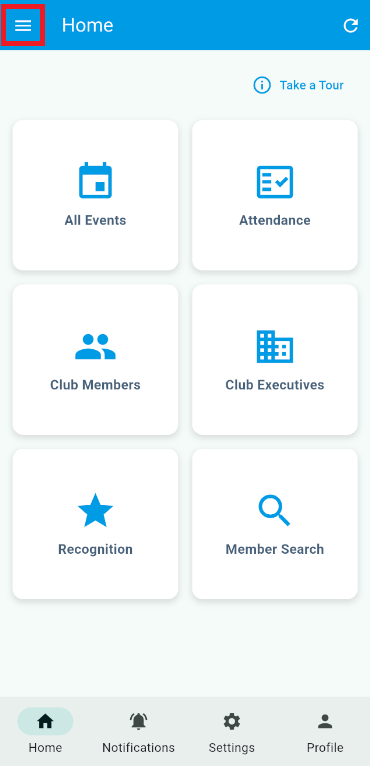
In the top left-hand corner of the screen, tap the menu icon to open the app menu.
-
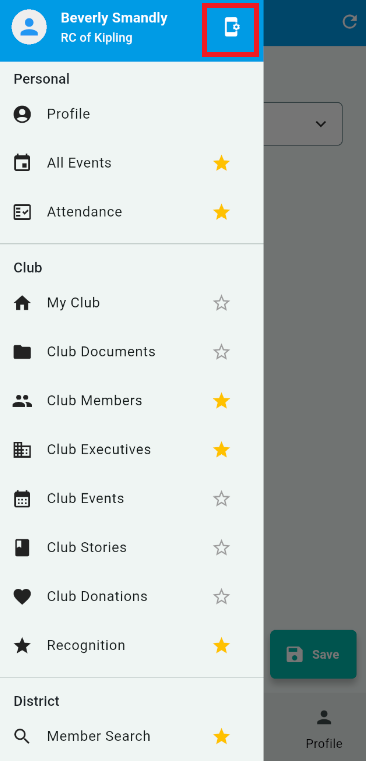
At the top of the menu, tap the App Settings icon.
-
This will bring you to your device’s app settings page where you can adjust items like application permissions and notification settings. Below is a list of some of the important settings and permissions. Please refer to your device’s support resources for a full list of the settings available.
-
Android
-
Notifications - Allows the ClubRunner App to send push notifications to your device. Disabling this will prevent any ClubRunner notifications from being able to be sent to your device.
-
Contacts - Allows the ClubRunner App to access and manage your device’s contacts. Disabling this will disable the “Add to Contacts” feature while viewing an individuals profile in the member directory.
-
Storage & Cache - Allows you to view the total amount of space the mobile app and clear the app cache if you run into any issues.
-
-
iOS
-
iPhone/iPad
-
Contacts - Allows the ClubRunner App to access and manage your device’s contacts. Disabling this will disable the “Add to Contacts” feature while viewing an individuals profile in the member directory.
-
Notifications - Allows the ClubRunner App to send push notifications to your device. Disabling this will prevent any ClubRunner notifications from being able to be sent to your device.
-
Cellular Data - Allows the ClubRunner App to connect through your mobile data, while not connected to the internet.
-
-
-
How to edit your app preferences
-
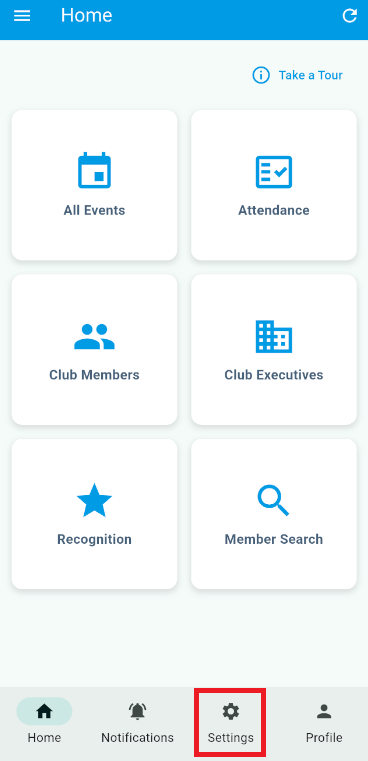
In the bottom of the screen, tap the Settings button.
-
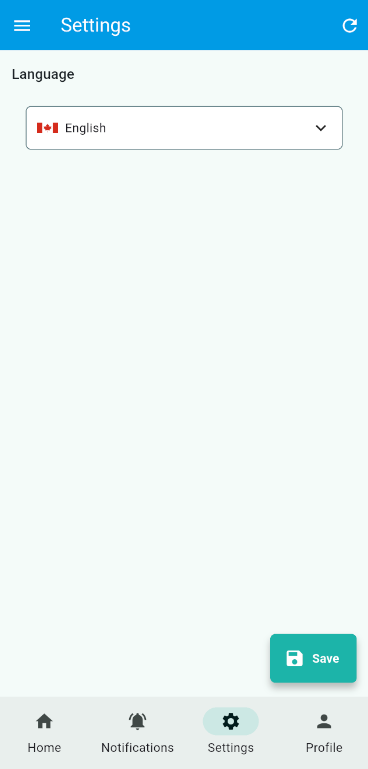
On this page, you will find a list of the available preferences:
-
Language - Allows you to switch the language of the content that appears within the mobile app.
-
- Make sure to tap the Save button to save your changes.