You can apply bulk payment entries to multiple unpaid or partially paid invoices. This support article will show you how to submit payments for multiple invoices through the ClubRunner Nova Financials module.
To learn how to log a payment for an individual invoice, please read the article: How do I enter or record a payment for an invoice?
-
Log in to your account through your club homepage, then click on Member Area on the top right under your club banner. Alternatively, click here to go directly to the ClubRunner login page.
-
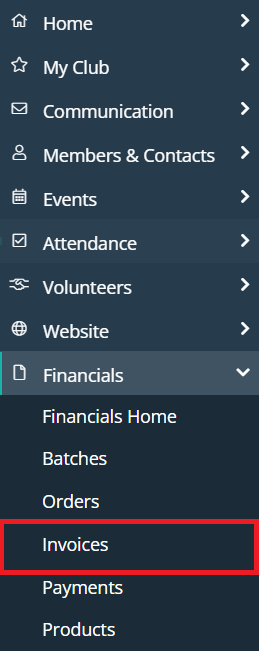
On the left hand menu, click the arrow to the right-hand side of Financials, then click on Invoices.
-
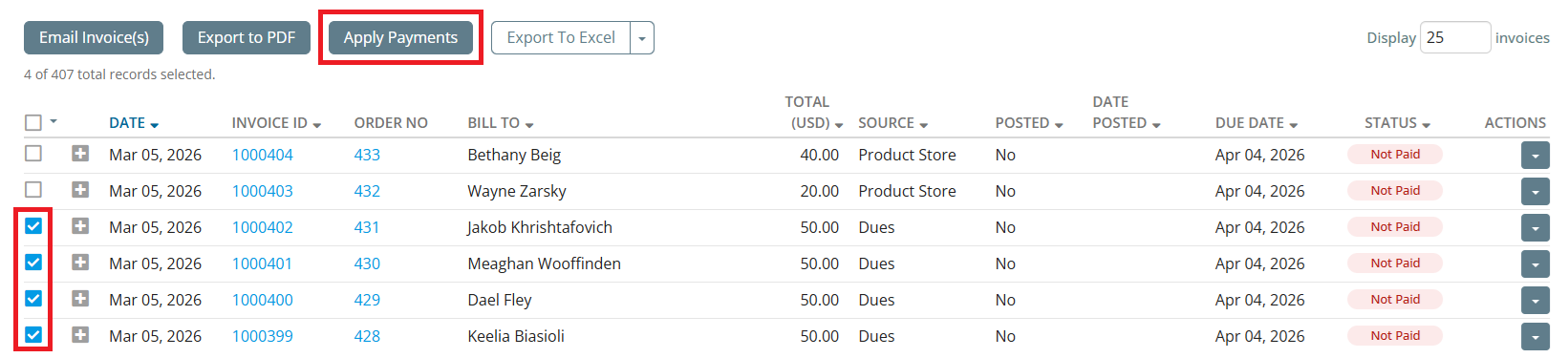
Click the checkboxes on the left-hand side to select up to 100 invoices to apply payments to. You will not be able to apply payments to any selected invoices that are already paid, overpaid, or voided. Once you have selected the desired invoices, click the Apply Payments button.
-
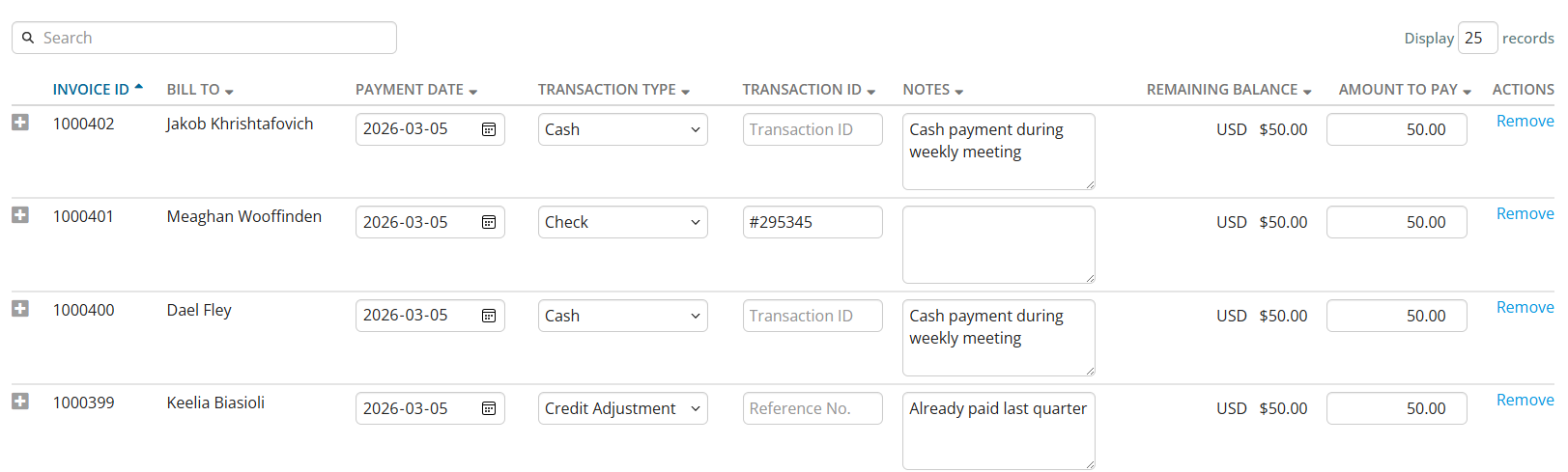
On the bulk payments page, you may enter the necessary information for the selected invoices, and can choose from several bulk actions to apply to all selected invoices. You may select a Transaction Type, Payment Date, or enter an Amount to Pay, then click the Apply to All button to apply the chosen information to all invoices in the list.
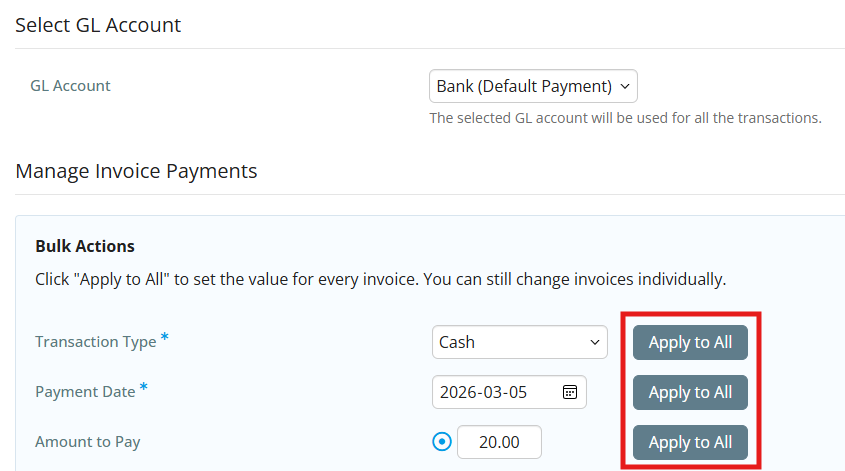
If you wish to apply the entire invoice balance to the invoices, you may use the Invoice Balance option and click Copy Balances to Amounts.

-
You may also enter the payment information manually for each invoice in the list, and can also make changes after bulk-applying any information from the previous step.
-
Once you have entered the desired information for all payments, click Apply Payments in the bottom right-hand corner.

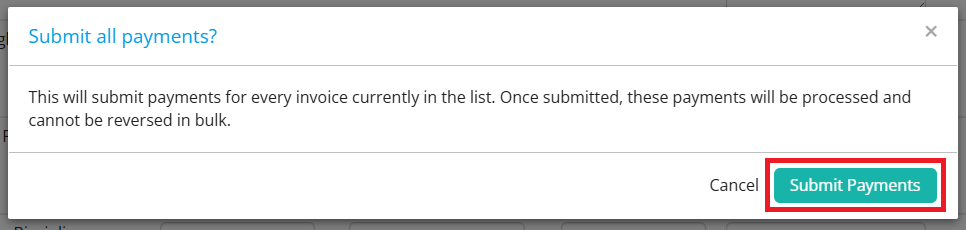
You will see a confirmation window warning you that the pending changes will be processed and cannot be reversed in bulk, and can click Submit Payments to proceed.
-
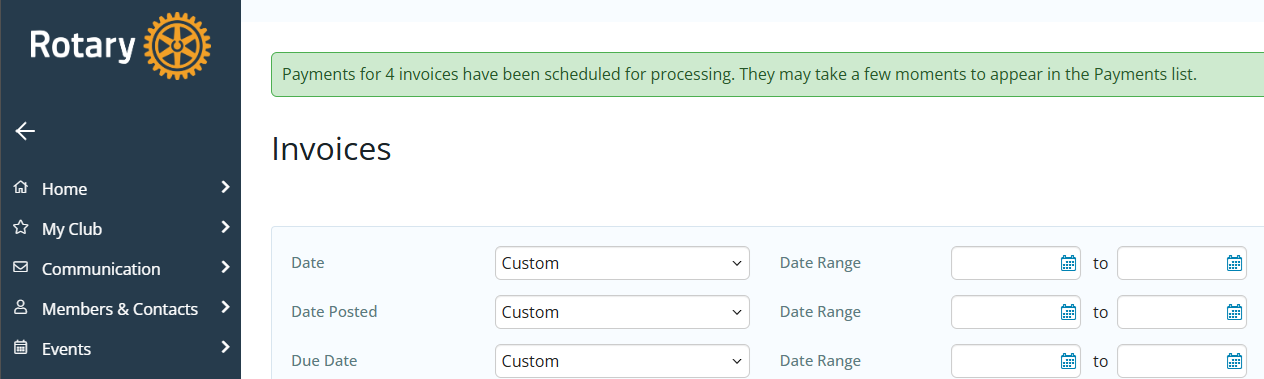
You will be brought back to the list of invoices with a confirmation message for the pending payments. You may navigate to the Payments page to review the applied payments.