


Members can be assigned tasks to assist with onboarding prospects to the club, such as booking follow ups, inviting the prospects to meetings, scheduling video calls, and more. This support article will show you how assigned members and club staff can track the completion status of assigned tasks.
To learn how to create and assign tasks, please read the support article: How do I create and assign tasks?
-
To begin, log in to your account through your club homepage, then click on Member Area in the top right-hand corner. Alternatively, click here to go directly to the ClubRunner login page.
-
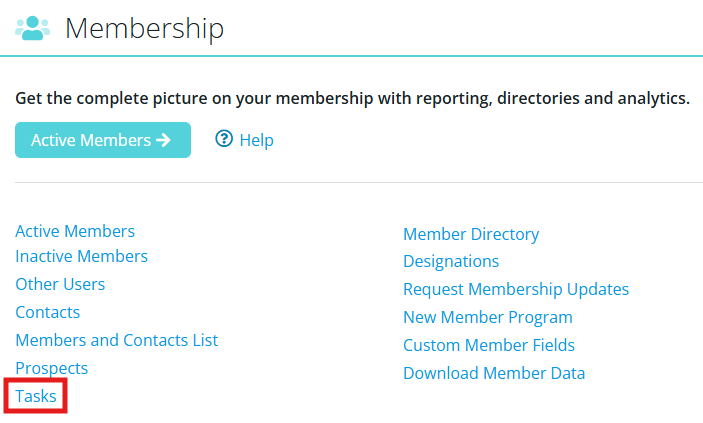
If you have level 50 or better access, you may navigate to the list of tasks by scrolling down from your members area dashboard and clicking the Tasks link in the Membership section.
 Note
NoteYou may also access the Task Listing from the Prospects dashboard, or by navigating to the Tasks tab of the prospect or assigned member's profile.
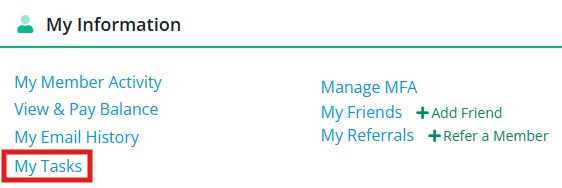
If you have been assigned a task to complete, you may access it from the Tasks tab of your member profile, or by clicking the My Tasks link in the My Information section of your members area dashboard.
-
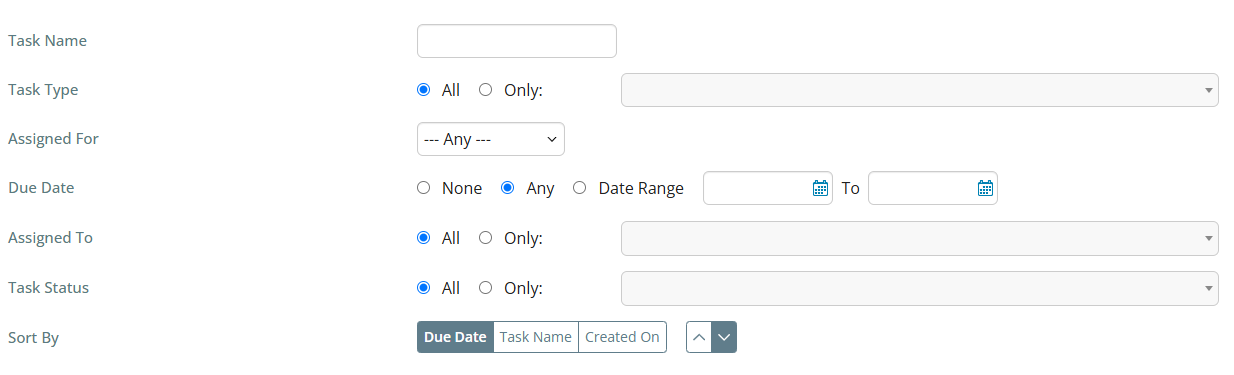
On the task listing, members with level 50 or better access will see the list of all assigned tasks for the club, and may use the options at the top of the page to filter using the Search button, or sort the displayed results. You may also use the tabs above the list of statuses to view the assigned task for each status.
Locate the task you wish to edit and click the View button on the right-hand side of its information.

-
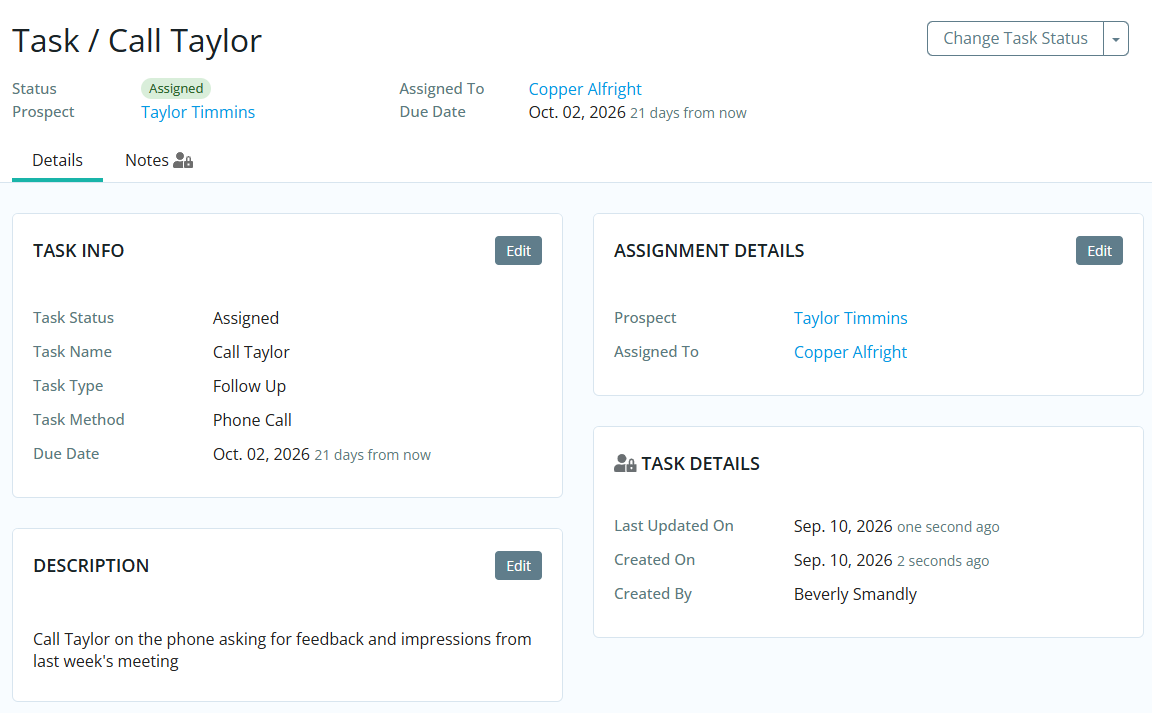
Members with the appropriate access may click the Edit buttons in any of the boxes to make changes to this task's information, or click the Notes tab to view a history of changes for this task or add a related custom note. You may update the task's status by clicking the Change Task Status button in the top right-hand corner.
-
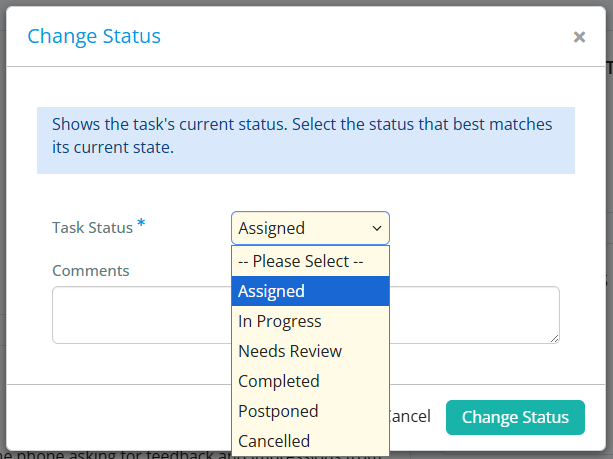
Select the appropriate status for the task. You may add an optional comment to include details relating to the status change which will appear in the private Notes tab for the task. The available statuses are: Assigned, In Progress, Needs Review, Completed, Postponed, Cancelled.
-
Click the Change Status button to save your changes.