


Tasks can assist with evaluating and onboarding prospective members for your club. You can create a task associated with a prospect, such as an invitation or follow up call, and assign it to another member of the club to complete. You can notify members about their assigned tasks, and the members can action and update the status of the task from their profiles.
This support article will show you how to create and assign prospect tasks to members in your club.
You must have level 50 or better access in order to create and assign tasks.
-
To begin, log in to your account through your club homepage, then click on Member Area in the top right-hand corner. Alternatively, click here to go directly to the ClubRunner login page.
-
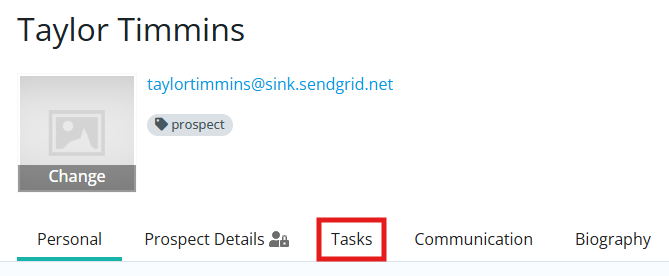
Navigate to a prospect's profile, then click the Tasks tab.
-
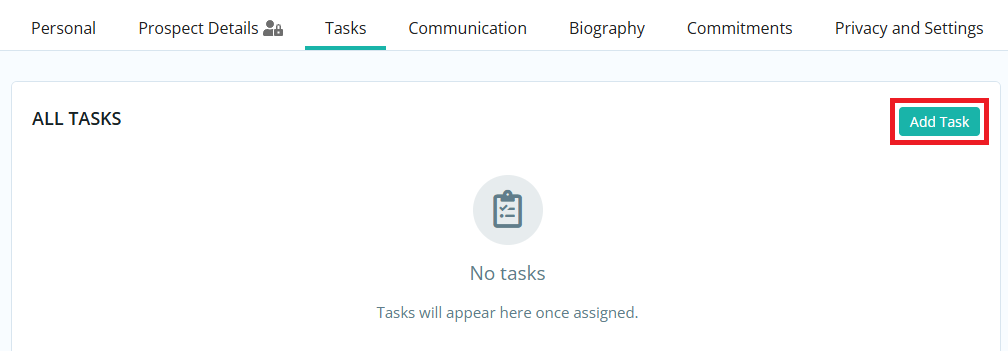
Click the Add Task button.
-
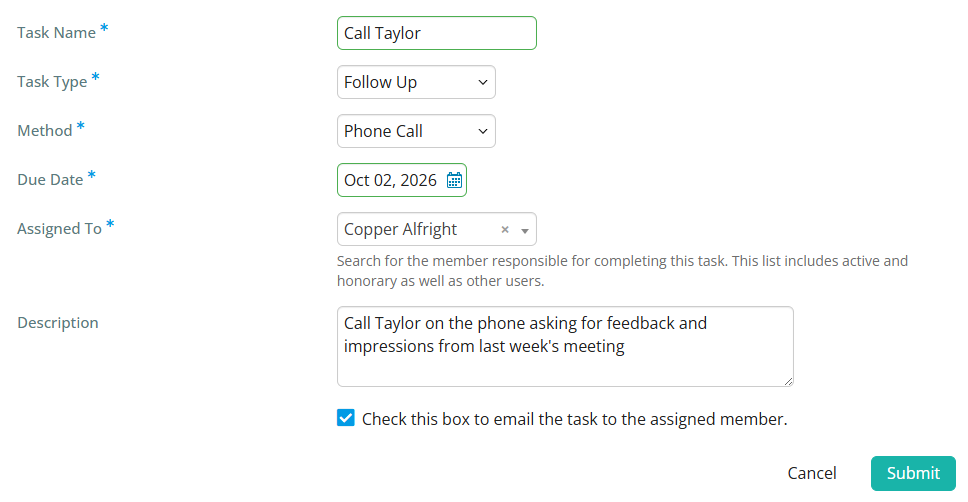
Enter the required information and click the Submit button when finished. The available fields are:
-
Task Name - A short name to identify the assigned task.
-
Task Type - Used to categorize this task as either an Initial Outreach, Follow Up, Invite to Event, or Miscellaneous.
-
Due Date - The date the task is expected to be completed by the assigned member.
-
Assigned To - Use this field to search for the member responsible for completing this task. Tasks can be assigned to Active and Honorary members as well as Other Users.
-
Description - This is an optional field for entering any helpful details, notes, or instructions related to the task.
-
Checkbox - Check the box to email the assigned member about the new task using a system-generated template.
-
-
Once the task has been created, the assigned member can view its details and change its status from the Tasks tab in their profile.
To learn how to change the status of a task, please read the support article: How do I change a task's status?