


You will need to know your username and password in order to log in to your district account. This article will show you two methods of updating your password.
If your club is subscribed to ClubRunner, please note that the same login credentials are used whether logging in to your club or your district.
If you do not know your current password
-
Navigate to the district homepage, then click on Member Login in the top right-hand corner. Alternatively, click here to go directly to the ClubRunner login page.
-
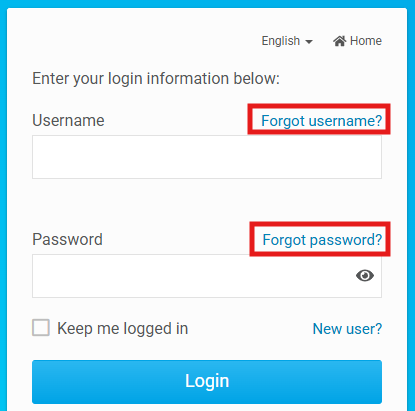
On the login screen, click Forgot username or Forgot password.
-
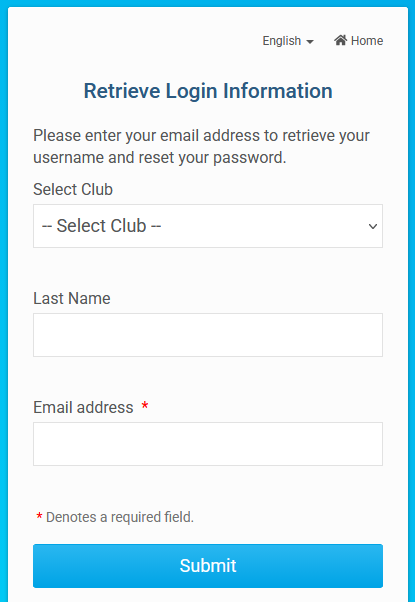
Enter the required information in the form, then click Submit.
-
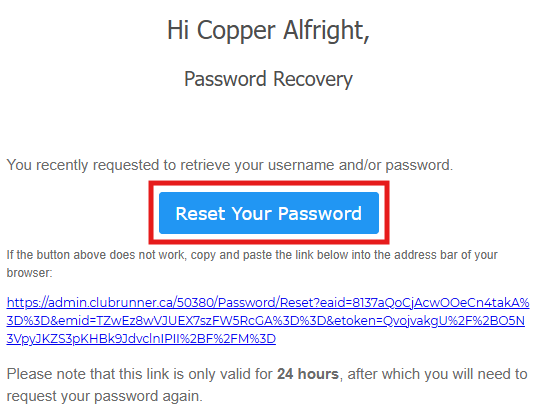
The system will send you an email to your email address. Open this email and click Reset Your Password. If you do not see the email, please check your spam or junk folders and ensure that your whitelist or safe senders list includes @auth.clubrunner.ca.
-
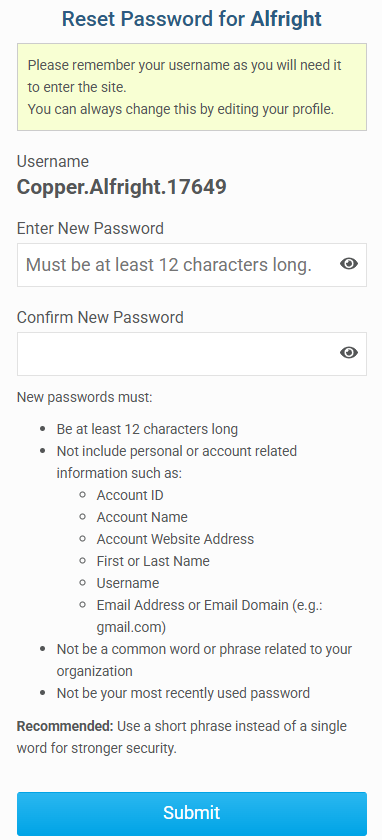
Your username will be displayed and you may enter and confirm your new password in the fields below. Make note of your username as shown in the email, as you will need this to log in to your account in the future.
-
Ensure you are adhering to the password requirements listed in the window. After entering your new password into the two password fields, click the Submit button to update your password and access your account.
If you know your current password
-
Log in to your account through your district homepage, then click on Member Area in the top right-hand corner. Alternatively, click here to go directly to the ClubRunner login page.
-
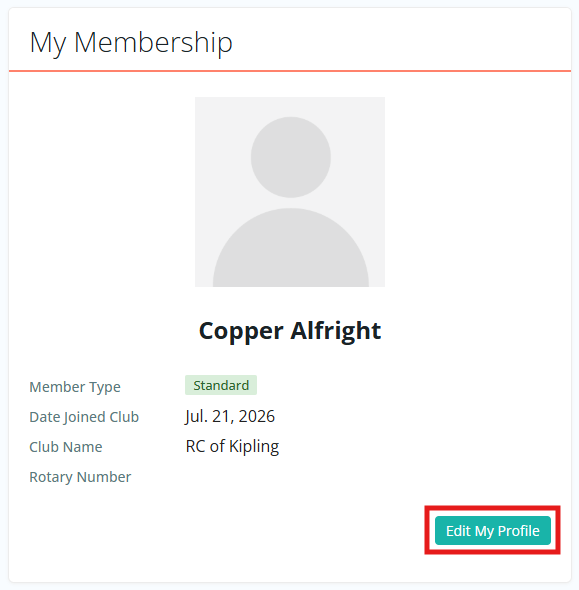
In the members area, click Edit My Profile.
-
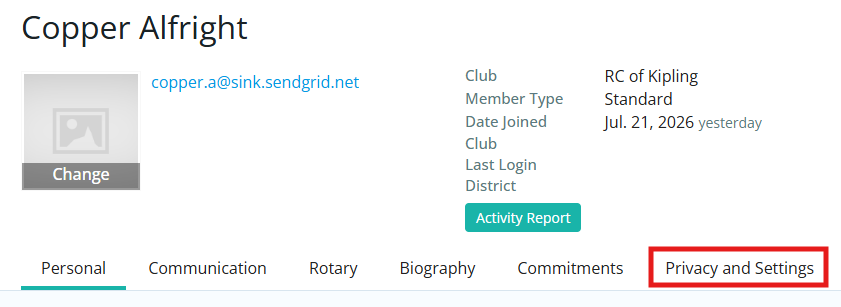
Click the Privacy and Settings tab.
-
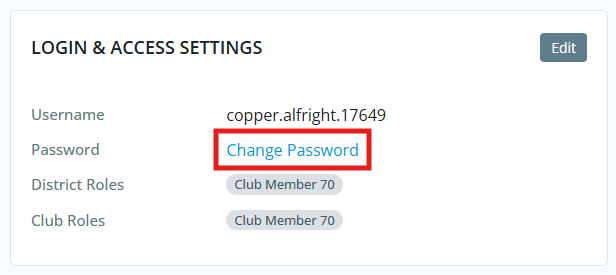
In the Login & Access Settings section, click Change Password.
-
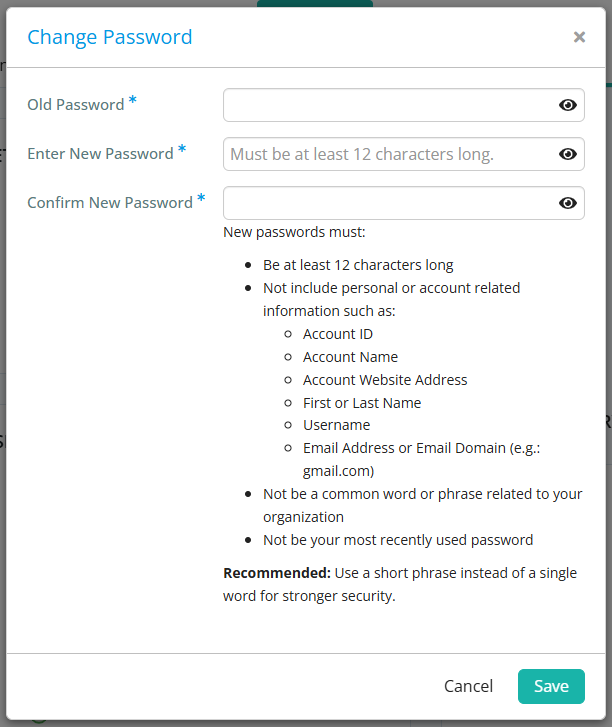
Enter your current password to confirm your identity, then enter and confirm your new password. Ensure you are adhering to the password requirements listed in the window. Click Save when ready to update your password.
Updating your password will log you out of your account across other devices. If you are logged in to your account on another device, you will need to log in again using your new password.