


Volunteer lists may be connected to an existing active Cloud Event or Event Planner event, or you may create a standalone signup list to link to on your club site. This support article will show you how to create new volunteer signup lists.
Members must have level 60 or better access to manage the Volunteers module.
-
To begin, log in to your account through your club homepage, then click on Member Area in the top right-hand corner. Alternatively, click here to go directly to the ClubRunner login page.
-
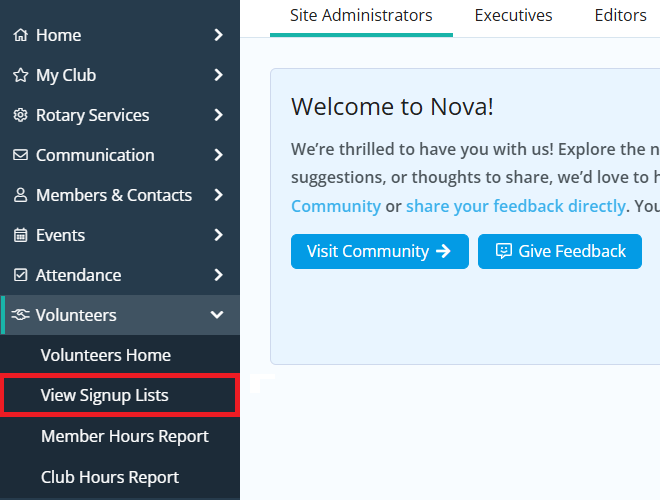
Click the arrow next to Volunteers in the left-hand menu, then click View Signup Lists.
-
Click Create New Signup List.

-
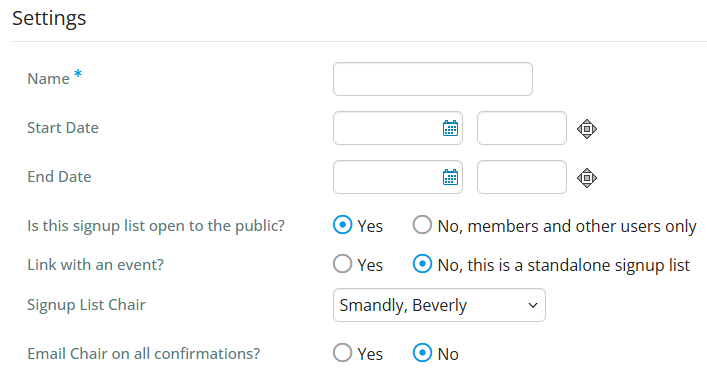
Fill in the fields on the settings area of this page.
-
Name - Name of the signup list.
-
Start/End Date - The date range that the signup list is opens for signups.
-
Is this signup list open to the public? - This setting determines whether anyone can sign up for tasks, or only members who are logged in to their accounts.
-
Link with an event? - If yes, a new “Select the Event” drop-down will appear where you may select an event from Event Planner or Cloud Events for this volunteer list.
-
Signup List Chair - This can be any member. The signup list chair can edit or change the volunteer signup list and tasks as needed, even if they would not normally have access to those functions.
-
Email Chair on all confirmations? - If yes, an email will be sent to the Chair each time a volunteer signs up for a shift.
-
-
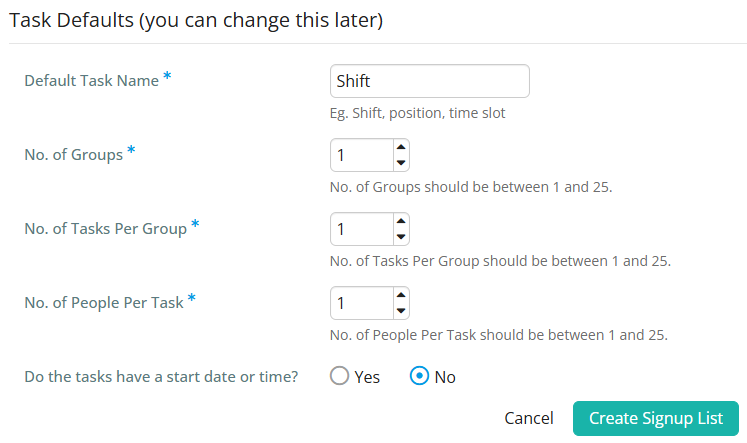
Next you will set the task defaults, which will determine how tasks will first appear when they are created for the signup list. Tasks can always be edited after they are created.
-
Default Task Name - The name format given to newly-created tasks, eg. Shift 1, Shift 2, Shift 3, etc.
-
No. of Groups - How many groups will be created for each set of tasks defined.
-
No. of People Per Task - Defines how many volunteers slots are available per task defined.
-
No. of Tasks Per Group - Defines how many tasks are associated with each group defined.
-
Do the tasks have a start date or time? - If yes, you will be prompted to enter a start date and time for the tasks.
-
Would you like to increment the tasks? - This feature is available if yes was selected to the prior setting, and has three options:
-
No - Will not create any new tasks.
-
Date - Will increment the task by days from the end date of the sign-up list.
-
Time - Will increment the task by hours & minutes from the end date of the sign-up list.
-
-
-
When finished choosing your desired settings, click Create Signup List near the bottom of the page.
To learn how to manage tasks for a volunteer signup list, please read: How do I manage volunteer tasks for a signup list?