


ClubRunner allows you to manage and assign volunteers to various tasks. This support article will show you how to manage tasks for a created signup list.
To learn how to create a volunteer signup list, please read the support article: How do I create a volunteer signup list?
-
To begin, log in to your account through your club homepage, then click on Member Area in the top right-hand corner. Alternatively, click here to go directly to the ClubRunner login page.
-
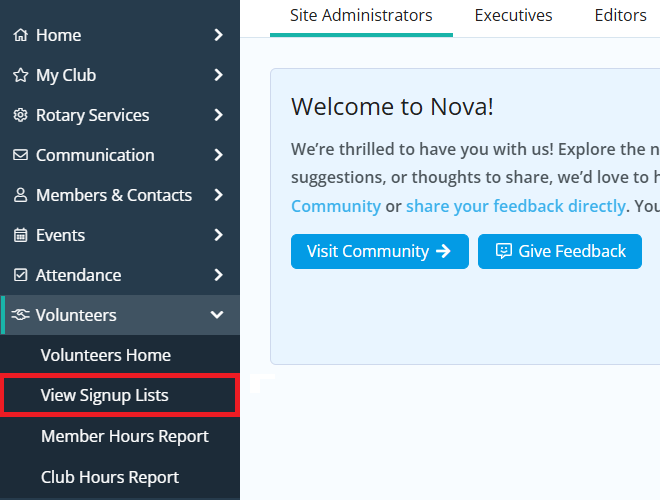
Click the arrow next to Volunteers in the left-hand menu, then click View Signup Lists.
-
Click either the name of the signup list you wish to manage tasks for, or click the Open link in the right-hand actions column.

-
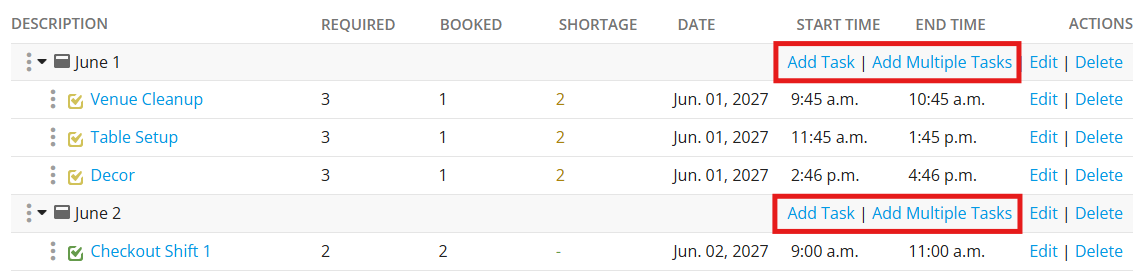
On the following page, you can manage all of the tasks for this volunteer signup list and will see the count of how many people are required and have signed up for any listed task. You may edit or remove any existing tasks by clicking the Edit or Delete options in the right-hand Actions column, and may hold down your mouse button when clicking on the three dots to the left-hand side of a group or task to drag it and reorganize the list.

-
Click the Add Group button at the top of the page to create another group to help organize the signup list's tasks. Enter a name for the group and click Save to add it to the list.

-
To add a new task, find the group you would like to add the task to and click the Add Task link. You also have the option to add more than one task with the Add Multiple Tasks link.
-
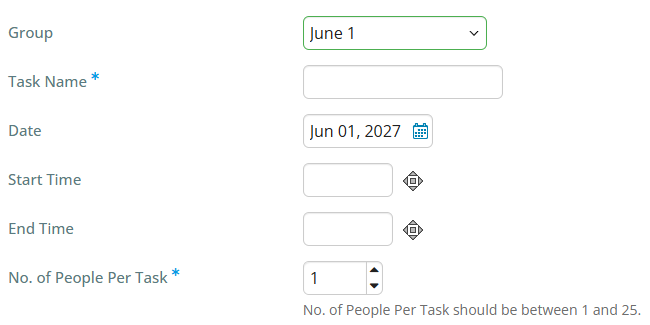
When adding a single task, enter the information into the fields. The task name and number of people per task are required fields, but you may also assign a date and time to the task if you wish. Click Save to create the task.
-
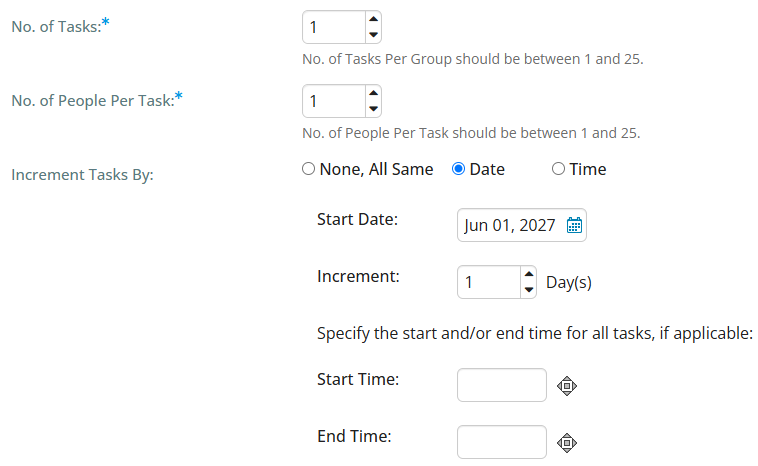
When adding multiple tasks, you will see options regarding how many tasks to create and how many people are needed per task. You may also choose to increment the created tasks by date or time.
-
Enter the desired settings and click Preview to view the tasks to be created. Review the preview and click Save to create this batch of tasks. Remember you may always make changes to this information later using the Edit buttons on the task list.