When a Cloud Event receives a new registration or changes are made to an existing registration, this will trigger email notifications which are sent to registrants, attendees, and the event organizer. The different kinds of notifications may be disabled, or you can make changes to the email templates used for each notification.
You may review and make changes to the notification emails sent for your event by following the steps in this support article.
-
To begin, log in to your account through your club homepage, then click on Member Area on the top right-hand corner under your club banner. Alternatively, click here to go directly to the ClubRunner login page.
-
Click the arrow next to Events in the left-hand menu navigation, then click Cloud Events.
-
Click the Manage button on the event you wish to edit.
-
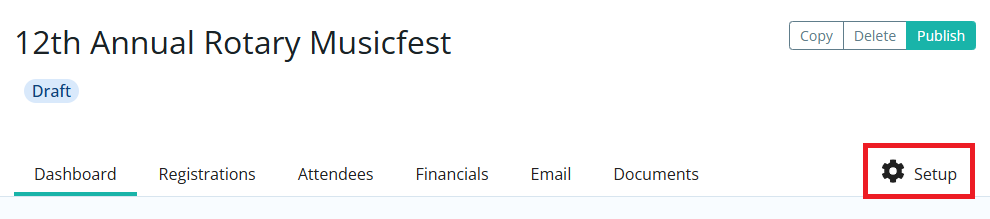
Click Setup in the top right-hand corner.
-
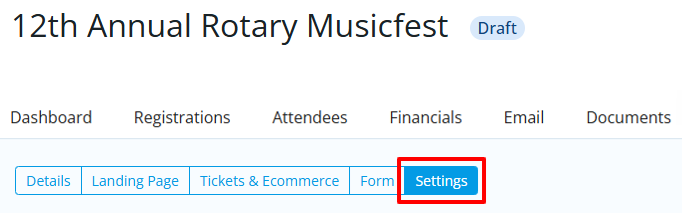
Click the Settings tab.
-
Scroll down to the Email Notification Templates section. Here you will see a list of all the email notifications that are used by the event, which email template is used for the notification, and who the recipient is. You may click the Preview links to the right-hand side of the templates to see what each notification looks like.
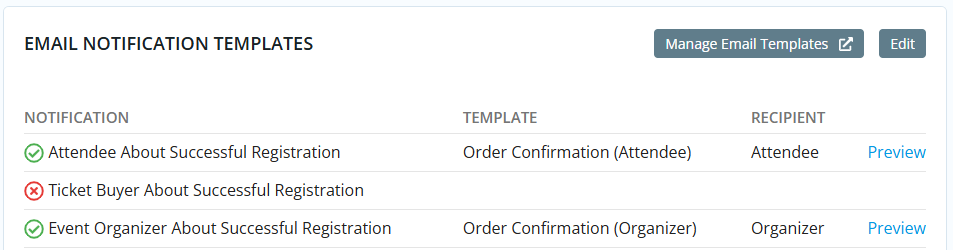
Each type of notification uses a unique email template, depending on whether the recipient is an attendee, the ticket buyer, or the event organizer. The types of email notifications for Cloud Events are as follows:
-
About Successful Registration - This notification is sent to notify the recipients of a successful registration for this event.
-
About Ticket Cancellation - This will notify recipients of a ticket cancellation for this event.
-
About Order Cancellation - This will notify recipients of a successful registration for this event.
-
About Issued Refund - This will notify recipients of an issued refund for this event.
-
About Payment Received - This will notify recipients of a received payment applied to an order for this event.
WarningIf the "About Successful Registration" notifications are disabled for attendees, they will not be emailed tickets with QR codes that can be scanned for checking in to an event.
You can still resend the tickets manually by following the steps in: How do I resend tickets to Cloud Events attendees?
-
-
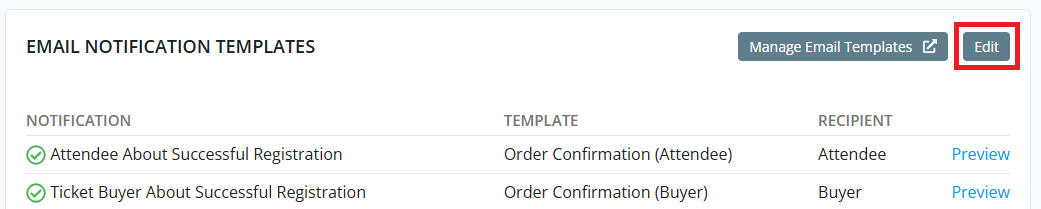
To disable a notification or to choose a different template, click the Edit button.
-
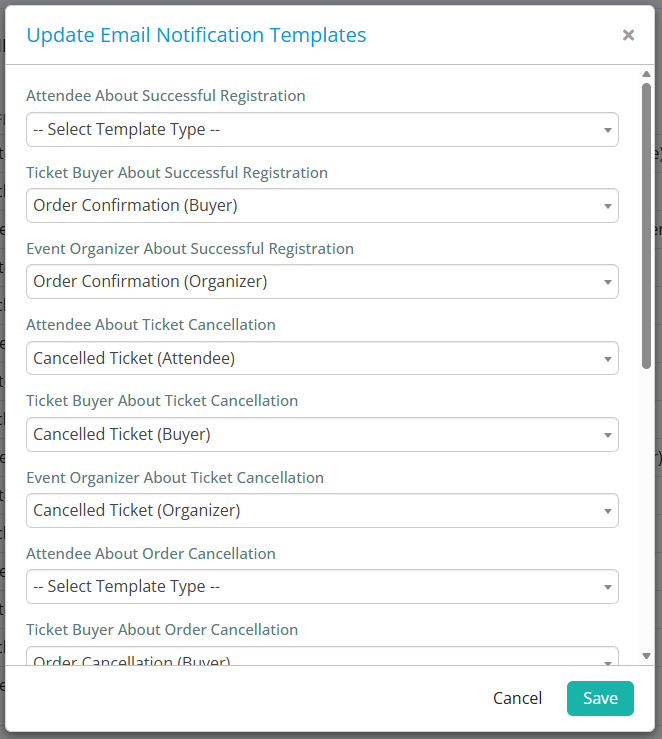
In the following window you may click on the drop-down menus for each type of event notification and select which template is sent by the system. If the selected option for any template reads "-- Select Template Type --", this type of notification will be disabled for this event. Click Save when you've finished selecting the desired templates.
-
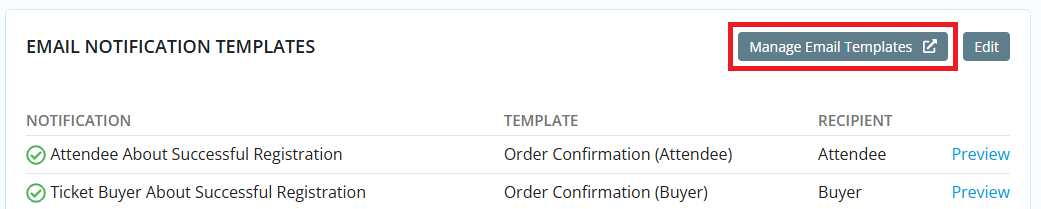
You can further customize your templates by clicking the Manage Email Templates button.
-
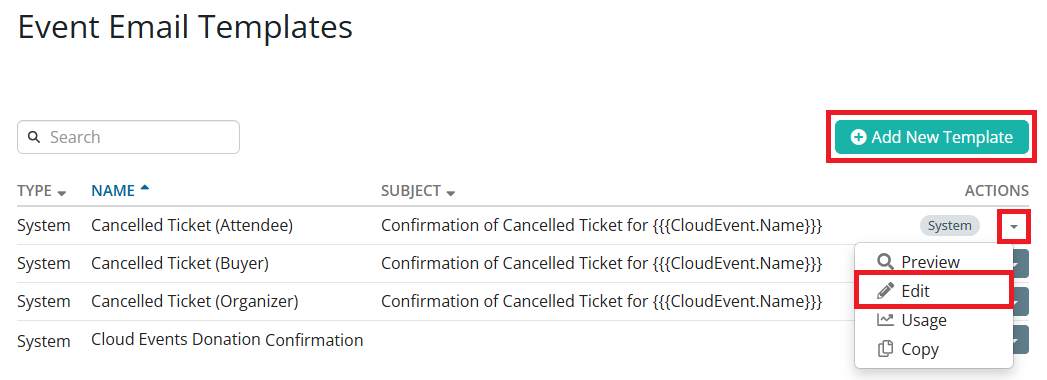
This will take you to the Event Email Templates page, where you will see a list of all existing email templates in use by the Events module. You may make changes to an existing template by clicking the drop-down arrow in the right-hand Actions column and clicking Edit, or you can create a new template by clicking the Add New Template button.