In the case that a meeting has been cancelled and you wish to remove it from your list of meetings, you can delete it from the Attendance module by following the steps below.
-
Log in to your account through your club homepage, then click on Member Area on the top right-hand corner under your club banner. Alternatively, click here to go directly to the ClubRunner login page.
-
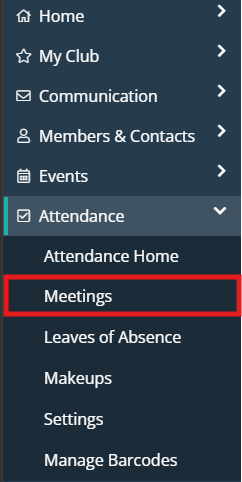
In the left-hand menu navigation, click the arrow beside Attendance and then click Meetings.
-
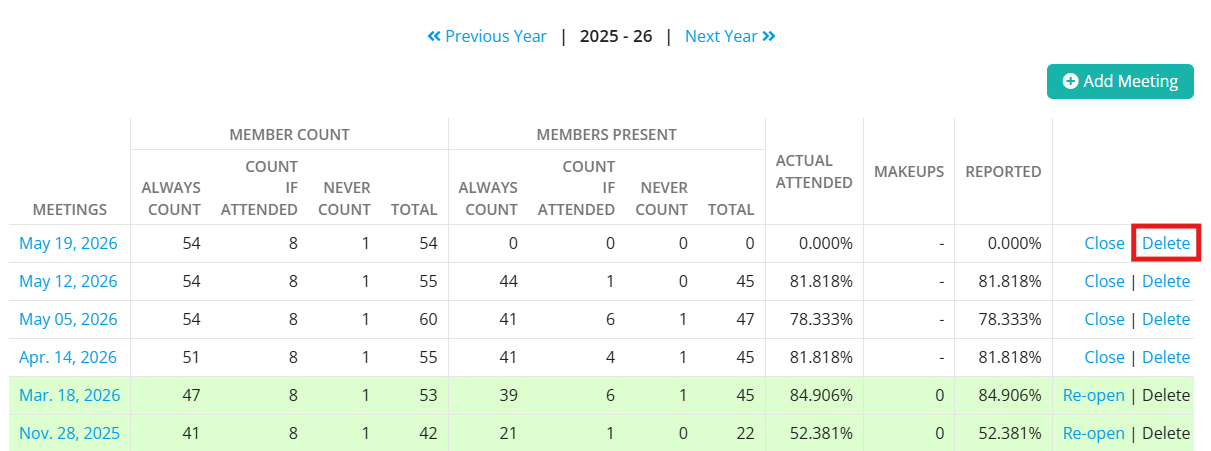
You will see a list of the existing meetings for the year. Closed meetings are highlighted in green, while open meetings are in white. Find the meeting you wish to delete and click Delete in the right-hand column.
 Note
NoteYou can only delete open meetings. For help re-opening a meeting, please see the support article: How do I close or re-open a meeting?
-
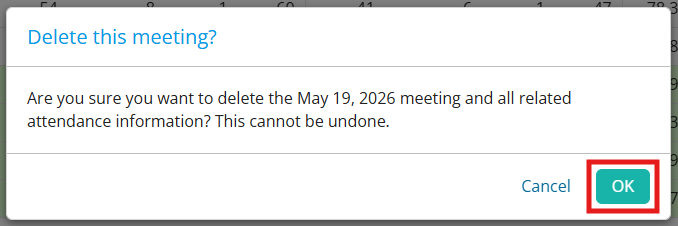
A prompt will appear asking if you are sure you wish to delete the meeting. Please note that a deleted meeting cannot be restored. Click OK to confirm deletion of the meeting.