Record tags can be used in Nova to organize members and contacts or provide information regarding a person's history with your club.
This support article will show you how to edit or delete tags as a member with level 30-Site Administrator access.
To remove tags from records without deleting them from your club, use the bulk remove options described in this support article: [NOVA] How do I create and assign tags to members and contacts?
-
Log in to your account through your club homepage, then click on Member Area on the top right under your club banner. Alternatively, click here to go directly to the ClubRunner login page.
-
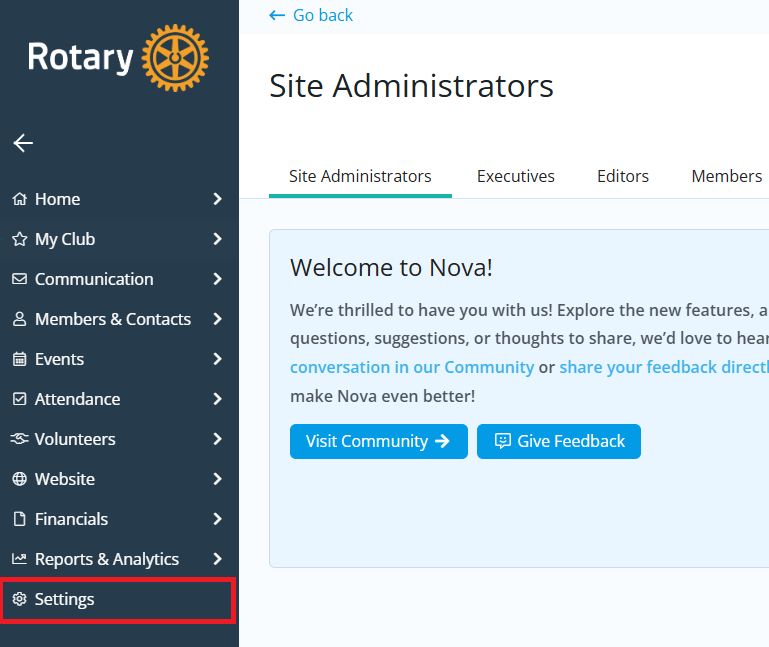
Click Settings in the left-hand navigation menu.
-
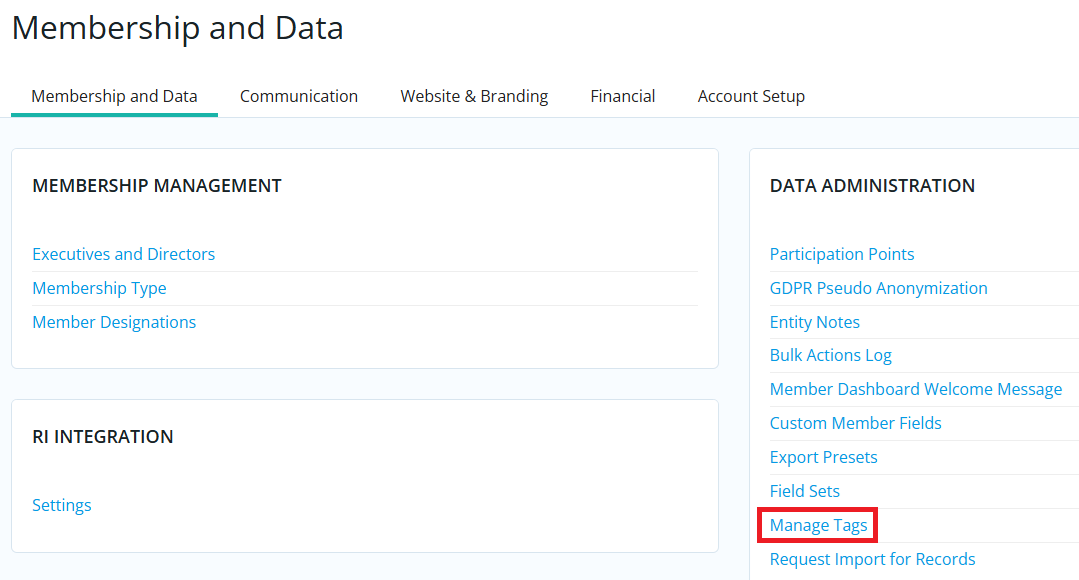
In the "Data Administration" section, click Manage Tags.
-
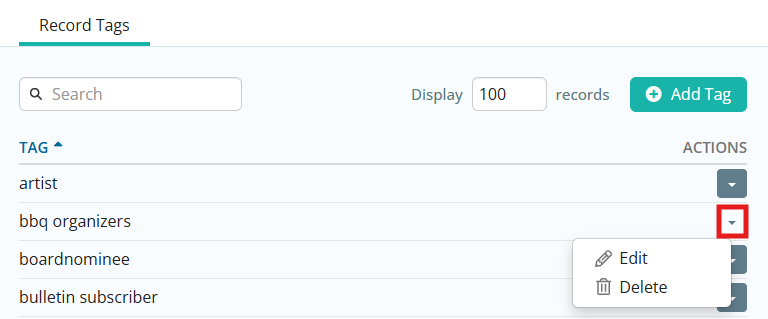
You will see the list of all record tags used in your club and can filter by using the Search bar at the top of the list. Click the drop-down arrow in the right-hand Actions column to select from the available options.
-
Edit: This option allows you to change the name of the tag and apply the changes to all records currently using the tag.
-
Delete: This option will remove the tag from all records and the tag will no longer appear in the list of tags.
-
Clear: This option is available for tags that were automatically created for the club, such as "donor", "guest", and "volunteer". You have the option to remove the tag from all records it is used on, but the tag will still be available for use on additional records as it cannot be deleted.
-
-
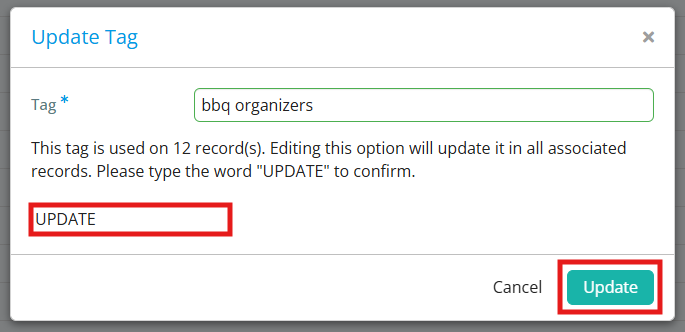
Clicking on one of the above options will present a window asking you to confirm the action you selected. If the tag is currently in use on any records, the window will list how many records are using that tag and will ask you to enter the text "UPDATE", "DELETE" or "CLEAR" depending on which option was selected. Once you enter the specified text into the typing field, you may click the confirmation button to complete the action.