


From time to time, you may find it necessary to remove a club officer or edit their details. For example, a current executive member may find it necessary to resign their position because of other commitments, or a position may have been incorrectly assigned.
-
To begin, log in to your account through your club homepage, then click on Member Area in the top right-hand corner. Alternatively, click here to go directly to the ClubRunner login page.
-
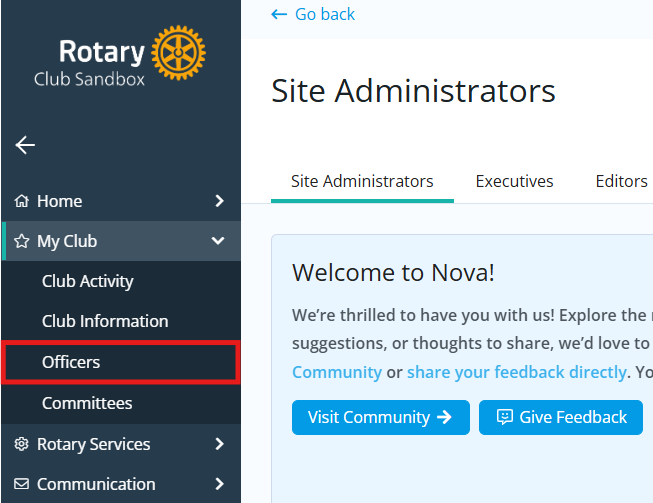
Click the arrow next to My Club in the left-hand navigation menu, then click Officers.
-
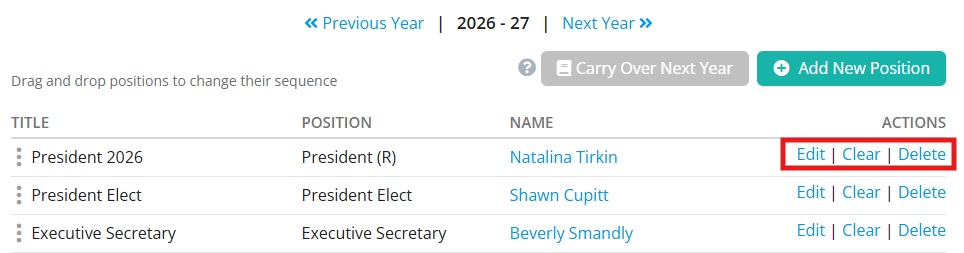
You are now on the Club Executives and Directors page, where you can identify or remove club directors and executives. Below the Action heading you have three options:
-
Edit - Allows to you edit the position.
-
Clear - Erases the name in the position.
-
Delete - Removes the name and the position.
-
-
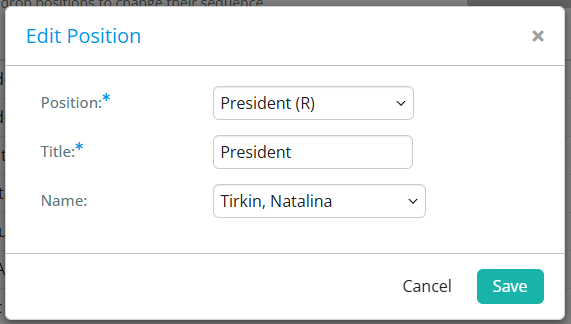
You can click on Edit to change the executive position details. Here, you can change the Position, Title, and Name of the officer. Click Save to keep your changes, or Cancel to discard them.
-
Position is the position the executive holds in the club.
-
Title refers to the title of the executive, which you can modify as needed for your club.
-
Name is the name of the officer.
-
-
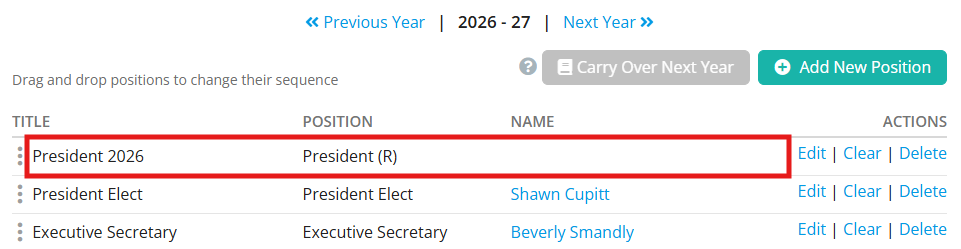
You can click Clear if you want to remove the member from the position without deleting the position itself.
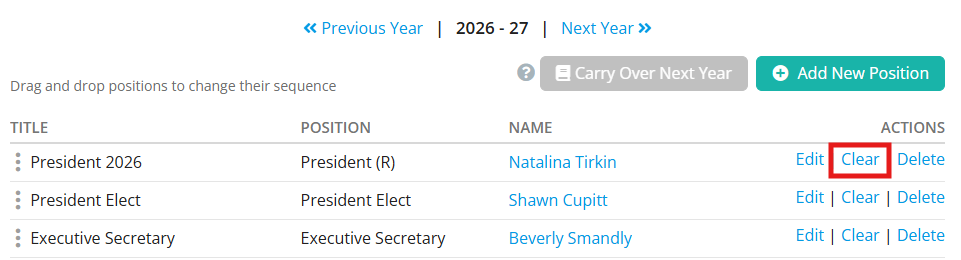
The Clear function is used in situations when a position has fallen vacant, though the club still retains it as an executive position.
-
To remove an executive position entirely, click the Delete link.

To change the order of the officers, please drag and drop the three vertical dots to the left of each position, or the Grab Points, into order.