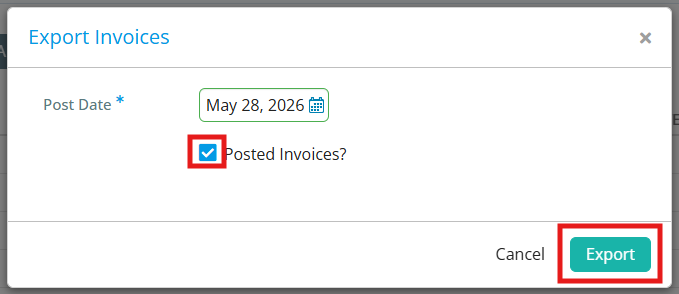
Marking an invoice as "posted" will indicate that the invoice has been logged in the club's accounting system, and will prevent any future changes from being made to the invoice.
This support article will show you how to mark an invoice as posted by exporting selected invoices to a spreadsheet format.
To learn how to export the information into a format that can be imported into Quickbooks, read the support article: How do I export my club's financial information for use in QuickBooks?
-
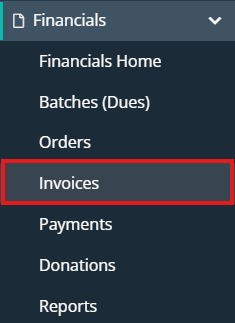
In the Members Area, click the arrow beside Financials on the left-hand menu, then click on Invoices.
-
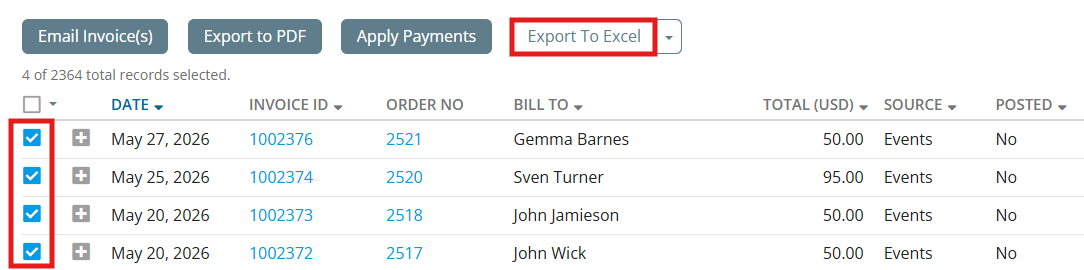
Click the check box next to the invoices you want to export. You can use the check box at the top of the list to select all invoices from the current page or all invoices in the account.
-
With all invoices checked that you want to export, click the Export To Excel button.
-
A pop-up will appear where you can set a post date, and check an option labelled "Posted Invoices". This option will mark the invoices as posted with the associated date, so you'll know from the invoice list view that they have been exported. Click Export to start the download of the CSV file and mark the selected invoices as posted.