


The Compare & Synchronize tool is available to members with level 50-Executive or better access to synchronize the data between ClubRunner and Rotary International. The club will first need to enable Rotary integration using the steps in the following support article: How do I set up automatic integration with Rotary International?
This support article will show you how to use the Compare and Synchronize tool to review and update your member information across ClubRunner and Rotary International.
Navigation:
Navigating the Compare Members tool
Using the Compare function
Correcting Rotary sync issues
Navigating the Compare Members tool
-
To begin, log in to your account through your club homepage, then click on Member Area in the top right-hand corner. Alternatively, click here to go directly to the ClubRunner login page.
-
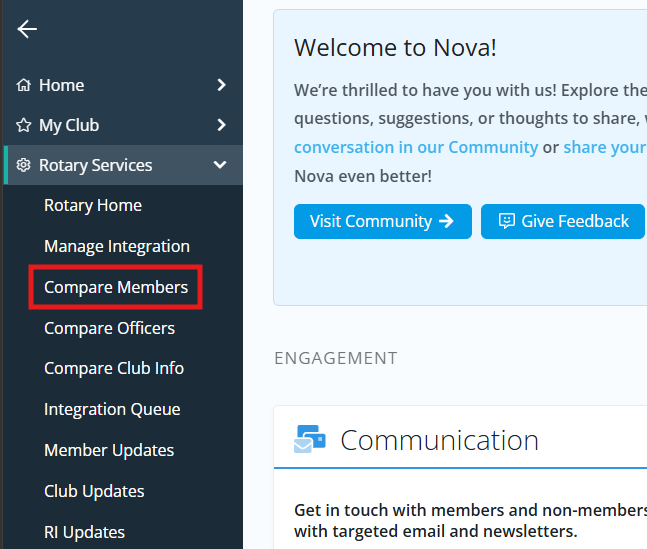
Click the arrow next to Rotary Services in the left-hand navigation menu, then click Compare Members.
-
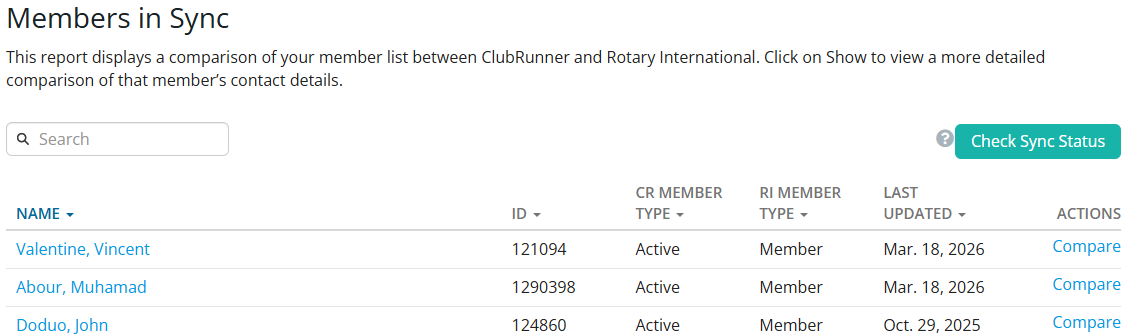
Once the page has loaded, you will see a few charts with corresponding members listed in them. Each section will display the member's name, Rotary ID (if applicable), the member type as it appears in ClubRunner and RI, the date of the member record's last update, and an actions column with different links or options. The charts that are displayed are:
-
Members in Sync - This chart displays the members who are matched correctly between ClubRunner and RI.
-
Member Name Mismatches - This chart displays the members who are matched, but their first or last name does not match correctly between ClubRunner and RI.
-
Member Type Mismatches - This chart displays the members who have a different membership type between ClubRunner and RI.
-
Members Missing in RI - This chart displays the members who are in ClubRunner, but not in Rotary International's database.
-
Members Missing in ClubRunner - This chart displays the members who are in RI, but not in ClubRunner.
Using the Compare function
The Compare function allows you to review what membership fields of a given profile match between ClubRunner and RI. You can get an overview of which member records have discrepancies or missing information by clicking the Check Sync Status button in the top right-hand corner of the page.
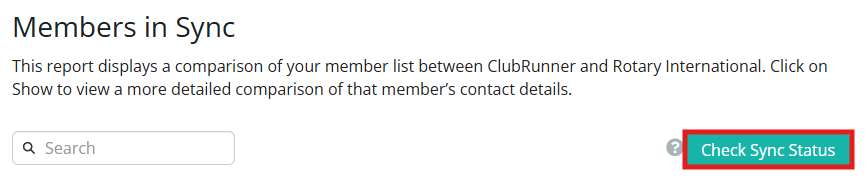
Please allow a few minutes for the sync to process, after which you will see icons to the left-hand side of each member name. A checkmark indicates that all syncable profile fields match between ClubRunner and RI, while an alert icon indicates there are fields that do not match between the two systems.

-
To review a record's synced data, click the Compare button on the right-hand side of their information.
-
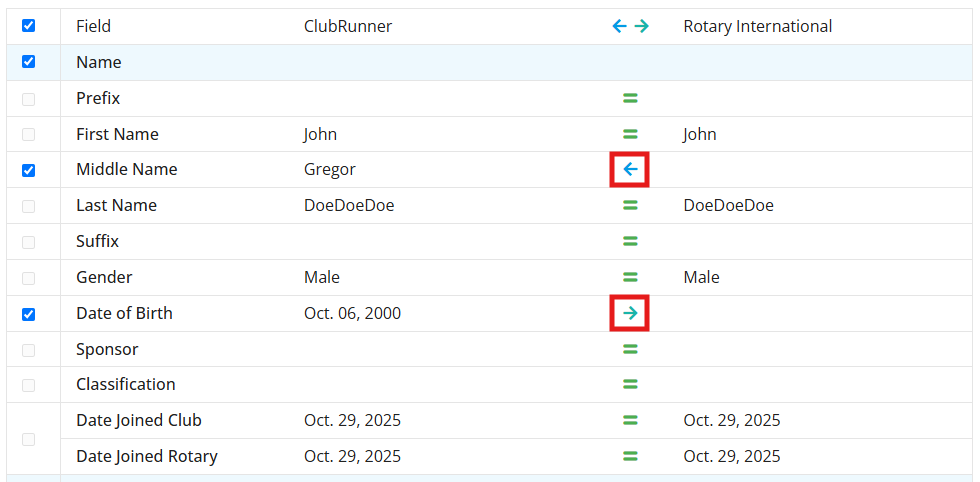
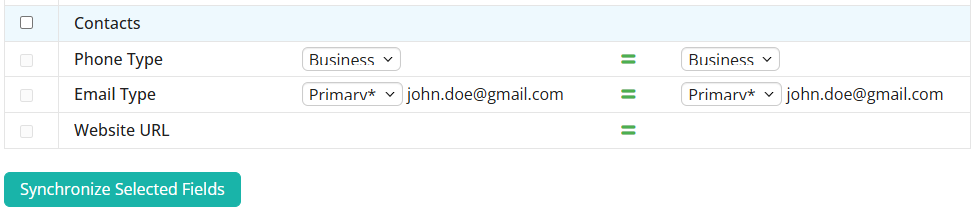
On the following Member Profile Comparison page, you may push or pull data to or from RI to correct the member's profiles. The page displays the member's name, Rotary ID, and club ID. It also has a chart displaying each syncable profile field and what information is recorded for that field in ClubRunner and RI. You may click the drop-down menus to view the information for fields that have multiple types, such as Phone Type and Email Type.

-
If the data matches, an equals sign will appear between the ClubRunner and Rotary International columns. If the arrow points to the right, syncing will send the data in ClubRunner's system to RI, whereas a left-pointing arrow will bring the data from RI into ClubRunner. You can click on the arrow to change its direction, allowing you to choose which information to send between the platforms.
-
Click the checkboxes to the left-hand side of the fields to select which data to sync. Review the arrows to make sure the data is being sent in the desired direction, then click the Synchronize Selected Fields button to push or pull the data. Data sent to RI will be entered in a queue and may take up to 24 hours to complete syncing to the Rotary database.
A lock icon beside any field means the field is not integrated with Rotary due to the club or member's privacy setting.
To change the club's privacy setting, please read the article: How do I opt in & out of RI Integration?
To change the member's setting, please read the article called What is the Nova Member Profile? and make the changes in the member's Privacy & Settings tab.
Correcting Rotary sync issues
You may use the options in the Actions column to resolve members that have mismatched membership types or appear in one platform but not the other. For more information on how to correct these membership issues, please read: How do I resolve membership conflicts using the Compare and Synchronize tool?
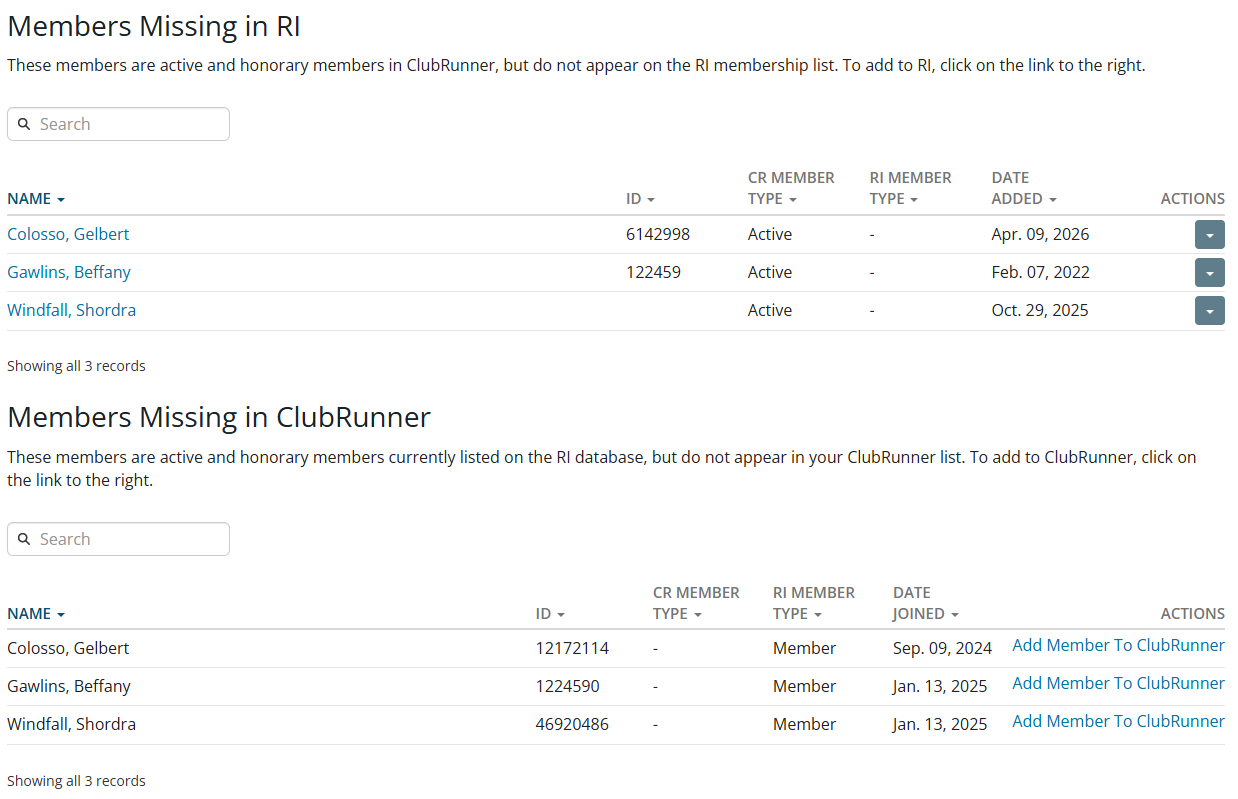
In some cases you may not want to use the "Add Member To" options to resolve the issue, as it could create duplicate records in the system. In the following examples, each member appears in both the Members Missing in RI and Members Missing in ClubRunner sections.
-
Colosso, Gelbert - This member has two different ID numbers. Both of these numbers could be correct, which would indicate there are duplicate records in Rotary's database. To resolve this issue, an officer of the club should email data@rotary.org with the member's full name, contact information, both Rotary IDs, and request that the correct ID be identified or that the IDs be merged. Once the Rotary data team confirms the correct ID, make sure it is entered into the Rotary tab of the member's profile.
-
Gawlins, Beffany - This member's ID number was entered incorrectly in ClubRunner. As you can see, it is almost the same as the one in the chart at the bottom which is on RI, but the ClubRunner ID is missing a zero. To correct this issue, click the member's name to navigate to her profile, then correct the ID as it is entered in the Rotary tab of the profile.
-
Windfall, Shordra - This member has no ID in the chart, but there is one in the chart at the bottom which is on RI. To resolve this issue, copy the ID as it appears in the Members Missing in ClubRunner section. In the Members Missing in RI section, click the drop-down arrow in the actions column and then click Add Rotary Member ID. Paste the Rotary ID into the window that appears to sync this record.
Make sure to review the Compare and Synchronize page to confirm that the sync issues have been resolved or if additional steps are needed. If you have any questions about a particular sync issue, feel free to reach out to our team by emailing support@clubrunner.ca.