


Rotary clubs with integration enabled may access reports of all information sent to and received from Rotary through the system. The integration reports provide details about what information was synced, who it was initiated by, and highlight any conflicts that could not be resolved through the sync and may need further attention.
This support article will show you how to access the various integration reports and troubleshoot common sync issues.
Quick links:
Using the updates archives
Resolving common sync errors
The data that is able to be synced to and from Rotary is determined by the options set in the club's integration settings.
To enable or edit the options for your club's Rotary integration, please follow the steps in the support article: How do I opt in & out of RI Integration?
-
To begin, log in to your account through your club homepage, then click on Member Area in the top right-hand corner. Alternatively, click here to go directly to the ClubRunner login page.
-
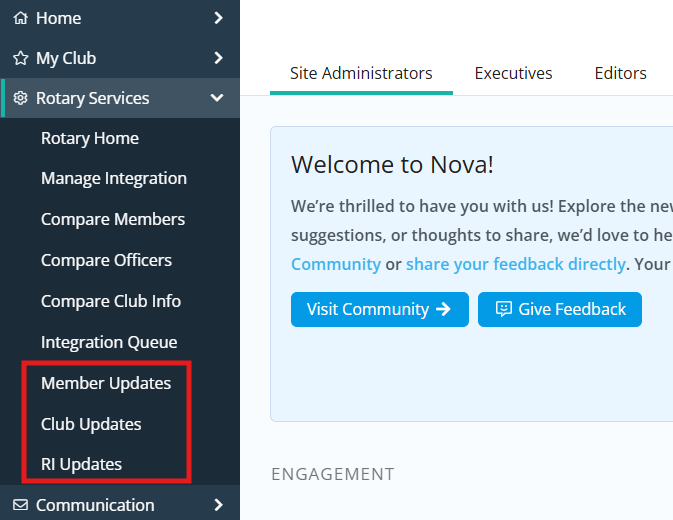
Click the arrow next to Rotary Services in the left-hand navigation menu. You will see three integration report options at the bottom of this navigation section:
-
Member Updates - This report details all member updates that were sent from ClubRunner to Rotary International.
-
Club Updates - This report details all club information updates that were sent from ClubRunner to Rotary International.
-
RI Updates - This report details member and club updates that were sent from Rotary International to ClubRunner.
-
-
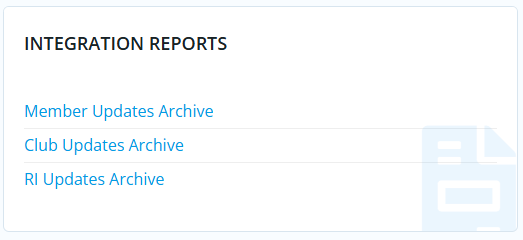
Click the appropriate option to open the updates archive. You may also find these options by clicking Rotary Home in the Rotary Services menu, in the Integration Reports section.
Using the updates archives
-
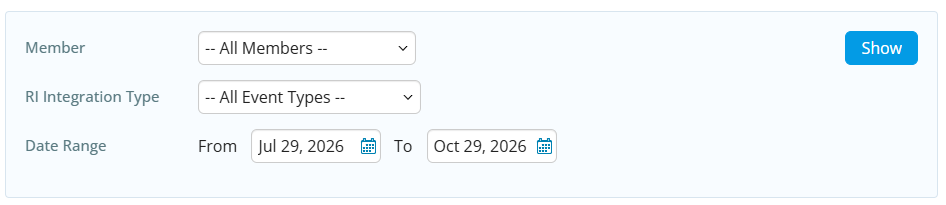
By default, integration reports will display information on updates over the past 90 days. At the top of the page you will see filters you may use to narrow the results if you are looking for specific data. You will see different options depending on which integration report you are viewing. Set your desired filters and click the Show button to update the displayed results.
-
Member - Select a particular member to view updates for. This option is not available on the Club Updates Archive.
-
RI Integration Type - Only display information for a specific type of attempted update. Examples of event types may be: New Member, Address Change, Email Change, Club Meeting Info, Update Termination Date, and more.
-
Date Range - Selects the date range of updates to display in the report.
-
-
Below the filters you will see the information regarding attempted updates to members or club information. You will see different information depending on which integration report you are viewing. The columns will display the following possible information:

-
Name - This column indicates the member whose account settings were updated.
-
Change Type - This column displays the nature of the change that was made to the member or club.
-
Archived - This column indicates the date and time the change was archived.
-
Status - This column indicates the status of the change. If it displays "Completed", the update properly synced between Rotary and ClubRunner and no further action is necessary. If there was a conflict in updating the information, additional context will be displayed. See the "Resolving common sync errors" section below for more information.
-
Notified - This column indicates if the club was notified about the change, or the date when a conflict was marked as resolved.
-
Initiated By - This column indicates who it was that made the change in ClubRunner.
-
Details - Clicking this link under the Actions column will show the exact change that was attempted so you can compare the new and old values.
-
-
Any conflicts or sync errors will be displayed in the Status column. Once the source of the error has been addressed, you may use the Mark as Resolved links to stop notifications about this item and add a comment explaining its resolution. The member set as the Rotary Integration Notification Contact in the club's Integration Settings will be notified of any outstanding issues until they have been marked as resolved.

Resolving common sync errors
Error messages on integration reports will often indicate the source of the issue and how to resolve it, and you may click the Details links in the right-hand actions column to confirm what data was attempted to sync.
The list below includes information about common sync errors you may see in the integration reports, but if you have any questions or need assistance with resolving errors please reach out to our Support team.
Skipped Due to Club/Member Privacy Settings - Update/Add skipped based on club or member’s privacy settings for this field
-
The specified information is not able to be synced with Rotary due to the club's integration policy or the member's privacy settings. No further action is necessary in most cases, but you may update the club's integration policy by following the steps in the support article: How do I opt in & out of RI integration?
Repeated Update - Skipped - Request skipped as the field has had subsequent updates of which the last will take effect
-
This indicates that a request to update information was sent multiple times, typically due to the submission button being clicked more than once. No further action is necessary and these notices may be safely ignored.
Cannot add new member - {"Message":"Individual doesn't have historical relationship with Club or Individual is an active Member."}
-
This indicates that the specified member was not terminated at their prior club when they were added to your club, creating a conflict with their club join date. To resolve this issue, an officer of the club should email data@rotary.org with the member's full name, Rotary ID, contact information, and the details of the update.
Cannot add new member - {"Message":"Possible Duplicate Individual"}
-
This error occurs if the details entered regarding a member partly match another member with a different Rotary ID. To resolve this issue, an officer of the club should email data@rotary.org with the member's full name, Rotary ID, contact information, and the details of the update.
RI Member ID Mismatch - Failed to match RI Member ID with ClubRunner Member ID, found in Rotary tab
-
While the text of the error indicates it's due to the Rotary ID, this error means that the specified member does not have a complete match between their First Name, Last Name, and Rotary ID. The source of the issue is either that the incorrect Rotary ID has been entered for the member, as the ID is associated with a different First Name and Last Name. You may use the Rotary member search or the Transfer Member tool in ClubRunner to verify if the ID matches the correct member.
Terminate Member Failed - Terminate member failed Member details do not match between ClubRunner and RI
-
This typically occurs when the termination request is sent multiple times, and the later request fails because the member has already been terminated at Rotary International. Use the Compare & Synchronize Members tool to verify the membership status of the specified member and resync to Rotary if needed.
Cannot Terminate In The Past - Cannot terminate member in RI database in the past.
-
As per the notice, Rotary does not allow backdating of member termination dates. To resolve this issue, an officer of the club should email data@rotary.org with the member's full name, Rotary ID, contact information, and the details of the update.
Update [Field] Failed - {Eg. "Message":"Address Line 1 should be less than 40 characters."}
-
This error occurs if the information entered into a field is too long. The error message will specify which field needs to be corrected and what character lengths are supported for integration.
Get Phone Type/Country Key For Update Failed - {"Message":"Phone Type or Country Name missing"}
-
This error indicates the specified member's phone information is incomplete, typically related to the Country Code field. The member or club staff may enter the appropriate information into the field to resolve this issue.
Add/Update Address Failed - Failed updating member's address in RI data base {"Message":"Address Line 1 is required."}
-
This error occurs when there is partial address information entered for a member's home or work address. Rotary only allows syncing complete addresses, so this may be resolved by adding the specified missing information.
Update Address Failed - Address removal can only be completed through MyRotary.org
-
As per the notice, fully removing a member's home or work address is not supported for integration. The member may remove their address by logging in to MyRotary.org.
Duplicate Email Found in RI - Found more than one email address associated with this member under the same Email Type (personal, business, etc.) or another member has this email address in the RI Database {"Message":"Email Address already exists."}
-
This error occurs if an email address is already associated with another member in Rotary's database, or may indicate that the member has a duplicate record associated with a different Rotary ID. To resolve this issue, an officer of the club should email data@rotary.org with the member's full name, Rotary ID, contact information, and the details of the update.
Add Sponsor Failed - Failed adding new member's sponsor
-
This error occurs when an Active member is changed to an Honorary member, as Honorary member types do not have a sponsor field to sync. This error may be safely ignored.