


The wallet feature allows members to store prepaid funds in their account. Wallet funds can be used to pay invoices, while administrators can manage deposits, withdrawals, and adjustments.
Wallet funds may be used when registering for Cloud Events, submitting invoice payments, or contributing to donation campaigns. The wallet is not supported for Event Planner or MyEventRunner registrations.
This support article will show you how to access and manage wallets in the member profile.
Jump to Adding and Withdrawing Funds
Jump to Applying Funds to Invoices
Members with level 50-Executive or better access will be able to add funds to other member wallets by navigating to the member's profile.
-
To begin, log in to your account through your club homepage, then click on Member Area on the top right-hand corner under your club banner. Alternatively, click here to go directly to the ClubRunner login page.
-
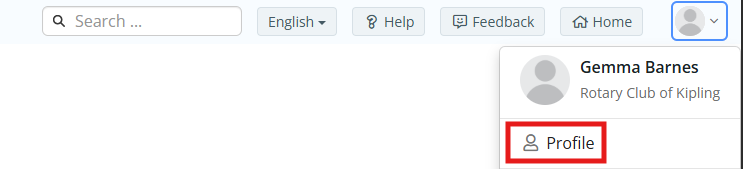
Click the profile icon in the top right-hand corner of the page, then click Profile.
-
Click the Financials tab.

-
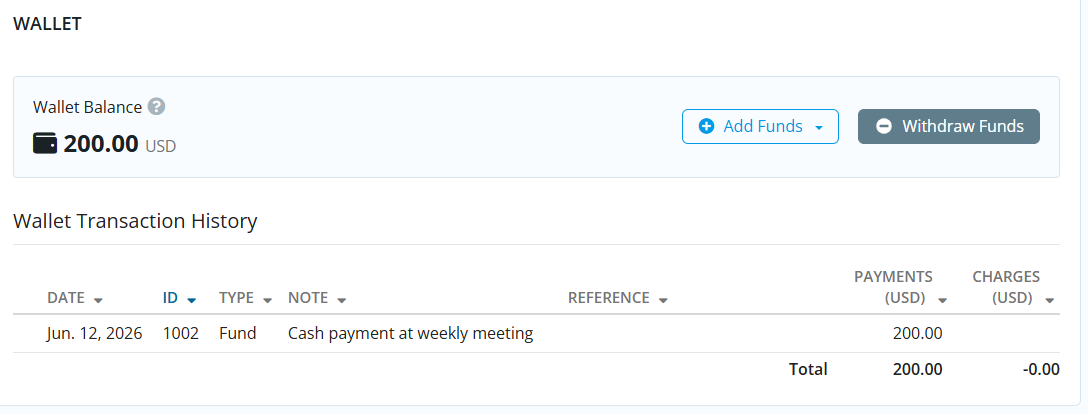
You will see the Wallet Balance at the top of the tab, which represents the available prepaid credit in the member's account. The balance increases when funds are added and decreases when funds are withdrawn or used to pay invoices.
Adding and Withdrawing Funds
-
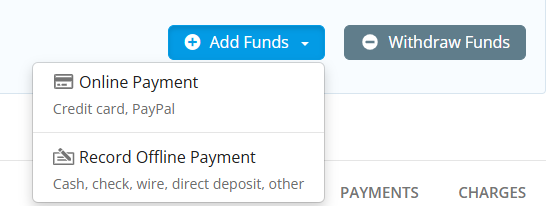
To add funds to a wallet, click Add Funds.

Site administrators will be able to select from one of the following options:
-
Online Payment via credit card.
-
Record Offline Payment (Cash, check, wire transfer, direct deposit, or other offline payment methods).
-
-
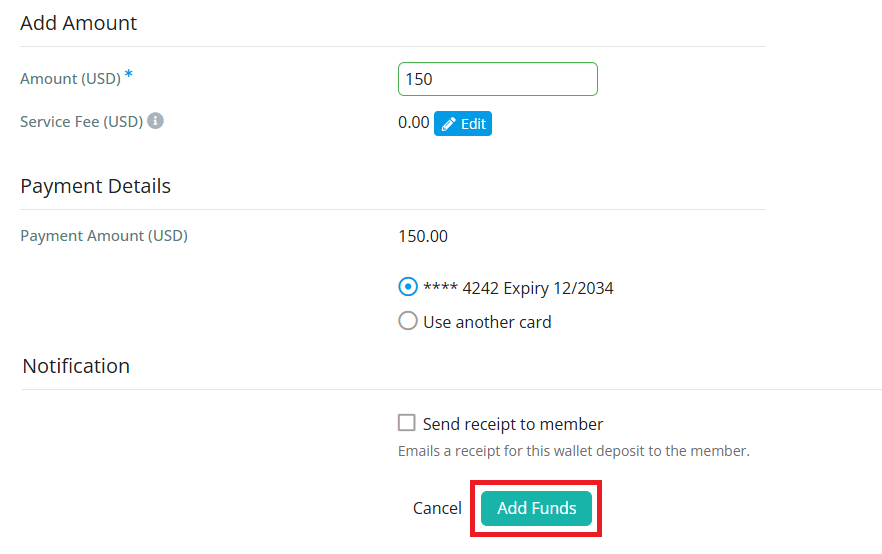
Enter the amount to add, then complete the payment process and click Add Funds. Once the transaction is processed, the Wallet Balance is updated automatically.
-
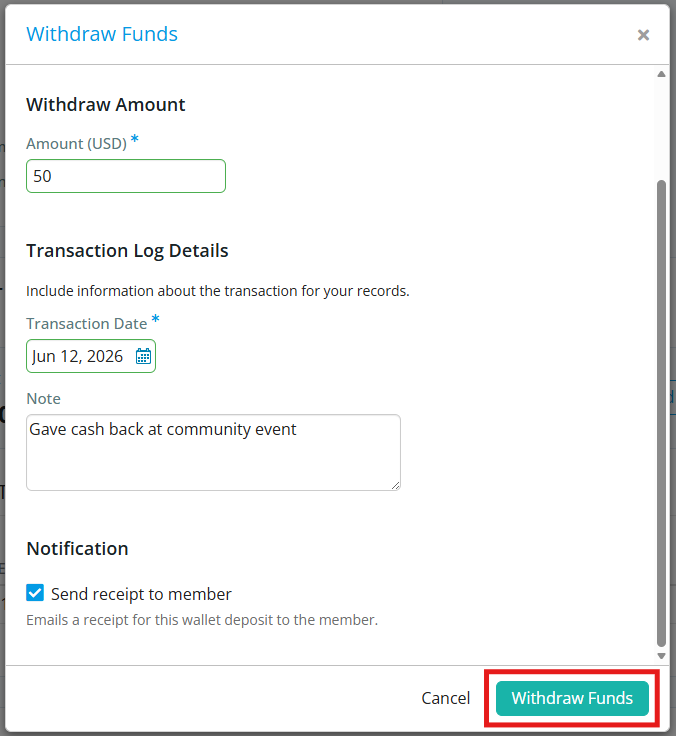
Members with level 30-Site Administrator access can remove funds from a member's wallet when a refund or adjustment is required. To do so, click Withdraw Funds.

Enter the withdrawal amount, then select the transaction date. You may enter an optional note, and can select "Send receipt to member" if you wish. Click Withdraw Funds when finished.
Applying Funds to Invoices
-
A wallet payment is created when wallet funds are applied to an invoice. Members with level 50-Executive or better access can apply wallet funds to invoices by using the Pay as Admin or Log Transaction options on the invoice.
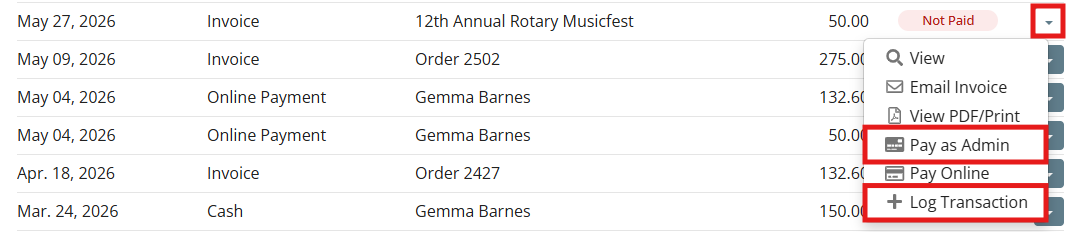
For more information on how to apply payments to invoices, read: How do I enter or record a payment for an invoice?
-
When a wallet payment is processed, the wallet balance is reduced automatically, the payment is linked to the invoice, and the transaction is recorded for audit purposes.
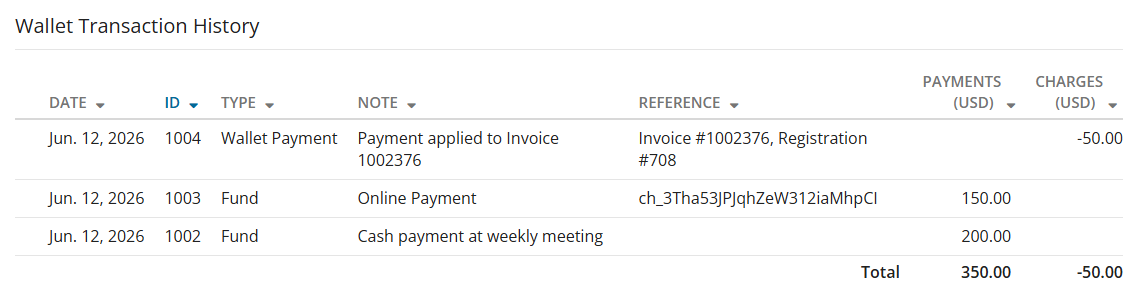
You may view information regarding all wallet updates in the Wallet Transaction History section. The Wallet Transaction History displays the following wallet activity information for each transaction:
-
-
Date - Date of the transaction
-
ID - Unique transaction identifier
-
Type - Fund, Withdraw, or Wallet Payment
-
Note - Additional transaction details
-
Reference - Related invoice or transaction reference
-
Payments - Funds added to the Wallet
-
Charges - Funds deducted from the Wallet
-
All wallet transactions are permanently logged. Transaction records cannot be edited after they have been created.