


A vCard or VCF (Virtual Contact File) is a downloadable file of an individual's contact information that can be imported to email clients and other messaging services. You may use a vCard to quickly add a member or contact's information to another device such as your mobile phone.
This support article will show you how to download vCards from your classic ClubRunner members area.
For instructions on how to download a vCard for Nova clubs, please read: [NOVA] How do I download a vCard of contact information for a member?
After following the steps below, the vCard will be downloaded onto your device. On most systems you will be able to locate this file in the Downloads folder, but this may vary according to your operating system and personal browser settings.
From the Club Member Directory
-
Log in to your account at the club and navigate to the members area.
-
Click My ClubRunner and then Directories in the top menu navigation.

-
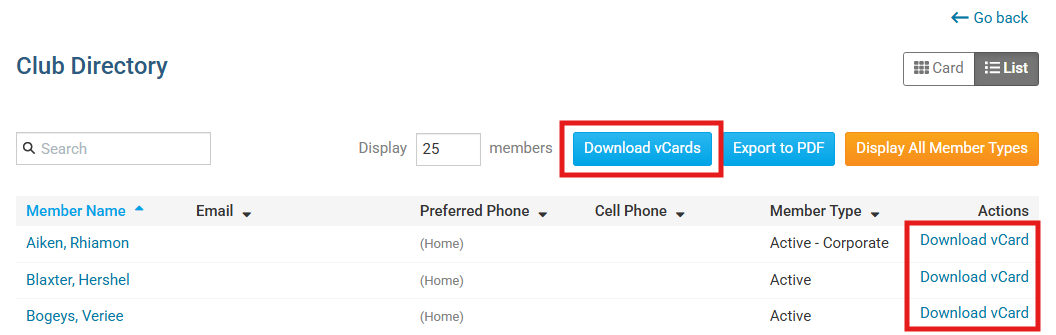
You may now click on the Download vCard button to the right-hand side of a member's information to download that individual's contact information, or you may click the Download vCards button at the top right-hand corner of the page to download the vCards for all members.
From the Club Member Search
-
Log in to your account at the club and navigate to the members area.
-
Click Membership and then Search Member Directory in the top menu navigation.

-
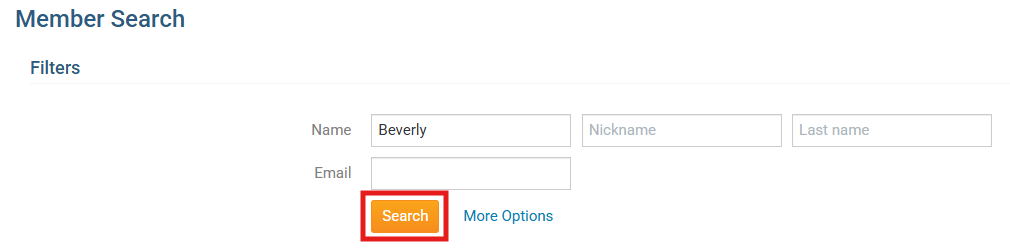
Enter a search term for the member whose vCard you are trying to download into the search fields, then click the Search button.
-
Click Download vCard in the right-hand Actions column.

From the District Member Search
-
Log in to your account at the district and navigate to the members area.
-
Click Membership and then Member Search in the top menu navigation.

-
Enter a search term for the member whose vCard you are trying to download into the search fields, then click the Search button.
-
Click Download vCard in the right-hand Actions column.