Your profile contains details such as your address and contact information, as well as personal information you choose to share with your fellow club and district members. This support article will show you how to update your profile information from your district login.
Quick Links:
Updating your Profile Picture
Personal Tab
Communication Tab
Rotary Tab
Biography Tab
Commitments Tab
Privacy and Settings Tab
Financials Tab
Business Directory Tab
-
To begin, log in to your account through your district homepage, then click on Member Area in the top right-hand corner. Alternatively, click here to go directly to the ClubRunner login page.
-
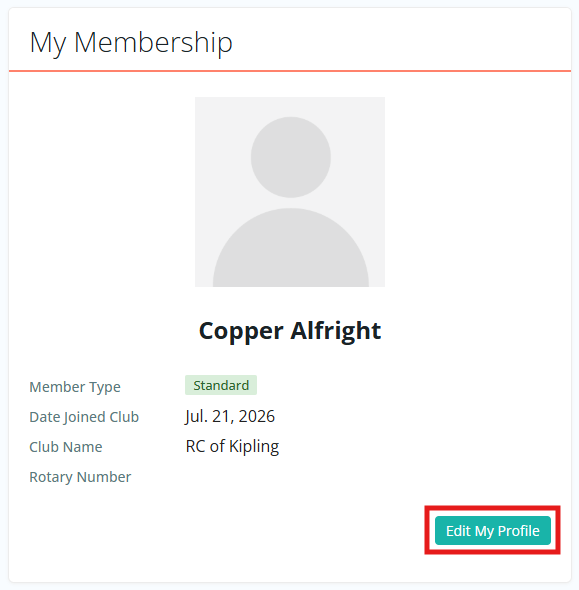
In the members area, click Edit My Profile.
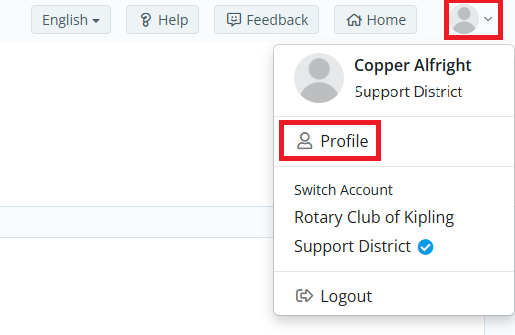
You may also navigate to your profile by clicking the profile icon in the top right-hand corner of any page, then clicking Profile.
-
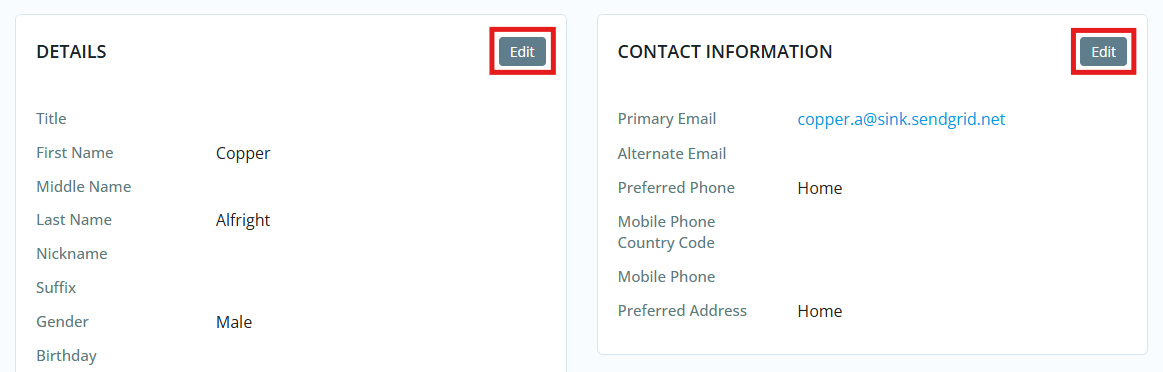
You are now on the Member Profile screen. This screen contains your personal information, which may be shared with fellow members of your club or district. To add or update the information that appears, click the Edit button in the corner of each block of information.
-
You can now enter your personal data into the fields listed or edit existing information. Fields marked with an asterisk are mandatory. If you try to click Save when a mandatory field is blank, you will receive an error message.
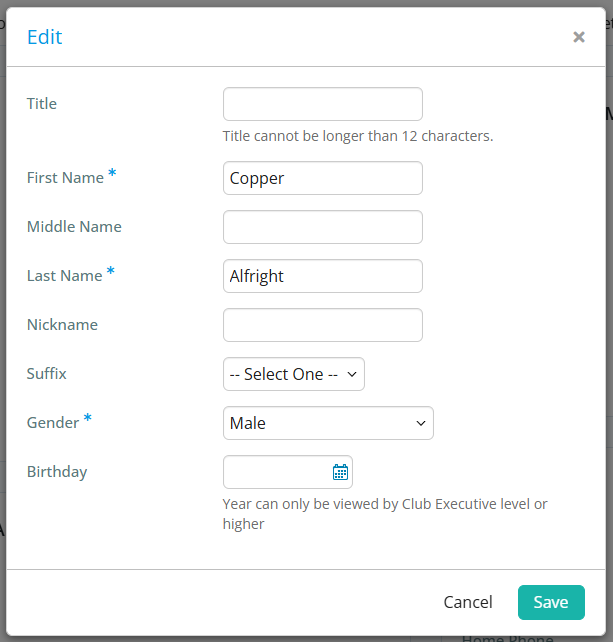
-
When you are finished editing any profile section, click Save.
Updating your Profile Picture
-
Click on your profile picture at the top of the page, then click the Edit option that appears.
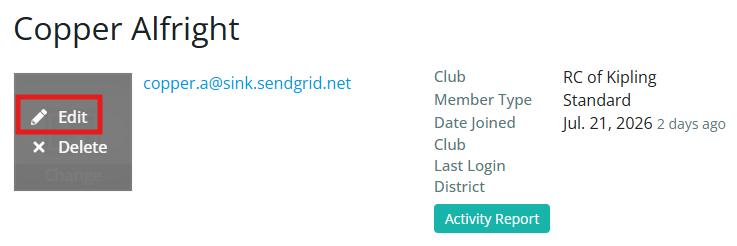
-
Click the Upload button to choose a new image from your device
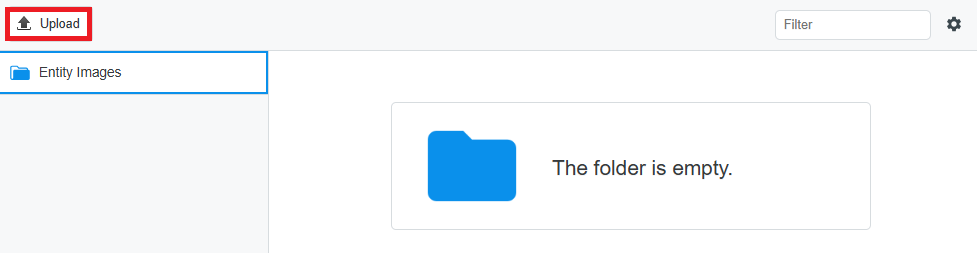
-
Double-click the image to set it as your new profile picture.
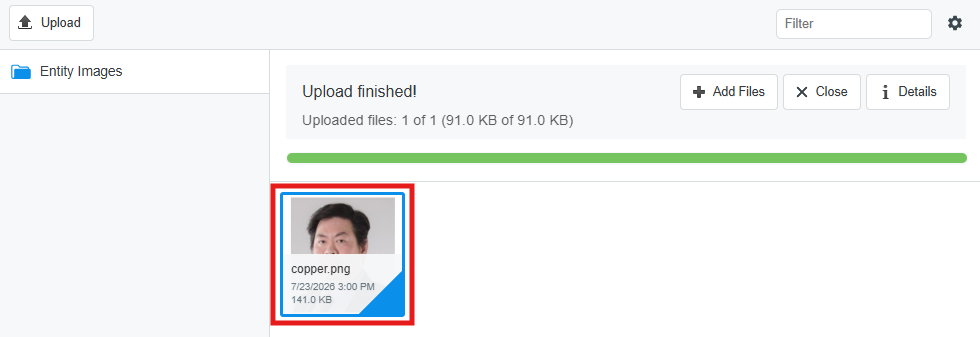
Tab Information
There are eight tabs on the member profile. Each one contains different information.
Personal
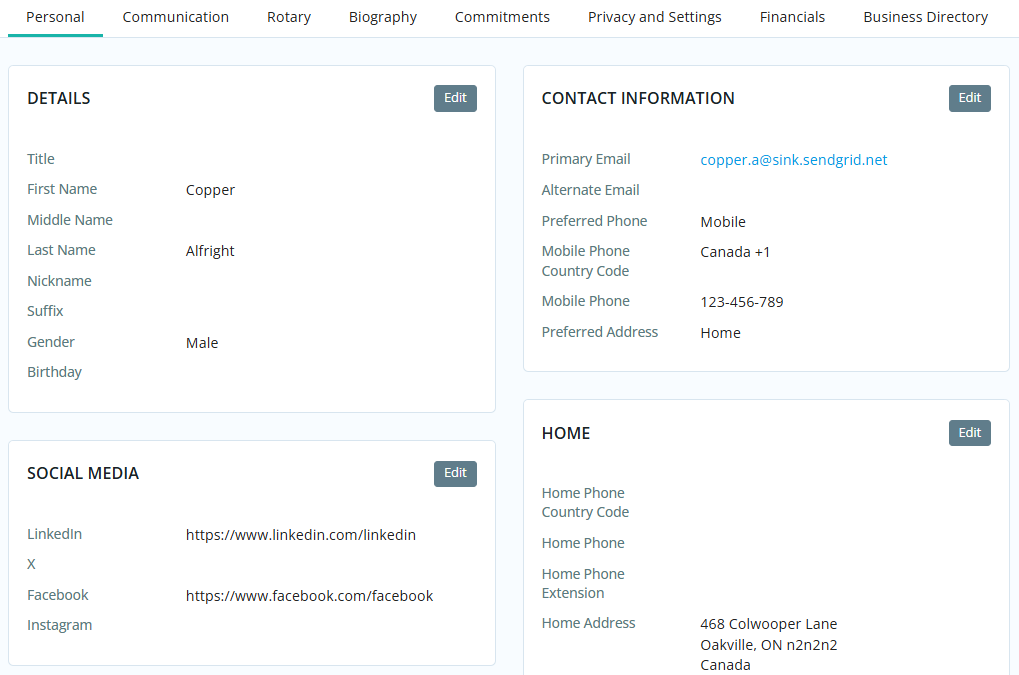
This page displays your personal information and will be the first tab you see when you load your member profile. This area will contain details such as your Contact Information, Social Media links, Home and Work address, and Custom Fields of data that were created by your club or district. The Personal tab is useful for members to see if their profile is up to date.
Communication
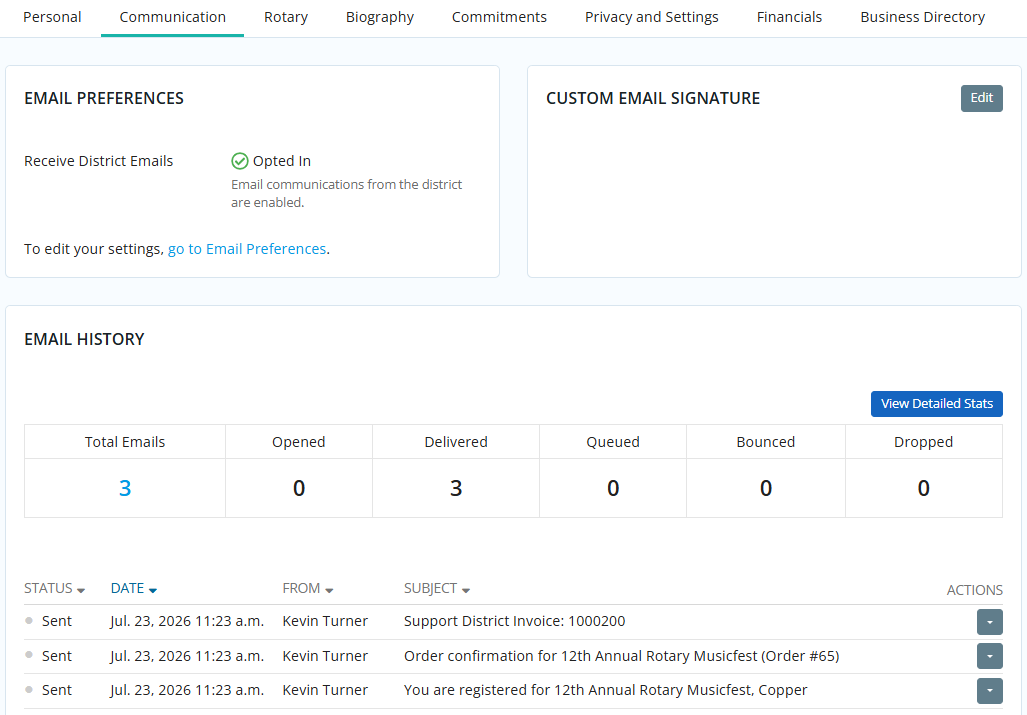
This page displays information regarding your email preferences and communication history. You can edit the Email Preferences and Custom Email Signature, or view a breakdown of your Email History.
Rotary
This page displays information about your Rotary International details, such as your Rotary Membership Details, Member Designations, and Club Attendance.
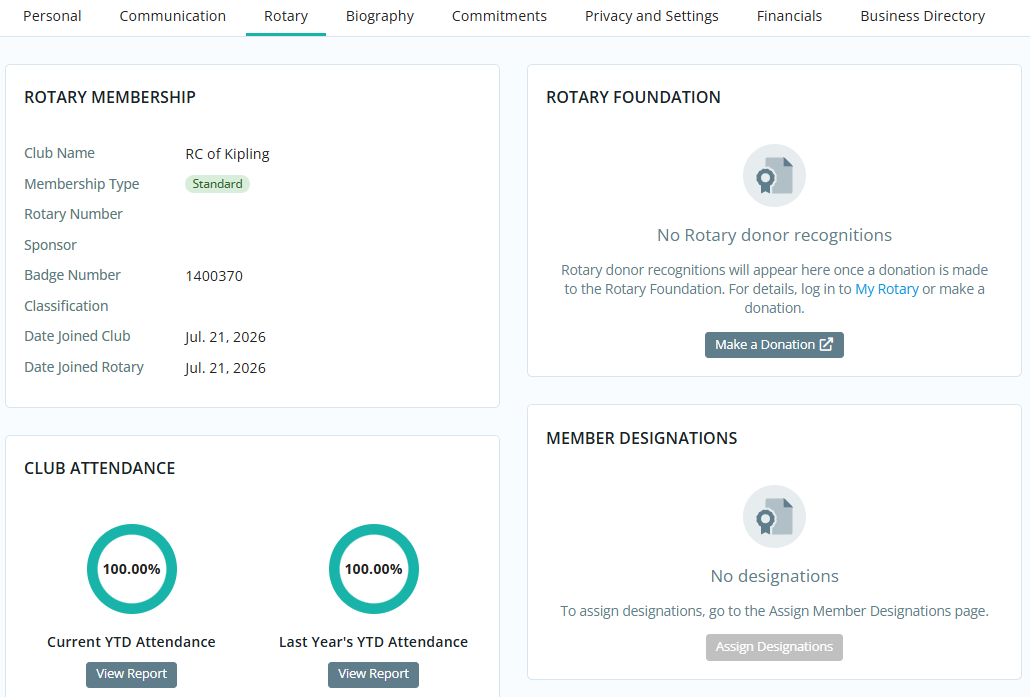
Some details on this tab are not able to be modified without additional access. Contact your club staff for assistance with updating these profile details.
Biography
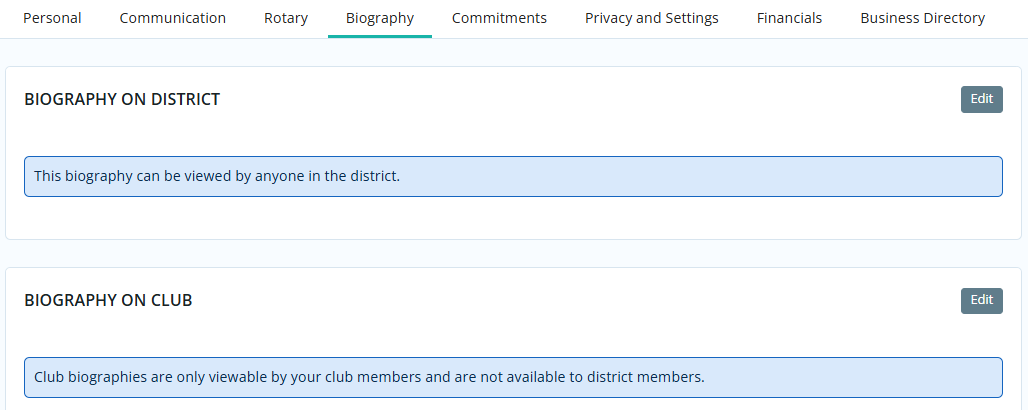
This page displays your biography. Members or club staff can edit the biography for how it will appear in the context of the district or club.
Commitments
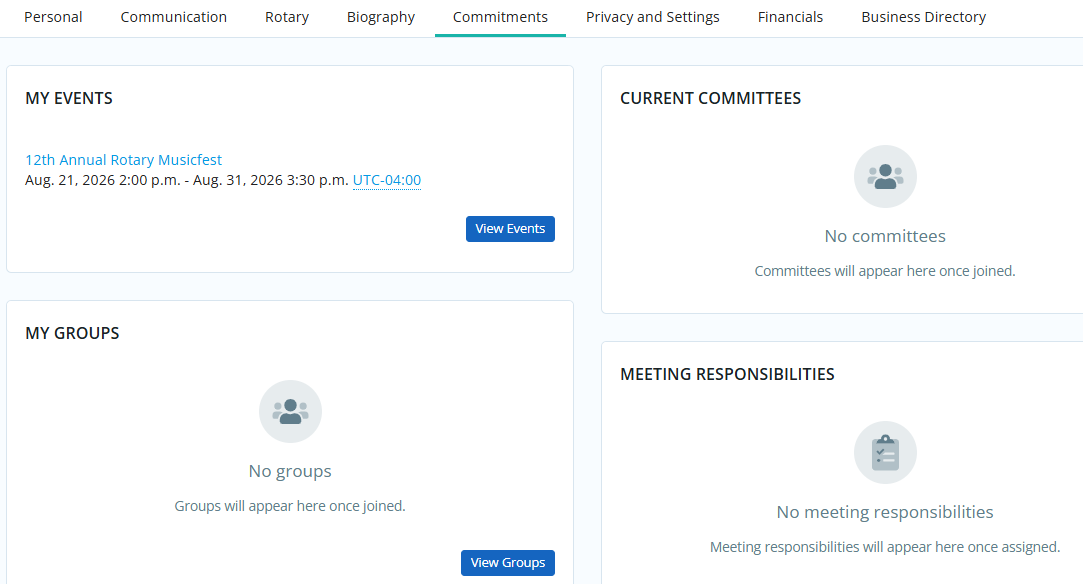
This page displays information regarding your various member commitments and responsibilities, and serves as a summary of your interactions with club and district activities. This tab may contain information on Events, Volunteer Tasks, Current Committees, Meeting Responsibilities, and New Member Tasks.
Privacy and Settings
This page displays your account information and privacy settings in various contexts. You can use this page to update your username, as well as what personal information is displayed in your district or club profile. You may also reset your password or specify which fields you would like to update at Rotary International's database.
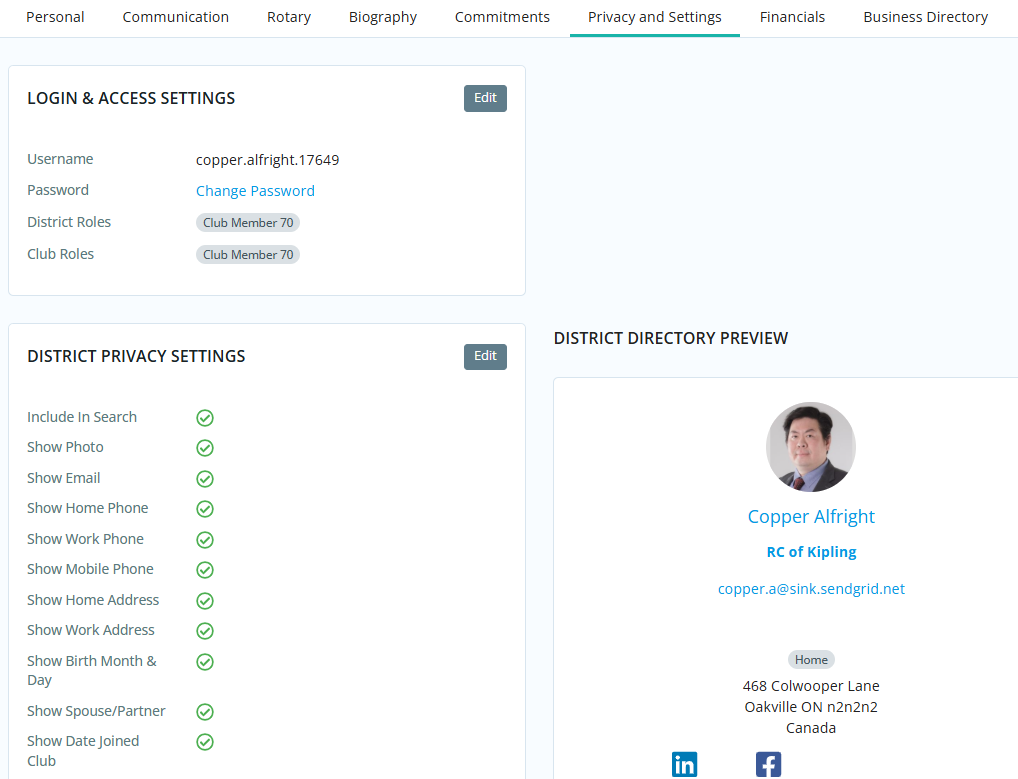
You must know your current password to update it from within your member profile. If you no longer know your password, please read the article: How do I recover my login information?
The ClubRunner mobile app stores cached data for offline use and when internet connectivity is limited. This means, changes made to your privacy settings may take time to update and display in the mobile app. The mobile application caches member data for 14 days.
Any individuals who are listed in their Club's Executives & Directors list will have their Name and Position listed in the Mobile app. All other privacy options will be respected.
Financials
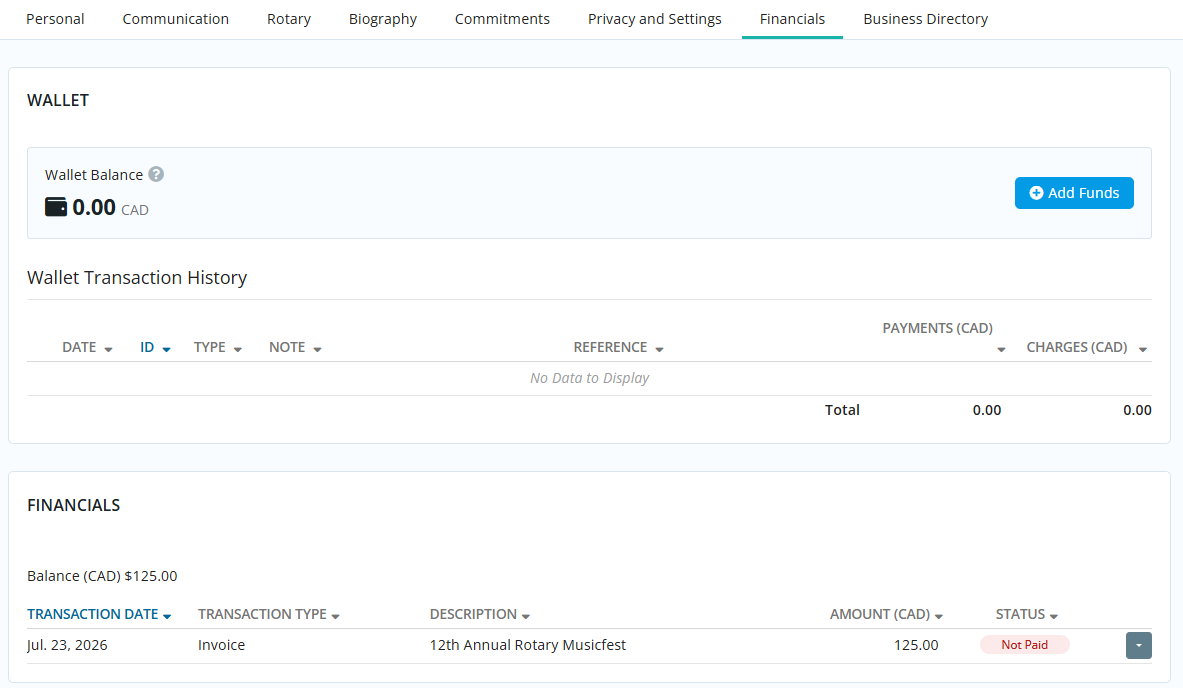
This page displays information regarding your financial interactions with the district. Here you may find your Saved Credit Cards, Wallet Funds, Financial History of invoices and payments, and your Order History which may include membership dues, products, or donations. You may click on an Order Number to view more details regarding the order.
Business Directory
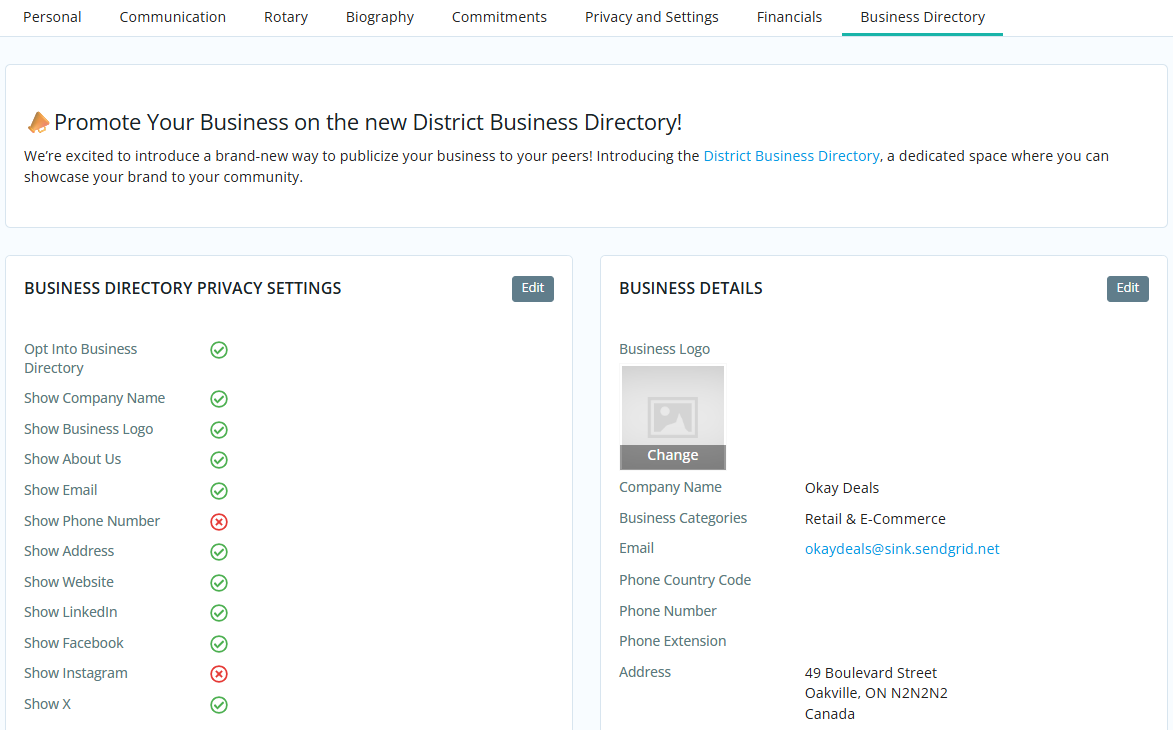
This page allows you to opt in to a business directory where you can showcase and promote your personal business to other members in the district. You can add your business name, address, logo, and social media links, letting fellow members discover and support your personal endeavours.
For more information, please read the support article: How do I opt in to the business directory?