


The donation module allows your organization to set up a page for collecting donations from visitors to your ClubRunner website. This support article will show you how to enable the built-in donation page.
Your club will need to have a payment processor configured for use to collect donations. You may review the supported integrated payment processors available for your region on the following page: ClubRunner Payment Processing
Once your club has an account with one of the supported payment processors for your region, please reach out to our team at support@clubrunner.ca and we can assist further.
-
To begin, log in to your account through your club homepage, then click on Member Area in the top right-hand corner. Alternatively, click here to go directly to the ClubRunner login page.
-
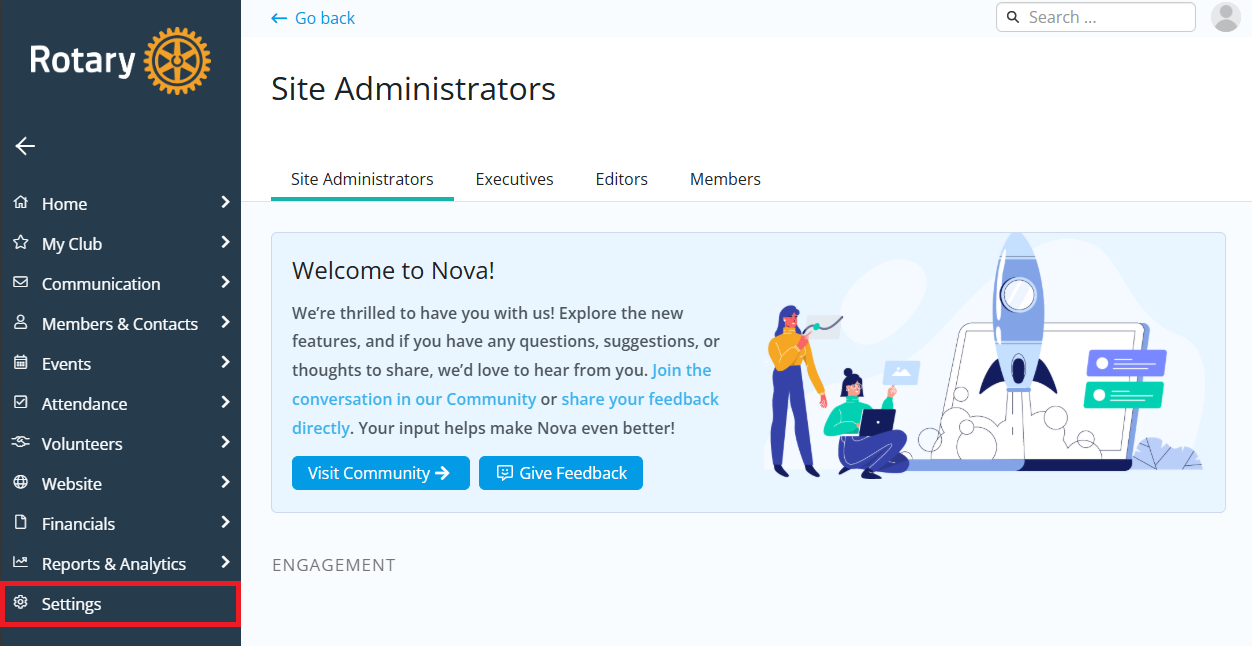
Once inside the members area, click Settings in the left-hand navigation menu.
-
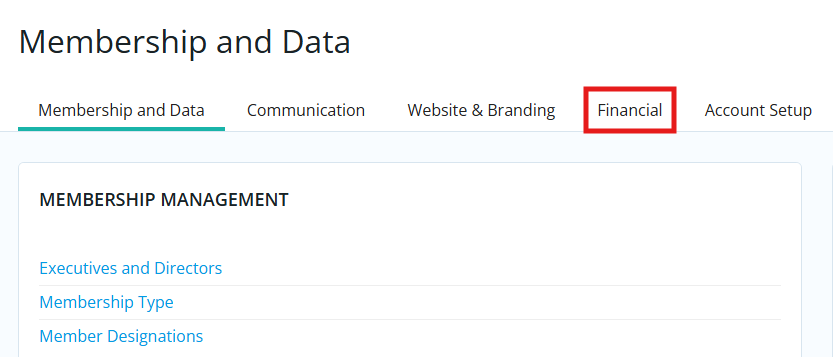
Click the Financial tab.
-
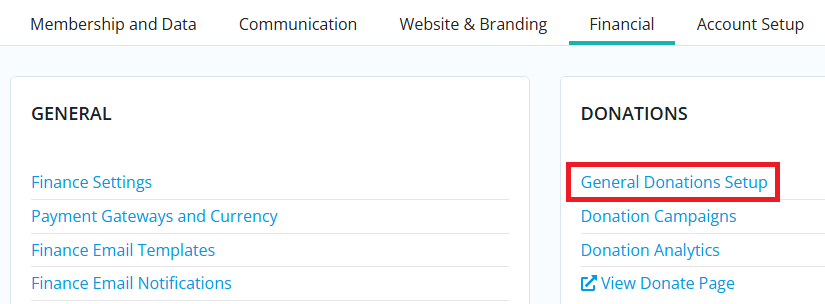
Click General Donations Setup in the Donations section.
-
On the following page you will see the details of your built-in donations page. Click the Edit button in the top right-hand corner to continue.
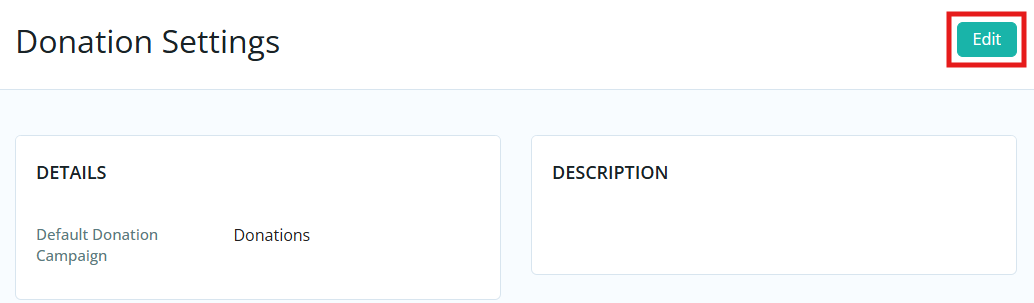
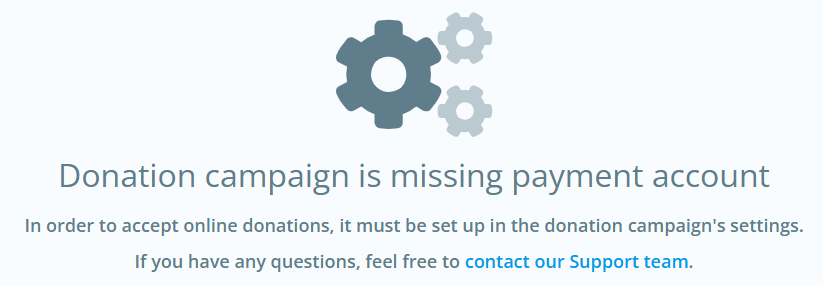
If you receive an error message, this means that the club does not have a payment processor configured for use. Please refer to the note at the top of this support article for next steps.
-
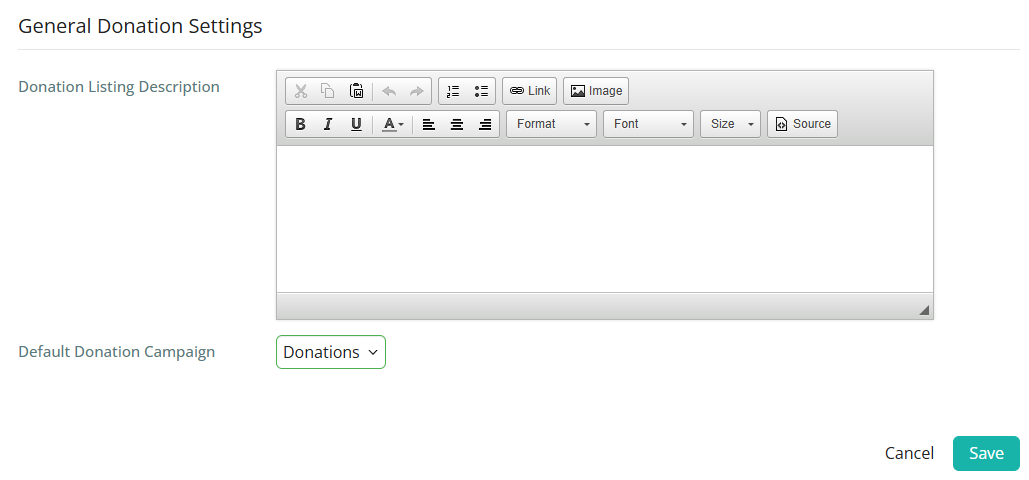
Enter a description that will appear on the public donations page. If you have already created additional donation campaigns, you may use the drop-down menu to select which campaign should be selected as the default when visitors view the built-in donation page.
-
Click Save and your donations page will be updated and ready for use. You can link it to your website's navigation menu or always access it by adding /donate to your home page's URL web address (eg. portal.clubrunner.ca/XXXXX/donate).
To learn how to add additional donation campaigns or edit the default campaign settings, please read the support article: How do I create a new donation campaign?