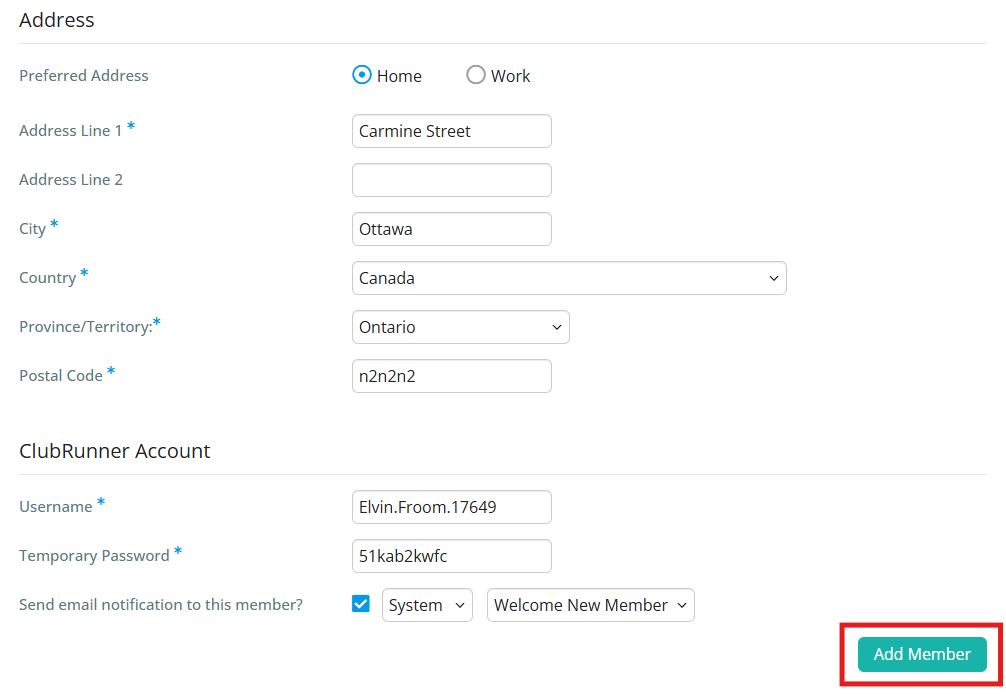
Once a prospect has gone through the applicant process and looks to be a good fit for your club, they may be converted from a prospect record into an active member of your club. This article will show you how to turn a prospect into a member.
-
To begin, log in to your account through your club homepage, then click on Member Area on the top right-hand corner under your club banner. Alternatively, click here to go directly to the ClubRunner login page.
-
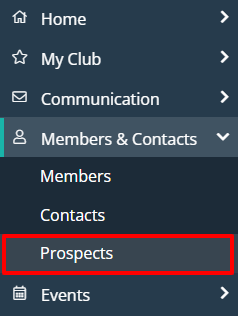
Once logged in, click on Members & Contacts in the left-hand side menu and select Prospects.
-
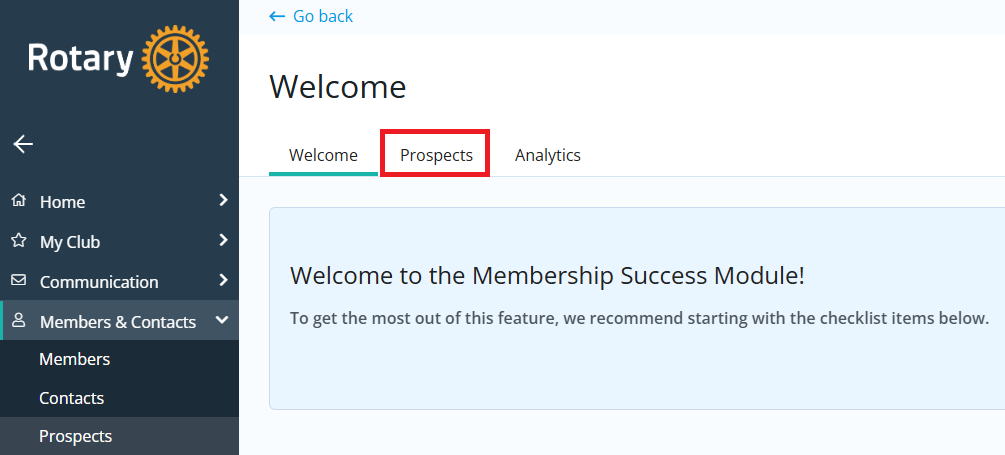
If you see the Membership Success Welcome page below, click Prospects. If you do not see this page, move on to the next step.
-
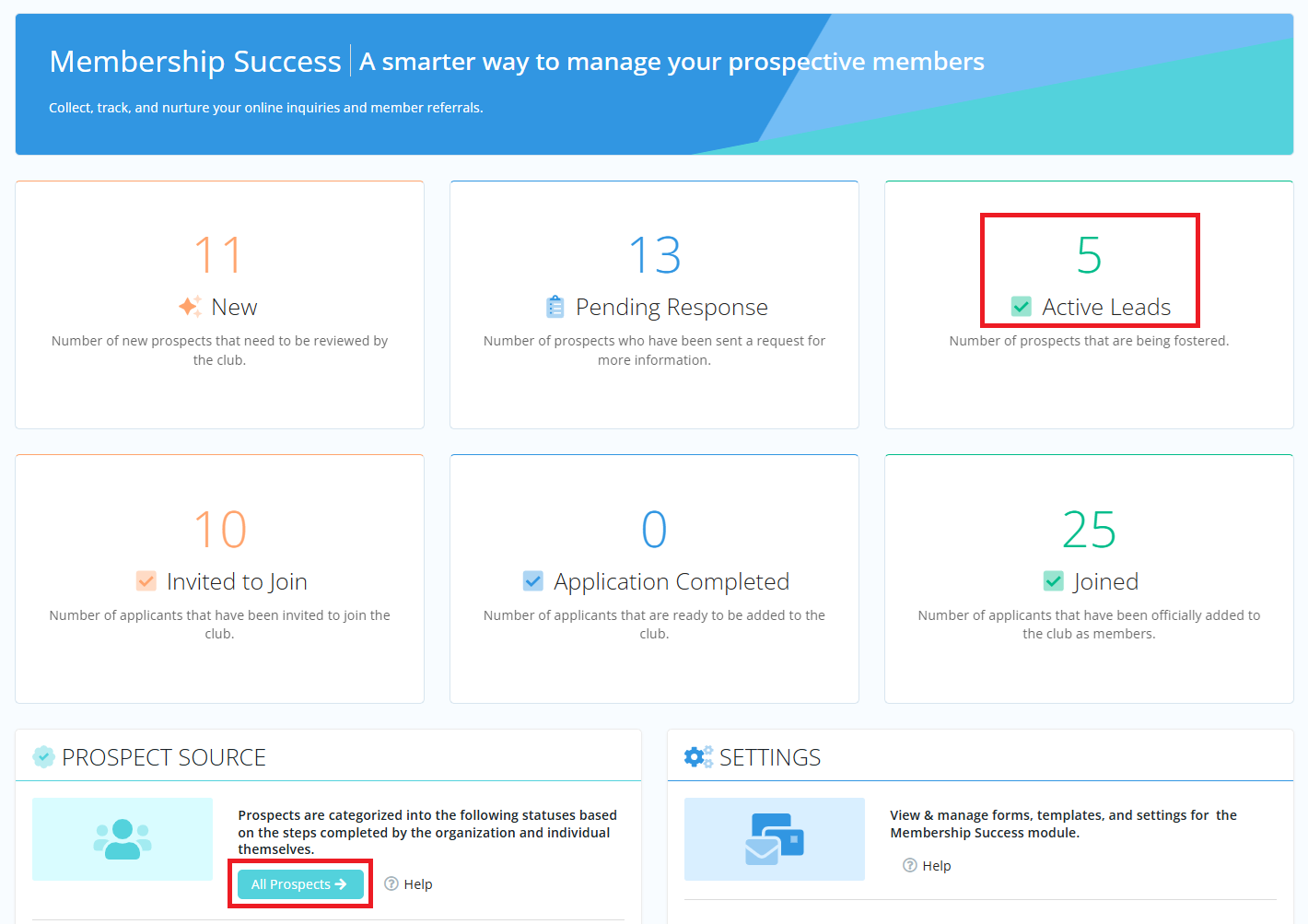
Click Active Leads in the Membership Success categories, or All Prospects.
-
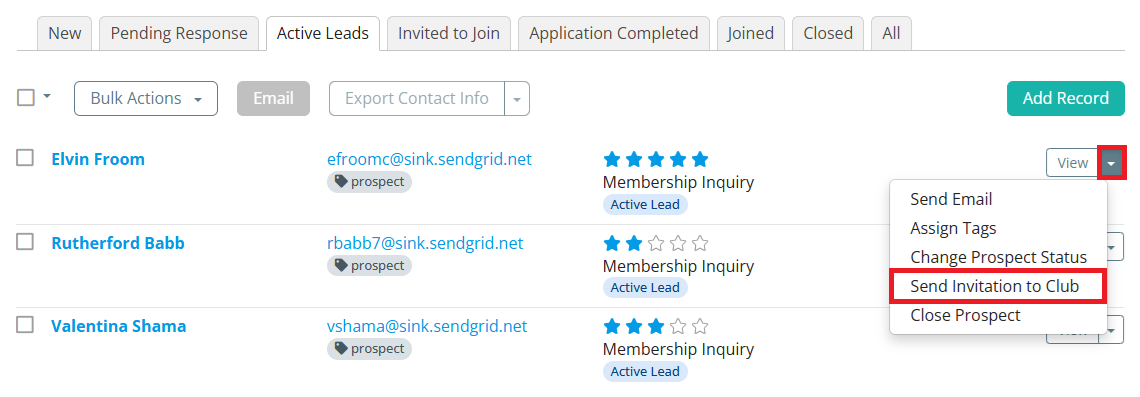
Locate the prospect's record in the list and click the drop-down arrow in the right-hand actions column next to View, then click Send Invitation to Club.
-
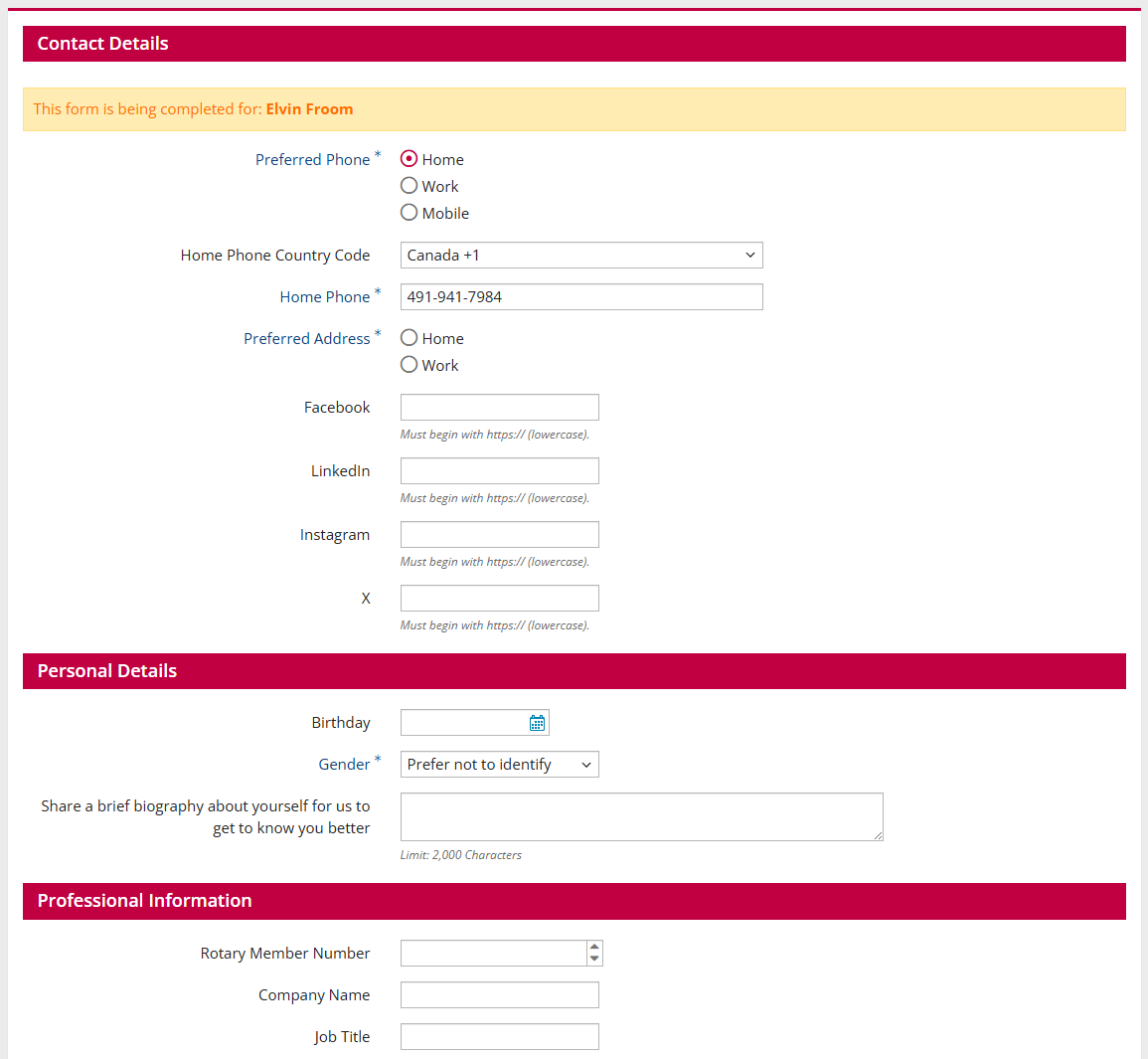
You'll see a window informing you that this action will send the prospect the Membership Application form. This form allows them to confirm their contact and other information, as shown below.
-
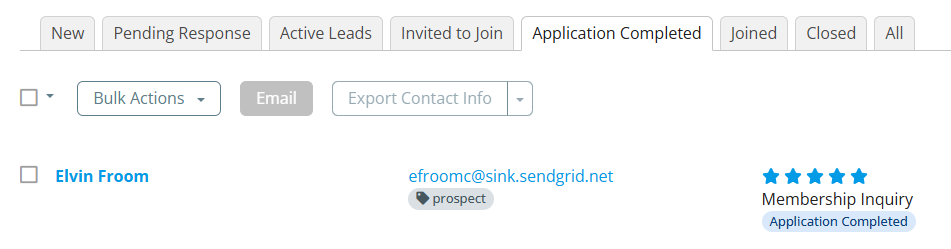
Once the prospect submits the Membership Application form, they will be moved to the Application Completed tab in the Membership Success module.
-
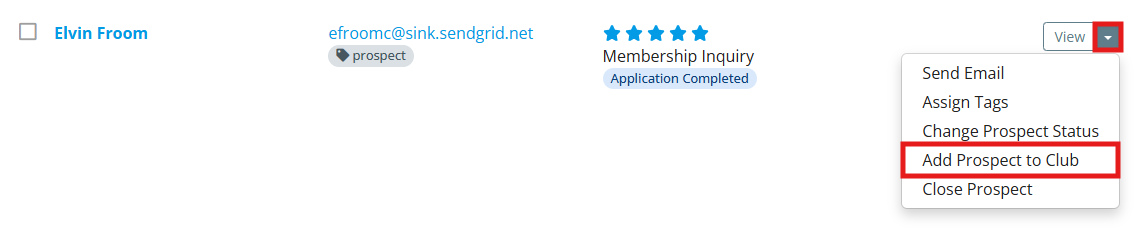
Locate the member and click the drop-down arrow on the right-hand side of their information, then click Add Prospect to Club. In the window that appears, click OK to continue to the Add Member form.
-
You will now see the standard Add Member form. Fill in the required information, then click Add Member to finish converting this prospect into an active member.