


You may wish to include prospective members listed in the Membership Success module when you send emails to the club. This article will show how you can include these prospects in email and other communications.
-
To begin, log in to your account through your club homepage, then click on Member Area on the top right-hand corner under your club banner. Alternatively, click here to go directly to the ClubRunner login page.
-
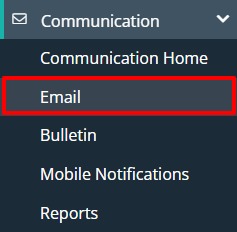
Once logged in, click on Communication in the left-hand side menu and select Email. This will also work with bulletins, so if you're looking to send a bulletin, select Bulletin.
-
You'll now want to compose a new email or open a saved draft. For more specific instructions on composing and sending emails in ClubRunner, please see the following article: How do I compose and send an email?
-
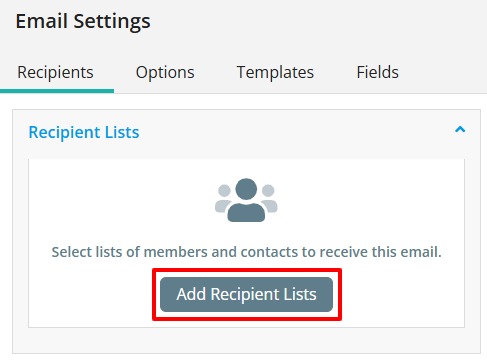
To include prospects in the email you are sending, you'll want to utilize the proper recipient list. From the Email Settings section click the option to Add Recipient Lists.
-
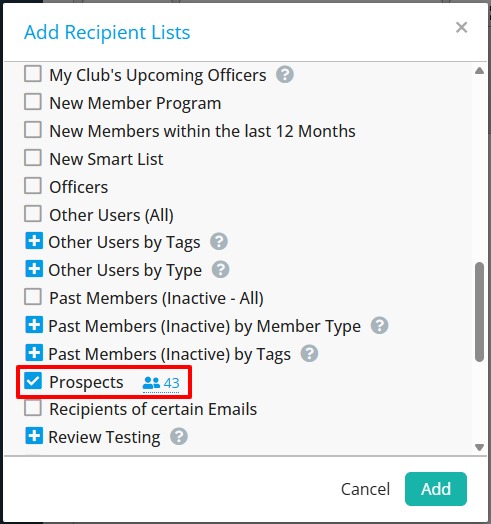
You'll get a list of all recipient smart lists set up in your account. There is a specifc one to include all prospects labelled "Prospects", click the check box to include this list of prospective members in the communication. You can select other lists as needed, click Add when you're done to save the selected recipient lists.
To further adjust which prospects from the selected recipient list are included in the email, click Edit as shown below and you'll be able to check and uncheck which members to include:
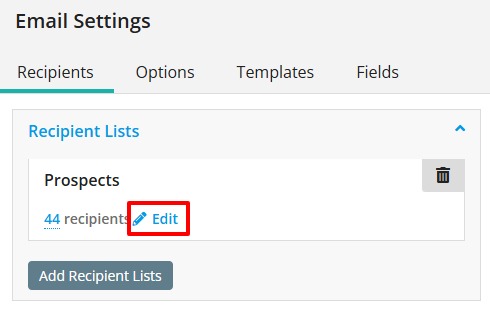
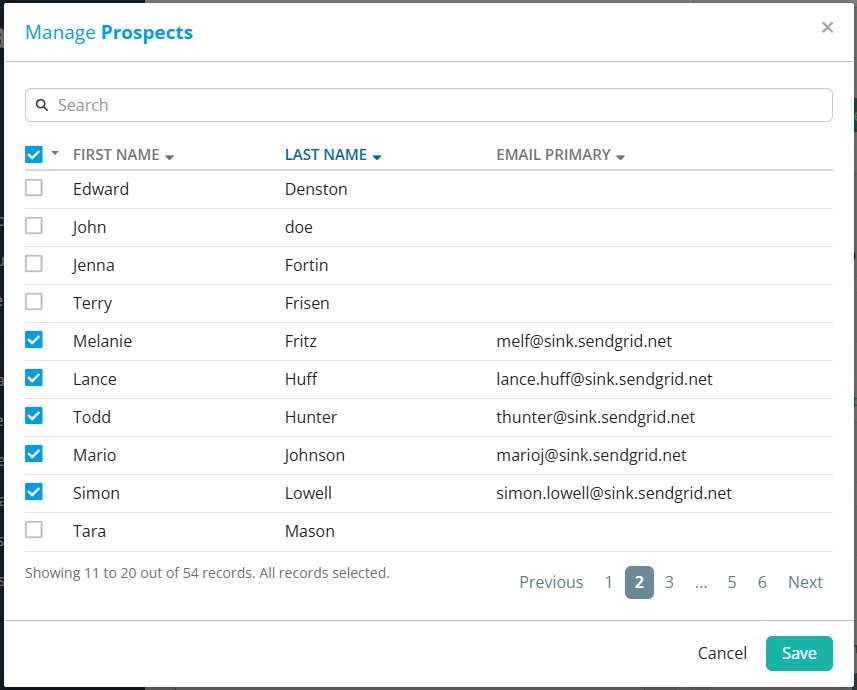
Be sure to click Save when you're done your edits to save the recipient list.
-
You can now proceed to send the email normally and it will be sent to all prospects along with any other recipients you included.