


Once a prospect is referred by a club member or fills out the online application form, their prospective member information is now stored inside the Membership Success module. Let’s explore the process of moving a prospect through the various stages.
Navigation:
Navigating to Membership Success
Stages of the Prospect Process
Viewing a Prospect's Profile
Moving a Prospect through Membership Success
Navigating to Membership Success
-
To begin, log in to your account through your club homepage, then click on Member Area on the top right-hand corner under your club banner. Alternatively, click here to go directly to the ClubRunner login page.
-
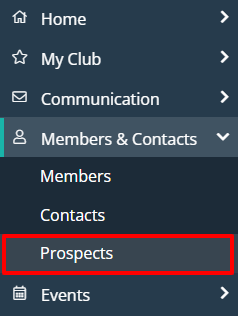
Once logged in, click on Members & Contacts in the left-hand side menu and select Prospects.
-
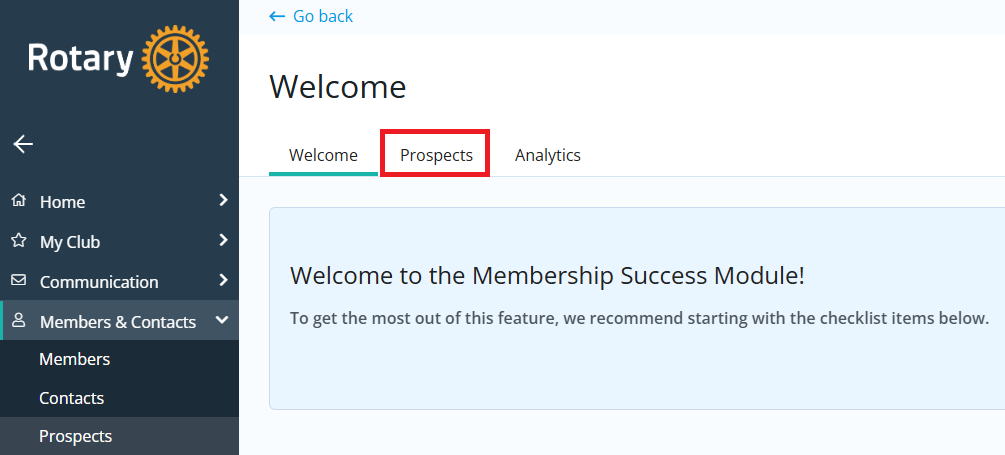
If you see the Membership Success Welcome page below, click Prospects. If you do not see this page, move on to the next step.
-
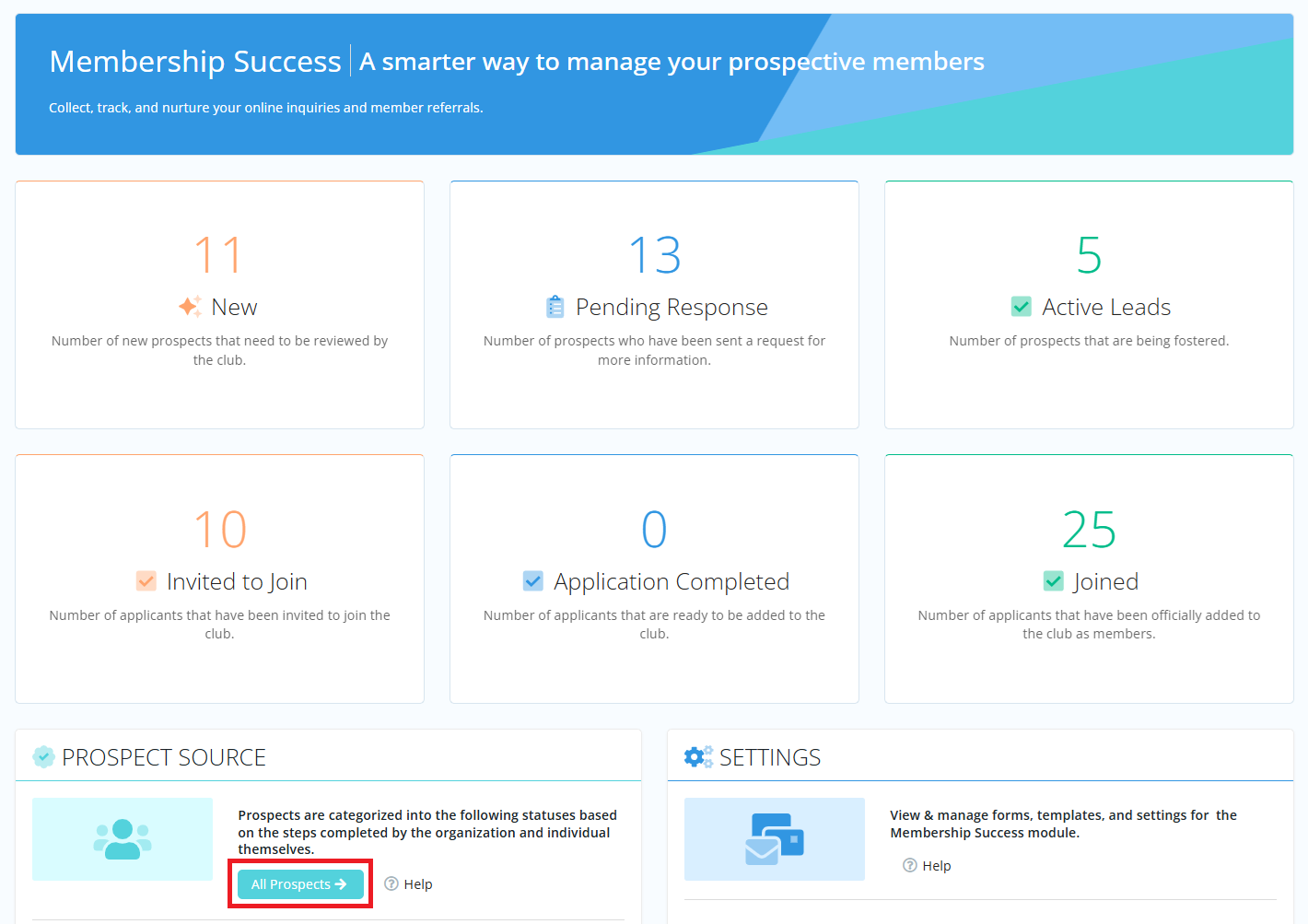
You will arrive on the Membership Success dashboard, which will display the different prospect stages and the number of prospects at each stage. Click on the number in the desired box to view the list of prospects at that stage of Membership Success, or click All Prospects.
Stages of the Prospect Process
The list of prospects will be organized by what stage they are in the process of becoming a member of your club. You may click the different tabs to filter prospect records based on the following stages:

-
New - The potential new member has filled out the Membership Inquiry form on your club site, has been referred to by another member using the referral form, or has been manually added as a prospect by a club member with the appropriate access.
-
Pending Response - The prospect has been sent an email with a Tell Us More form to request more information regarding their background and intent to join your club. The prospect will be moved to the next stage after submitting the form.
-
Active Leads - The prospect is being fostered as a potential member for your club. A prospect can be moved here directly from the "New" stage, or after submitting the Tell Us More form.
-
Invited to Join - The prospect has been sent a Membership Application by the club to finalize contact and other profile details before they can be added as a member. The prospect will be moved to the next stage after submitting the form.
-
Application Completed - The prospect has submitted the Membership Application and the responses have been saved to their profile, but they are not yet an active member and cannot log into the members area.
-
Joined - The prospect has been added as an active member to your club.
-
Closed - This prospect is not suitable for your club. Moving a prospect to this stage means you will be closing this prospect’s file and storing their information in case they ever decide to apply again.
- All - This tab will display all prospect records for your club, regardless of what stage of the process they are in.
Viewing a Prospect's Profile
-
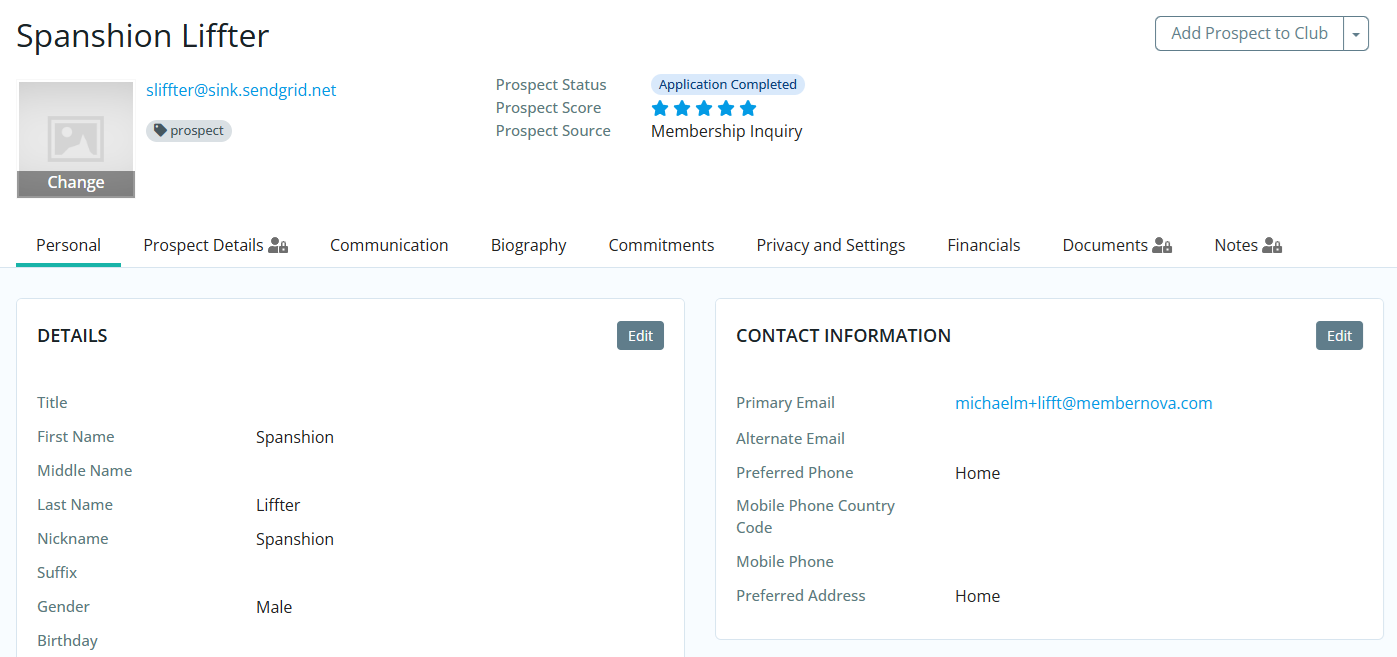
Click on a prospect's name to open their profile.

-
You may click the various tabs in the profile to view and edit information about the prospect. The Membership Success module has the ability to store extensive information about the prospect including contact information, email history, interest level, prior club history (if any) and more. If you click the Edit button in any section, you can fill in additional information about this prospect.
-
In the top right-hand corner you'll see options for the following, depending on the prospect's current stage:

-
Send Email - You can send a manual email to the prospect, which is useful for asking general questions.
-
Request More Information - This emails the prospect a Tell us More form and moves them to the "Pending Response" stage. Moving prospects through this process can be done at any pace. For example some prospects take days or even weeks to reply, while some prospects can provide your club information within hours.
-
Change Prospect Status - Use this option to manually move a prospect to another stage of the Membership Success process.
- Send Invitation to Club - This will send the prospect an email with a link to a form to confirm necessary details such as their contact information.
-
Add Prospect to Club - This will move to the prospect to the "Joined" status and will bring you to the standard Add New Member screen in your club site. If you have never added a member into ClubRunner, please see our support article: How do I add a member / contact?
-
Close Prospect - This will move the prospect to the "Closed" status. If you wish to consider them as a prospective member in the future, you may manually move the record to another stage using the "Change Prospect Status" option.
-
Delete Record - This will permanently delete the prospect from your club records, including all historical data.
-
Moving a Prospect through Membership Success
Let's take a look at how the Membership Success journey would look like with a prospective member. This overview is for illustration purposes only, and your order of operations may differ slightly depending on the prospect.
-
A prospective member has filled out the Membership Inquiry form and is now in our "New" prospects list. We can click on the prospect's name to view their profile.
-
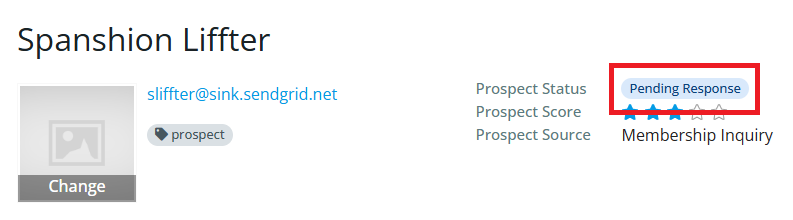
From here we are going to use the Request More Information button to send them the Tell Us More form.

This will move them to the "Pending Response" stage.
-
The prospect receives an email with a link to fill out the Tell Us More form.
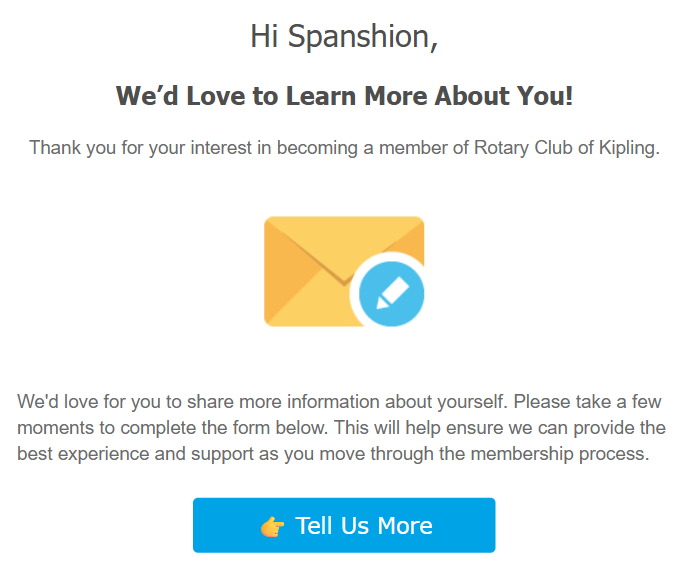
Once the form is filled out and submitted, the prospect is moved to the "Active Leads" stage. From here we can evaluate whether the prospect is a good fit for our club and act accordingly.
-
In our example, we are ready to offer this person a membership. While we can still send this person emails or close out this applicant, we now see a new option in their profile and will click Send Invitation to Club.

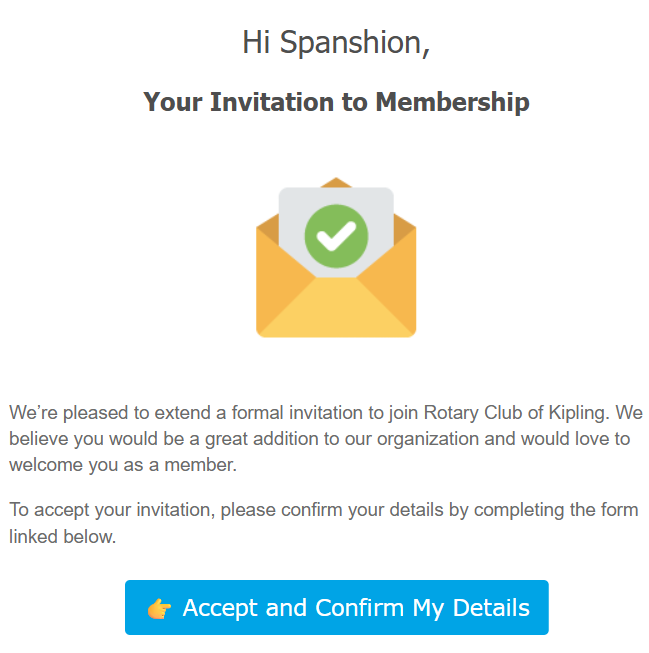
This will send an email with a Membership Application form for the prospect to accept the club's invitation and confirm necessary contact details. If the applicant clicks Accept and Confirm my Details in that email, they are verifying their contact information is correct so you can process their application.
-
If this prospect accepts the invitation and submits the Membership Application form, we will now see the option Add Prospect to Club. Clicking this option will open the standard Add New Member page, and the prospect's record will be moved to the "Joined" status in Membership Success.
