You may change who notifications come from in the Membership Success module by editing the sender profile, which is a standardized "from" email address that can be re-used for any emails generated within the system. The profile includes the sender name and email address which will appear in the recipient's inbox when they receive a message from the club. This support article will show you how to edit the sender profile used for Membership Success notifications.
-
To begin, log in to your account through your club homepage, then click on Member Area on the top right-hand corner under your club banner. Alternatively, click here to go directly to the ClubRunner login page.
-
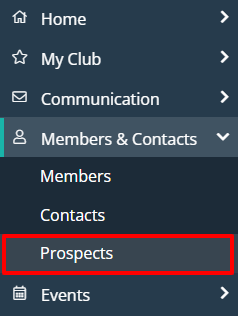
Once logged in, click on Members & Contacts in the left-hand side menu and select Prospects.
-
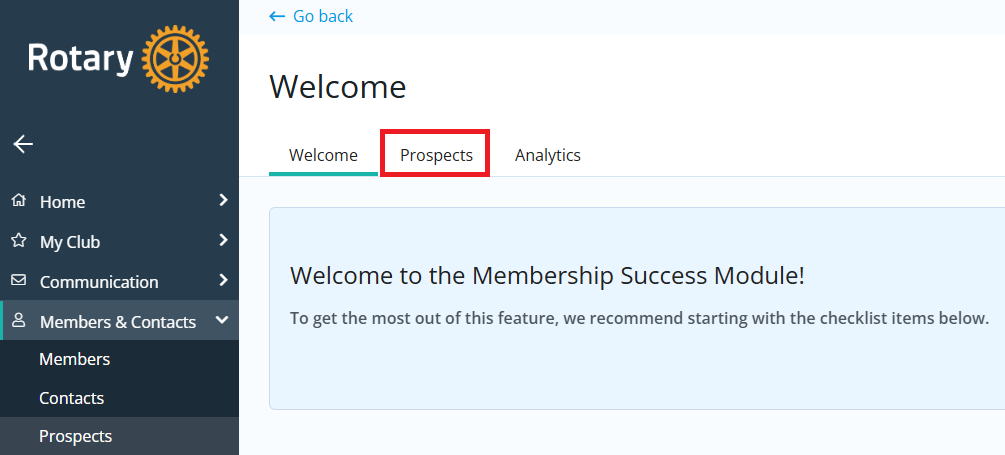
If you see the Membership Success Welcome page below, click Prospects. If you do not see this page, move on to the next step.
-
In the Settings section, click Sender Profiles.

-
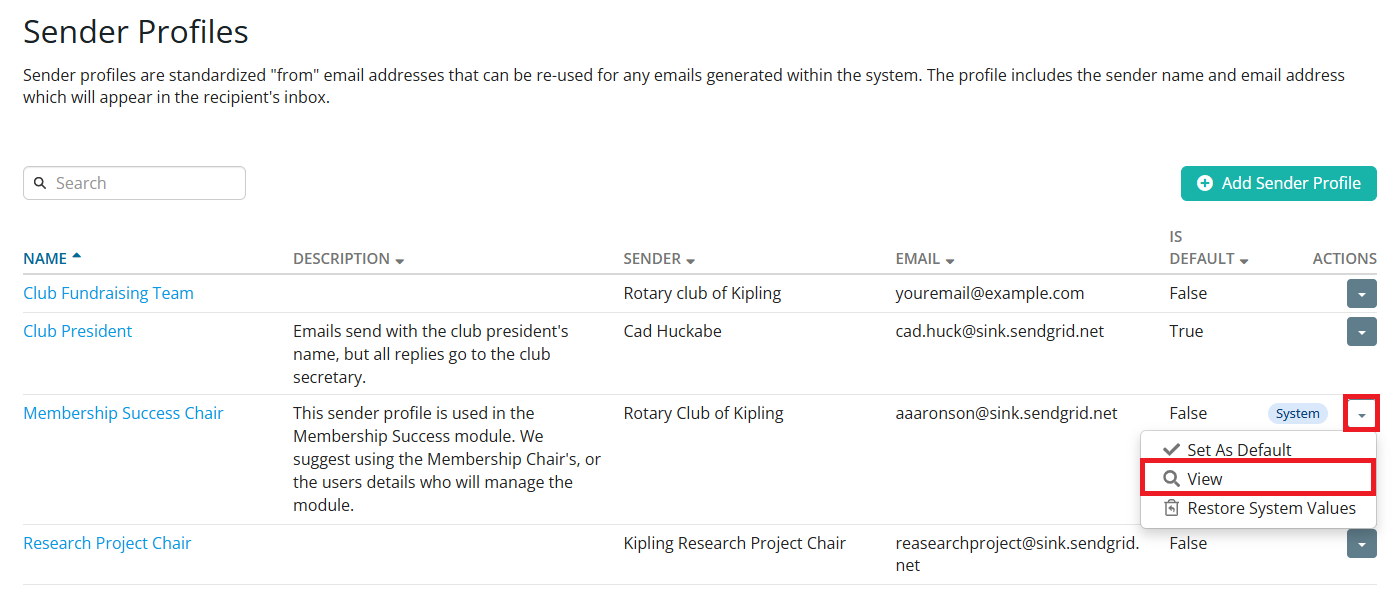
On the following page you will see the sender profiles that are in use across different parts of your club members area. Locate the "Membership Success Chair" profile and click the drop-down arrow in the right-hand actions column, then click View.
-
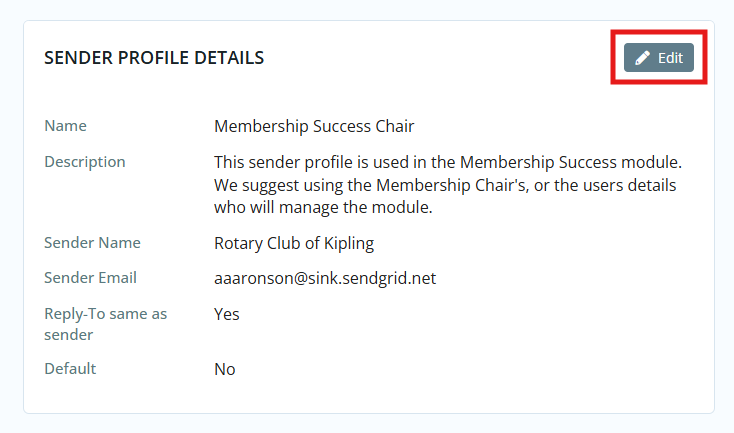
Click Edit in the Sender Profiles Details section to make changes to this sender profile.
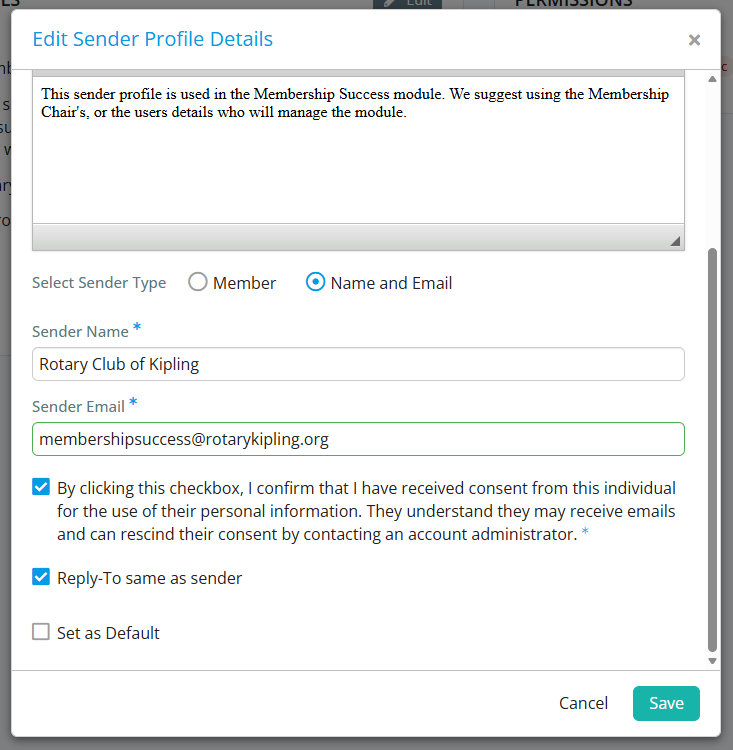
Fill in the details and select the member or custom address you wish to use as the sender for Membership Success notifications. You may choose to make the reply-to a different person than the sender. For example, you may wish to make emails come from the club president, but when the recipient replies it will go to the club Membership Success chair. Click Save to save your changes.
-
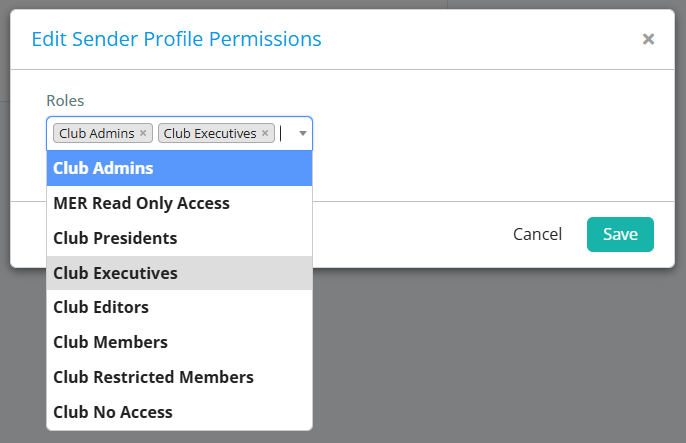
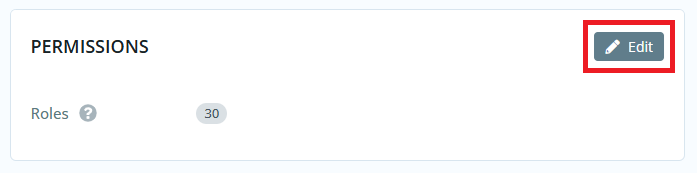
You may also click Edit in the Permissions section to select which access levels are able to use this sender profile in other modules.
Click Save when finished.